
A password policy is a set of rules governing how passwords are created, stored, shared, and managed across your organization. It covers everything from minimum length requirements to who is responsible for enforcement and monitoring.
Without a defined policy, employees default to whatever is fastest: reusing the same password across tools, saving credentials in browsers, sharing logins over Slack or email, or signing up for new SaaS apps without telling IT.
The consequences of not having a password policy and not having a tool in place to help you enforce that policy, are measurable.
- Stolen, weak, or reused passwords are behind the majority of data breaches.
- Password reset requests account for up to 50% of IT helpdesk tickets at an average cost of $70 per reset.
Below we cover 8 password policy best practices, including recommendations based on current standards like NIST and PCI DSS. We also provide a free template that you can use to get started.
But writing your policy is only the first step. The challenge is getting your team to adhere to your policy. Most of the best practices in this article, including screening passwords against breach databases, enforcing minimum lengths, requiring MFA, monitoring for compromised credentials, aren't things you can enforce with a written document alone. You need a password manager with admin controls that enforces your policy at the point of login, across every app your team uses.
Our guide covers:
- 8 password policy best practices every business should implement
- How LastPass helps you implement and enforce your password policy
- A free password policy template
- Password policy and compliance: Meeting SOC 2, HIPAA, PCI DSS, and GDPR requirements
Note: We include our platform, LastPass, throughout this guide. LastPass helps businesses enforce password policies with over 120 security policies, a security dashboard that flags weak, reused, or breached credentials, and a browser extension that generates strong passwords and autofills credentials at login. Beyond password management, LastPass also gives you visibility into which SaaS and AI tools your employees are signing into, how they're logging in, and whether they're using corporate or personal credentials. Plus, we give you the controls to block unapproved apps or guide employees toward approved alternatives. Start your free trial today.
8 password policy best practices every business should implement
1. Require a minimum password length of 14–16 characters
Length is the single most important factor in password strength. Longer passwords exponentially increase the time needed for brute-force attacks. A passphrase like "laptop-rainbow-fishing-Tuesday" is both stronger and easier to remember than a short, complex string like "P@ss1!w0".
Current standards back this up. The current NIST guidance (updated August 2025) requires a minimum of 15 characters for password-only accounts. Meanwhile, the Center of Internet Security (CIS) recommends 14+ for password-only accounts. For most business environments, 14–16 characters should be the floor, with 16 or more for admin or privileged accounts.
The practical challenge isn't getting employees to create one strong password. Most tools already enforce minimum length requirements at sign-up. The problem is that employees are signing into dozens of apps, and without a password manager, they reuse the same password across all of them or store credentials in their browser where IT has no visibility. The length requirement gets met on a per-site basis, but the actual security goal, which is to have unique, strong credentials across every account, doesn't.
Our browser extension solves this by generating a strong, randomized password right in the browser at the moment of account creation.
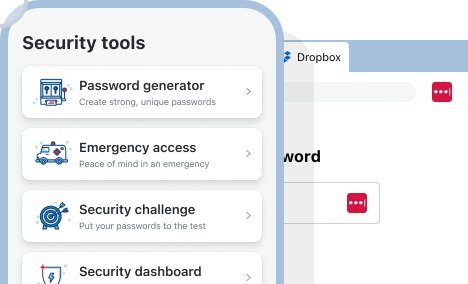
Passwords are customizable by length and complexity. When a new password is created, it’s saved to the employee's vault automatically. This solves two things. First, the employee never has to think about the requirement because the extension handles it. Second, the password is saved and when the employee visits the site again, our browser extension logs them in automatically.
2. Eliminate mandatory periodic password changes unless there's evidence of compromise
This is one of the biggest shifts in modern password guidance. NIST research shows that forced rotation leads employees to make predictable incremental changes. Here's an exaggerated example. Your employee might be using "Password1," and when it's time to change, they make it "Password2," and so on. Attackers know this pattern.
Generally*, it's recommended to require a password change only when there's a specific reason: The credential appeared in a known breach, the account shows signs of unauthorized access, or the employee leaves the organization.
LastPass supports this approach through dark web monitoring and your security dashboard. If an employee's credentials appear in a known breach, they get an alert prompting them to change that specific password. Your admin dashboard also flags compromised, weak, and reused credentials across your team, so you're acting on real risk instead of rotating passwords on an arbitrary schedule.
*There are exceptions. PCI DSS v4.0.1, the security standard for businesses that handle payment card data, still requires a 90-day rotation if passwords/passphrases are used as the only authentication factor. This rule doesn’t apply to in-scope system components where MFA is used.
3. Ban common and context-specific passwords
Block dictionary words, sequential strings (123456, abcdef), and repeated characters (aaaaaa). Also ban the company name, usernames, and any password known to be commonly used. These are the first guesses in any automated attack.
Enforcing this manually isn't realistic. You can publish a list of banned passwords, but there's no way to check what employees are actually using unless your tools do it for you. LastPass runs every generated and saved password through strength scoring that flags dictionary words, common patterns, and predictable substitutions (like "p@ssw0rd").
Weak passwords still get saved, but the LastPass security dashboard surfaces them so admins can follow up with the specific people who need to update their credentials.
4. Require multi-factor authentication (MFA)
MFA makes stolen passwords far less useful because attackers also need access to the second factor. At a minimum, require MFA for admin accounts, finance accounts, and any account with access to sensitive data. Ideally, require it for all users.
SMS-based codes are vulnerable to SIM-swapping attacks, so authenticator apps are the stronger option. LastPass Authenticator works with your vault, so employees can approve login requests with a single tap rather than copying codes between apps. With LastPass, you can set a policy requiring MFA for specific users or groups, so your finance team can be required to use MFA for banking portals while general staff follows a different rule.
5. Apply different policy requirements to different user groups based on risk
Not every account carries the same risk. Admin accounts and service accounts accessing sensitive data (financial records, customer information, health data) warrant stricter requirements, such as longer passwords, mandatory MFA, and shorter session timeouts. General staff accounts for low-risk applications can have slightly less restrictive requirements.
For your policy, you want to apply policies to specific users or groups rather than only at the organization level. Often a one-size approach doesn’t work for companies, where different employees have different rules and security risks.
With LastPass, you can scope each of our 120+ security policies to specific users or groups. For example, you can block logins from unmanaged devices for your remote contractors while giving office-based staff more flexibility or require shorter session timeouts for anyone accessing billing systems.
6. Lock accounts after repeated failed login attempts
Set a threshold of 5–8 failed attempts with a lockout duration of at least 30 minutes or until an admin intervenes. This prevents brute-force and password-spraying attacks, where attackers try thousands of common passwords against your accounts.
With LastPass, you can set this threshold through an admin policy, configurable between 3 and 8 failed attempts, and get notified when a user gets locked out.
7. Monitor for compromised credentials continuously
Data breaches happen to other companies, but the fallout lands on yours. When a vendor, SaaS app, or third-party service gets breached, any employee who reused a password there has now given attackers a working credential for your systems.
The problem is that most companies have no way of knowing when this happens. Employees don't check breach databases and IT teams can't monitor every third-party breach disclosure.
LastPass uses dark web monitoring to continuously check your employees' stored email addresses against known breach databases and alerts both the employee and their admin when a match is found. Rather than guessing which accounts are at risk, you can act on the highest-priority credentials first.
Without a tool like this, your only option is to ask employees to self-report or to mandate company-wide password resets every time a major breach makes the news, which, as we covered earlier, creates more problems than it solves.
8. Allow long passwords, permit all character types, and allow paste functionality
Some systems cap passwords at 16 or 20 characters, reject special characters, or block pasting into password fields. These restrictions make it harder for employees to use strong credentials, especially if they're relying on a password manager or pass phrases.
Set your maximum password length to at least 64 characters. Permit all ASCII and Unicode characters, including spaces. And make sure to allow paste functionality. If an employee generates a 40-character password through a password manager but can't paste it into the login field, they're going to pick something shorter and weaker instead.
How LastPass helps you implement your password policy

While it's important to have a clear password policy, in practice, employees are signing into dozens of apps every day without adhering to best practices. This can mean reusing passwords, saving credentials in their browser, and creating accounts on platforms IT has never heard of. You need a tool that can help you enforce your policy and make it easy for your team to do their job.
LastPass gives you visibility into how your team is accessing work and the controls to enforce your policy across the organization. You can see which apps are being used and how employees are logging in, set password requirements and scope them to specific teams or individuals, and flag credentials that are weak, reused, or compromised. Here's what that looks like in practice.
Over 120 customizable security policies, scoped to users and groups
With LastPass, you have over 120 security policies that you can enable. You can set policies across your entire organization, for groups of users, or for individual users.
For example, you can:
- Require MFA for your finance team when they access banking portals
- Enforce 16-character password minimums for admin accounts while keeping it at 14 for general staff
- Set different rules for contractors versus full-time employees
- Block logins from TOR networks across your entire organization
You manage all of this from a single admin console.
When you first sign up, LastPass provides a recommended set of default policies so you're not starting from scratch. From there, you can adjust based on what your team needs.
Security Dashboard that flags weak or breached credentials
With LastPass, you get access to a security dashboard that gives you an overall security score across all enrolled users. It breaks down who has weak passwords, who's reusing credentials, and whether any employee email addresses have appeared in known data breaches.
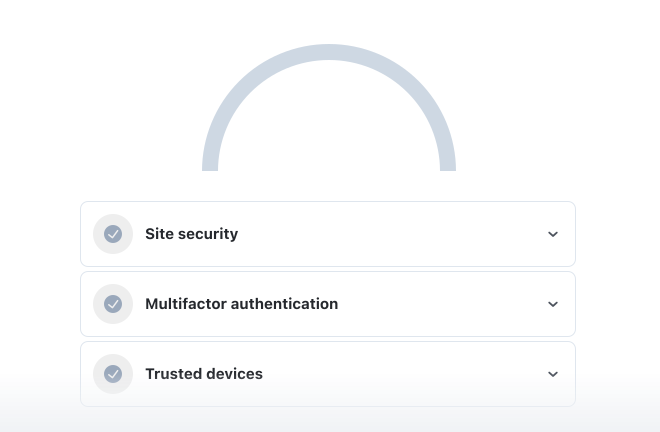
Your Security Dashboard helps you adhere to your company’s password policy. If you notice an employee is using a weak password, you can reach out to them and have them update their credentials.
Plus, with LastPass you have dark web monitoring that continuously checks whether employee credentials have been exposed.
Browser extension that makes compliance effortless for employees
The LastPass browser extension, which is available for Chrome, Firefox, Safari, and Edge, makes it easy for your team to access their tools securely.
When an employee signs up for a new app, LastPass generates a strong, randomized password right in the browser, customizable by the length and complexity rules you've set. They never have to think about policy requirements because the tool handles it.
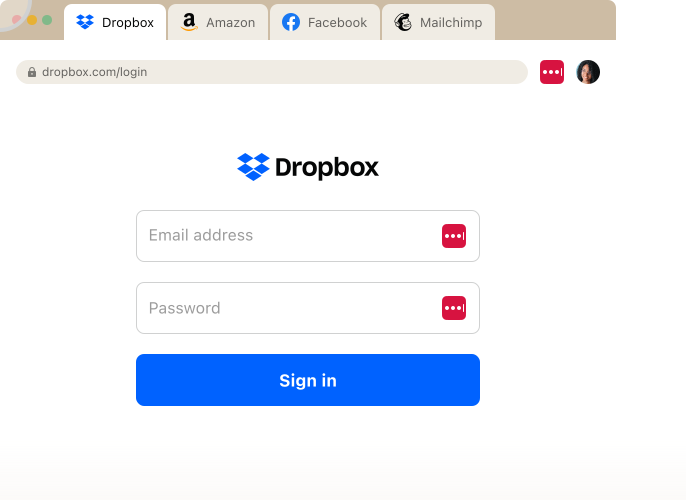
When they return to a site, LastPass autofills their credentials, including MFA codes, so logging in takes a single click. No toggling between screens, no looking up passwords, no temptation to reuse something simple.
See which apps and tools your team is logging into
When you use LastPass, you get a tool that lets your team easily adhere to key password policies, such as not re-using passwords and creating complex passwords for each login. But password management is just one aspect of maintaining secure access across your organization.
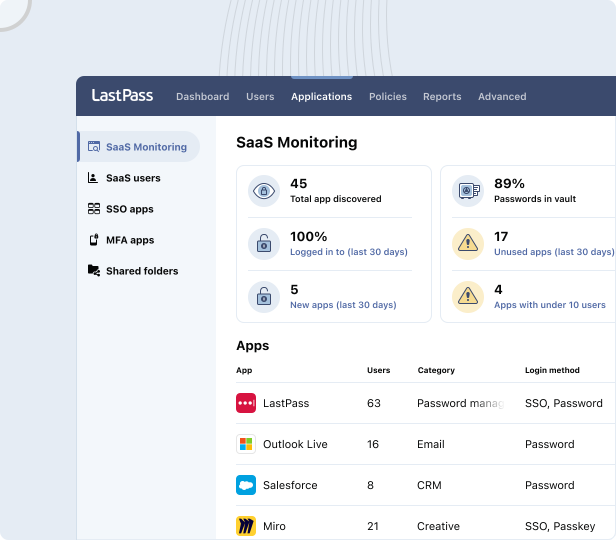
More than ever, employees are signing up for SaaS and AI tools to help them complete their job. This is called SaaS sprawl, where your employees are using tools you’re not familiar with. Your password policy cannot practically help with this issue. But when your team uses LastPass, you can see which apps employees are signing into, how they're logging in (SSO, vaulted password, or unvaulted password), and whether they're using personal or corporate credentials.
(Learn more about SaaS Monitoring here.)
Set up site restrictions

With LastPass, you can also set up restrictions and guidelines for specific sites.
You can block unapproved applications outright, attach warning messages when employees try to access risky tools, and enforce access policies across your SaaS stack.
This turns your password policy from a static document into an actively managed system. (Learn more about SaaS Protect here.)
Easy setup for lean IT teams
In this article, we looked at password policy best practices to help keep your team’s accounts and company data secure. But these policies only work if they’re being used across your organization. That starts with giving them a tool that makes compliance automatic rather than something they have to think about.
With LastPass, employees install the browser extension, and from that point on, strong passwords get generated at account creation, credentials get saved and autofilled, and MFA codes get pulled in without toggling between apps. The policy gets followed because the tool handles it.
Adoption is quick and easy. OTO Technology, a managed service provider that deploys LastPass for clients across France, the US, and Japan, found that onboarding sessions take under five minutes per user. Once employees have the browser extension installed, it handles most of the day-to-day work. (Read the full case study here.)
When you use LastPass, you can track adoption on a dashboard that shows you how much of your team is actively using LastPass (and who hasn't started yet).

And if you need help along the way, we have 24/7 support available by phone, email, or chat.
To see how this works for your team, you can start a 14-day free trial or sign up for a demo.
A free password policy template
We put together a downloadable template that covers everything from this article in a format you can adapt for your organization. It includes sections for scope, password creation requirements, account protection, password handling and storage, change and expiration rules, role-based requirements, and enforcement and monitoring.
The template is a starting point. Customize each section to reflect your compliance requirements (HIPAA, PCI DSS, SOC 2, etc.), risk profile, and the tools you use to enforce your policy.
Password policy and compliance: meeting SOC 2, HIPAA, PCI DSS, and GDPR requirements
For businesses subject to regulatory requirements, your password policy needs to hold up under audit. Here's what the major frameworks expect.
SOC 2
SOC 2 requires that organizations demonstrate logical access controls, including unique user IDs, appropriate authentication mechanisms, and evidence that password policies are enforced. Auditors will want to see both the documented policy and proof of enforcement, meaning you need tooling that logs policy compliance, not just a PDF that says "employees must use strong passwords."
HIPAA
HIPAA requires covered entities and business associates to implement procedures for creating, changing, and safeguarding passwords as part of the Security Rule. While HIPAA doesn't prescribe specific lengths or complexity requirements, auditors expect alignment with current NIST guidelines. A password policy that follows the best practices outlined above will satisfy most HIPAA auditors.
(Learn more about using password managers to help with HIPAA compliance.)
PCI DSS v4.0.1
PCI DSS has the most specific requirements of any common framework. If your business handles payment card data, your password policy must meet these requirements explicitly for all systems in scope.
- 12+ character passwords with both numeric and alphabetic characters
- Password changes every 90 days if passwords/passphrases are used as the only authentication factor.
- Account lockout after 10 failed attempts
- First-time passwords must be unique per user and changed immediately after first use
GDPR
GDPR requires "appropriate technical measures" to protect personal data but doesn't define what those measures are. The burden is on your organization to demonstrate that your controls were reasonable.
If a breach occurs and your employees were using weak or reused passwords with no policy requiring otherwise, that's evidence your measures weren't appropriate. A documented, enforced password policy, backed by tooling that can prove enforcement, is one of the clearest ways to show you did your part.
Understanding compliance requirements and how to secure access for your team
Compliance requirements vary by industry, but the common thread across SOC 2, HIPAA, PCI DSS, and GDPR is the same: documentation plus enforcement. Having a password policy isn't enough. You need to show that it's being followed, and you need the data to prove it during an audit.
But in terms of promoting secure access across your team, password management is only one piece of the puzzle. Your team is signing into dozens of apps every day, and some of those apps were never vetted or approved by IT. An employee signs up for a new AI tool with their work email, reuses the same password they use for other company accounts, and now you have credentials flowing to a system no one is monitoring. A strong password policy covers how your team creates and manages credentials. It doesn't cover what they're signing into or how they're getting there.
With LastPass, you can see which apps and AI tools your employees are accessing, how they're logging in, such as whether through SSO, a vaulted password, or an unmanaged personal account, and whether they're using corporate or personal credentials. From there, you can block unapproved applications outright, or attach a custom message that appears when an employee visits a specific site, reminding them of approved alternatives or how to use the tool safely.
On the compliance side, your admin console tracks policy enforcement, password changes, and user activity. Your Security Dashboard flags weak, reused, and compromised credentials across your organization. Whether you're preparing for a SOC 2 audit, a HIPAA risk assessment, or demonstrating GDPR compliance, you have the documentation and enforcement data in one place.
If you want to see how this works for your team, you can start a 14-day free trial or sign up for a demo.


