
Your team needs to access SaaS and AI tools to do their jobs, and without a proper password manager, employees default to whatever method is quickest, not what is most secure. This includes reusing passwords, relying on weak passwords, saving credentials in browsers, and creating accounts on platforms that IT doesn't know about.
This creates several issues, including time-consuming and expensive password resets (data shows password requests account for up to 50% of IT helpdesk tickets, at an average cost of $70per reset), not knowing who has access to which company credentials, and not knowing what SaaS and AI tools your team is currently using and what credentials they're using to log into those tools.
A good business password manager solves those issues with:
- Secure storage and sharing. A password manager will give you a centralized, encrypted vault for your team to store, access, and share credentials. As an admin, you'll be able to give users the access they need and revoke it when necessary.
- Tools to manage SaaS and AI sprawl. IT teams need visibility into which applications are getting accessed and how, and the control to block or warn against unapproved applications.
- Customizable password policies. A password manager will make it easy to enforce policies like requiring multi-factor authentication, setting password complexity rules, or restricting access based on role and applying those policies at a granular level, not just across the board. You'll also be able to see if any of your team's credentials are at risk or already compromised.
- An easy-to-use interface. You want a frictionless tool that your team can simply set up and use. This can take the form of a browser extension that sits right where employees do most of their work and can autofill automatically without extra steps. If your password manager is too complex or convoluted, there's the risk of your employees not adopting the password manager, going back to their old ways of nonsecure password storing and sharing.
In this post, we look at the different business password managers, including:
- LastPass
- 1Password
- Dashlane
- Bitwarden
- NordPass
We discuss how they handle the basics of password management, as well as extra features they use to keep your business secure beyond the basics of storing and sharing credentials.
Note: At LastPass, we provide the Secure Access Essentials that a business needs to secure credential management, customize access policies, and have visibility into what AI tools and apps their employees are using — all without requiring technical expertise to set up.
1. LastPass: Best Password Manager for SMBs

LastPass offers a safe and user-friendly password manager for businesses with advanced secure access features that are normally only found in more complex enterprise tools. With LastPass, you can simplify how your team stores and shares credentials, discover which SaaS and AI tools your employees are using, and control how they access them — including whether to block, warn against, or approve specific applications.
Specifically, we give businesses:
- A secure and easy way to manage passwords for the entire team. With LastPass, you have a secure, encrypted vault for storing
and sharing credentials across your team. You can choose who gets access to each folder and can revoke access for an individual without having to reset the password for the entire
team.
LastPass is quick and easy to use. OTO Technology, a managed service provider that deploys LastPass for its clients across France, the US, and Japan, found that onboarding sessions take under five minutes per user. Once employees are set up, the browser extension and autofill handle most of the day-to-day work. Read the full case study here. - A browser extension that lets employees autofill the right credentials. Employees can use the LastPass browser extension — available for Chrome, Firefox, Safari, and Edge — to log into sites and generate new, secure passwords.
Plus, the LastPass browser extension can automatically pull in and apply any MFA codes received, so you don't need to toggle between screens or devices. It can also generate new, strong passwords when you sign into an account for the first time.
- SaaS Monitoring. LastPass shows you what AI tools and apps your employees are signing into, how they are accessing them (personal vs. corporate credentials, SSO vs. password), and which apps aren't being managed. You can turn these into actionable insights. For example, if you see that much of your design team is using an app that is not yet part of your workflow, you can consider adding it to your vault. Learn more here.
- SaaS Protect. You can block unapproved applications outright or attach a warning message that employees see when they try to log in. For example, if you see employees signing into a generative AI tool like ChatGPT, you can set up a rule that tells them how to best use the tool (such as not sharing confidential company data) or you can block access to it entirely, directing them towards an AI tool that you have vetted. This gives you control over the tools your team is using and how they use them. Learn more here.
- Extensive admin controls. With LastPass, you have over 120 security policies that you can enable. For example, you can require a user to use two-factor authentication, block logins from TOR networks, or set password complexity rules. You can apply these to specific groups or individuals. To help you onboard your team quickly and securely, we have specific policies that we recommend you enable from the start.
- Visibility into overall security and password health. As an admin, your LastPass Dashboard shows you your team's overall password health. We flag weak or reused credentials, and with our dark web monitoring, we can spot if there are any breached employee email addresses. By increasing password hygiene across the team, you decrease the chances of security breaches.
You can learn more about LastPass by signing up for a demo, starting your free trial, or reading below, where we go into key features in detail.
The LastPass Vault: Securely Store and Share Confidential Information

When you create a business account, you set up your organization's vault. Your vault is encrypted locally using 256-bit AES encryption before it ever reaches our servers. We never have access to your master password or your stored data.
As for your data, you can create folders, which are made up of usernames and passwords, but can also contain secure API tokens, Wi-Fi credentials, payment cards, and more. As an admin, you control which folders to share with your team.
Each team member will have their own vault, where they can see their private folders and those folders that have been shared with them.
You can customize folders, making them easy to identify. For example, you can create a shared folder for social media accounts, one for company-wide software licenses, one for vendors, and more. If someone leaves the team or changes roles, you can revoke their access from the Sharing Center. The credentials stay in the vault; the person loses access.
Keeping passwords and credentials secure when employees leave was a real concern for Forsters LLP, a London law firm with over 500 employees. A period of IT team turnover meant staff were leaving and taking critical access credentials with them. As their InfoSec Manager, Neil Bell put it, "The risk of losing access to systems when people left the firm was high." After switching to LastPass, passwords are retained in the vault regardless and there's no risk of unauthorized access. Read the full case study here.
Employees also get a free LastPass Families account. This means they can use their same LastPass account to manage their personal passwords as well as their business credentials. This feature was a big win for Forsters LLP, as many of their senior lawyers work across multiple devices and locations. When an employee leaves, you can revoke their company credentials, and they maintain their personal passwords, resulting in a clean and secure separation.
Plus, providing employees with secure personal accounts is better for your company. For example, if an employee's personal email gets compromised because of a weak password, and that personal inbox contains anything work-related—a forwarded document, a password reset link, a shared file—this significantly increases risk exposure.
Over 120 Advanced Password Policies
With LastPass, you have over 120 security policies you can enable, and you can scope each one to specific users or groups. For example, you can require MFA for your finance team when they access banking portals, block logins from TOR networks across your entire org, enforce a minimum password length of 16 characters for company credentials, and set different rules for contractors versus full-time employees. You manage all of this from the same console.
When you first sign up, LastPass provides a recommended set of default policies, so you're not starting from scratch. From there, you can adjust based on what your team needs. If a particular group handles sensitive data — financial records, customer information, health data — you can enforce stricter requirements for just that group, without changing the experience for everyone else.
The LastPass Browser Extension: Quickly and Securely Log in with Autofill
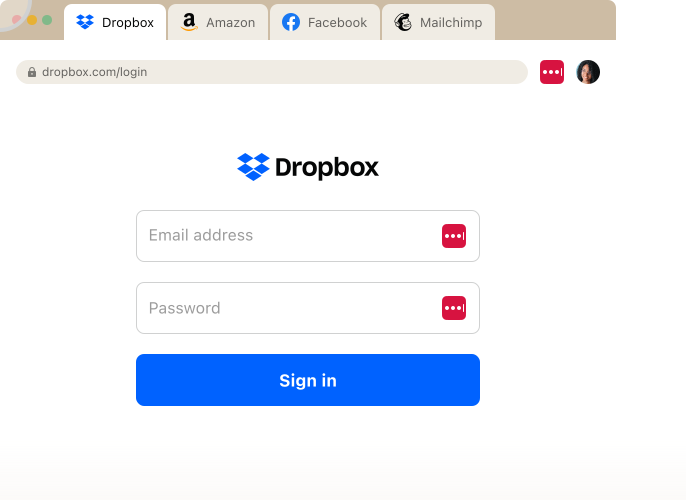
In your day-to-day use, you're going to rely on the LastPass browser extension. The browser extension — available for Chrome, Firefox, Safari, and Edge — lets you quickly and securely log in to a site, pulling stored credentials from your vault directly into the login fields.
When an employee goes to a site that they have credentials for, LastPass autofills those credentials for them. They don't need to toggle between screens. Even if there's an MFA code, LastPass will autofill that MFA code. This makes logging into your accounts seamless.
If a user is logging into a new tool — one that isn't currently saved in the vault — LastPass prompts them to save those credentials they just logged in with. Next time they visit that site, it fills in the username and password automatically. That password is saved to their own individual folder in their vault.
When an employee signs up on a new site or app, or needs to update a password, LastPass generates a strong, randomized password right in the browser, customizable by length and complexity. As an admin, you can set up a policy that states exactly how complex a password needs to be. This can be a good policy for users who are accessing sensitive data.
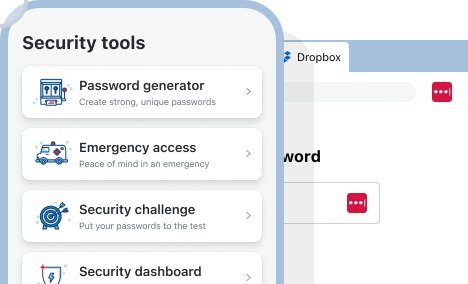
LastPass also works alongside SSO. If your business uses an identity provider like Okta or Azure AD, SSO covers the apps that support it. But many SaaS tools — especially smaller or cheaper ones — either don't offer SSO or charge significantly more for SSO-enabled tiers (sometimes 2 to 4 times the base price). LastPass covers the rest: every app where SSO isn't practical or cost-effective. You're not choosing between the two — they work together.
SaaS Monitoring: See What SaaS Platforms and AI Tools Your Team Are Using

59% of organizations say employees adopt AI tools and SaaS apps without first checking with an IT or security team. 56% report that sensitive data gets uploaded to these unvetted applications.
This is a real issue for most businesses. Employees sign up for tools on their own — using their work email, sometimes their personal email — and those tools often hold company data. If no one's tracking this, you end up with dozens of apps that no one approved and no one has visibility into.
The problem is that many small businesses don't have the IT resources or technical knowledge to solve this issue.
But with LastPass, you get SaaS Monitoring and protection built into the browser extension. Because the extension sees login activity, it identifies what apps your employees are using, how they're logging in, and whether they're using personal or corporate credentials. All of this shows up on your dashboard.
The dashboard gives you a full picture of your organization's app usage: how many apps have been discovered, how employees are logging in (SSO, vaulted password, passkey, or unvaulted password), which apps haven't been used in the last 30 days, and whether any credentials are sitting outside the vault. You can also block, warn, or approve applications for employee use.
For example, the dashboard might show you that four employees are using ChatGPT — two with corporate accounts and two with personal ones. You can see whether they created passwords or used Google SSO, and when they last logged in. From there, you can set usage rules per app — flag it with a "Warn" rule, so employees see a reminder before using it, or mark it as "Allow" once it's been vetted.
SaaS Protect: Decide Which Apps Your Team Can Use
You can use the insights you get from SaaS Monitoring to help you protect your company and guide or restrict user behavior with SaaS Protect.
If you see that most of your design team is using a tool that isn't yet part of your workflow, you can evaluate it and add it to your vault. If employees are logging into a tool with personal credentials, you can migrate them to corporate accounts so you have visibility and control.
Axxor, a global manufacturer with facilities in the Netherlands, Poland, and the US, did just that. When they started using LastPass SaaS Monitoring they found employees were experimenting with AI tools like OpenAI and Canva. As their IT lead put it, "We don't want to block innovation, but we do want to guide it safely." The dashboard gave them the visibility to see which tools employees were using and decide which ones to bring under management. Read the full case study here.
You can also set up pop-ups to occur when employees go to a site. For example, you can block access completely.

You can also allow access but give users info about the site they're using.

For example, if you use DHL as a shipping provider, then you can set up a pop-up to occur when an employee goes to UPS or FedEx, reminding them that your company has an account with DHL.
This makes it easy to enable company-wide policies that shape how your team works.
Security Dashboard: See the Overall Security of Your Organization
Your Security Dashboard gives you an overall security score across all enrolled users. It breaks down who has weak passwords, who's reusing their master password, and whether any employee email addresses have appeared in known data breaches.
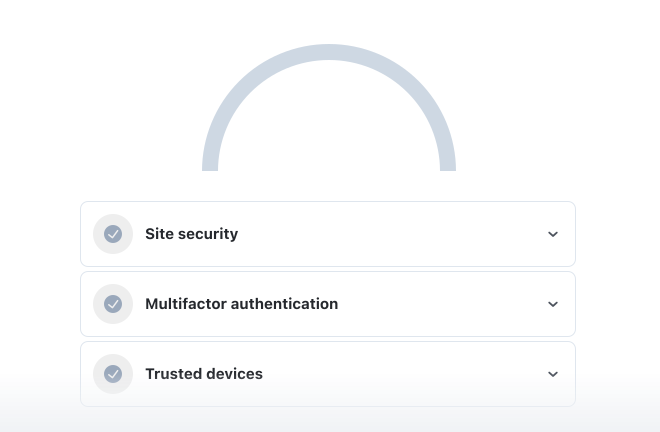
You get this visibility without ever seeing the actual passwords. You can tell that three people on your team have weak credentials and need to update them. You can see that someone's email showed up in a breach, but the passwords themselves stay hidden.
Paul Longega, Managing Director at Love Struck, an international food and beverage company, described it this way: "LastPass alerts us to password vulnerabilities, checks if any credentials have appeared in data leaks or on the dark web, and rates the strength of our passwords. Having that level of automated monitoring has been incredibly valuable." Read the full case study here.
There's also an Adoption Dashboard that shows you how the rollout is going.

You can see how many licenses you've used, how many employees have activated their accounts, and who's gone inactive (meaning they haven't used LastPass in the last 30 days). If you notice that six out of nine enrolled users aren't logging in, you can send a reminder with one click.
As an example of how quickly and effectively LastPass can help your entire organization adopt Secure Access Essentials, HOLT CAT, a Caterpillar equipment dealer with 3,500+ employees and over 350 applications, used all 2,500 of their initial seats in the first year. By year two, they expanded to 3,500 seats with 70% adoption — driven in part by employees requesting access on their own after seeing how easy the tool was to use. Read the full case study here.
Try LastPass Free for 14 Days
You can try LastPass free for 14 days. You get full access to the vault, browser extension, admin policies, Security Dashboard, and SaaS Monitoring — so you can see how it works with your team before committing.
Setup takes a few minutes. You create your account, invite your team, and your employees install the browser extension. From there, they can start saving and autofilling credentials right away. If they're already storing passwords in Chrome, Microsoft Edge, or other browsers, they can import those into LastPass so nothing gets left behind.
During the trial, you'll be able to set up shared folders for your team's credentials, enable security policies, and see your organization's security score. You will also see which tools and apps your employees are using, thanks to the SaaS Monitoring dashboard.
And if you need help along the way, we have 24/7 support available by phone, email, or chat. Whether it's a question about configuring policies or getting your team set up, you can reach a real person whenever you need to.
Other Password Managers for Businesses
2. 1Password: for Larger Enterprises and Technically Minded Teams

1Password is a password manager that's built for larger enterprises and technically minded teams. Over the past few years, they've acquired several companies to build out what they call Extended Access Management — adding capabilities like device trust, SaaS management, and access controls on top of their core password manager. The result is a broad set of features, but they come as separate add-ons, each with its own interface, which can make the overall experience feel fragmented and drive up cost.
Where 1Password stands out is in developer tooling and power-user features. They offer SSH key management, a CLI for secrets automation, and Travel Mode — a unique feature that lets employees hide sensitive vaults when crossing international borders. They also let you share credentials with people outside your organization via links, which is useful if you regularly work with contractors or external vendors.
On the admin side, 1Password offers around 25 security policies, which apply at the organization level rather than to specific users or groups. Pricing starts at $7.99 per user per month, and phone support is available during business hours (9–5 EST).
Read our comparison article on LastPass vs. 1Password
3. Dashlane: a Password Manager with a VPN

Dashlane is a password manager that covers the fundamentals — vault, autofill, password generator, credential sharing — and bundles in a few features you won't find with other password managers on this list. It includes a built-in VPN and proactive phishing alerts, which flag risky sites before your employees interact with them.
On the admin side, Dashlane offers around 16 security policies, applied at the organization level rather than to specific users or groups. It also doesn't offer any SaaS or AI visibility — you won't be able to see what tools your employees are signing into or control access to unapproved applications. Pricing starts at $8 per user per month with no lower tier for password management, making it one of the more expensive options on this list. Data residency is currently limited to Dublin, and live chat, Zoom calls, and phone support are available during business hours (Monday–Friday, 9–6 ET).
Read our comparison article on LastPass vs. Dashlane
4. Bitwarden: an Open-Source Password Manager

Bitwarden is an open-source password manager, and that's its main differentiator. The codebase is publicly auditable, so security-conscious teams can inspect the code themselves rather than relying on a vendor's word. Bitwarden also offers a self-hosting option, which is a real advantage for organizations with data sovereignty requirements that want to keep credential data on their own infrastructure.
Bitwarden also has Access Intelligence, which flags weak or reused credentials across your team's applications and includes a phishing blocker. But it only has visibility into applications where credentials are already stored in Bitwarden. It can't detect non-vaulted logins or show you which SaaS and AI tools employees are accessing outside the vault, and there's no way to block or restrict access to unapproved applications.
Pricing is lower than most competitors on this list — $4 per user per month for Teams and $6 per user per month for Enterprise. It's a popular choice among developers and technically minded teams who are comfortable with a more hands-on setup.
On the admin side, Bitwarden offers around 18 security policies. Support is available through email and tickets only — there's no phone support. If your team is technical and comfortable managing the tool themselves, Bitwarden gives you a solid, transparent option at a lower price point. If you're looking for more built-in admin controls or hands-on support, it may require more work on your end.
Read our comparison article on LastPass vs. Bitwarden
5. NordPass: A Lightweight Password Manager
NordPass is a password manager from the same company that owns NordVPN. It's part of a larger security product portfolio, so if your business is already using Nord products, you can bundle NordPass into your existing setup. It covers the core password management features — vault, autofill, a password generator to create unique passwords, and credential sharing.
The main draw is pricing. At $3.99 per user per month (on a year one plan), NordPass is the cheapest option on this list. For smaller teams that need straightforward password management without a lot of admin complexity, it's a practical, budget-friendly choice. But NordPass doesn't offer any SaaS or AI visibility, which means you won't be able to see what tools your employees are signing into or control access to unapproved applications.
Plus, NordPass offers 8 security policies — the fewest on this list. Support is available through chat and email only, so that means there's no phone support.
Read our comparison article on LastPass vs. NordPass
Choosing the Best Password Manager for Your Business
A good password manager gives your team secure credential storage, autofill, and secure sharing. But if you're also looking for visibility into what apps your employees are using, granular admin controls, and the ability to enforce password security policies across your organization, you'll want a tool that goes beyond the basics — without requiring a lot of setup time and upkeep.
LastPass is built on a zero-knowledge approach, meaning we never have access to your master password or your stored data. From there, you get the functionality that matters for businesses: a secure password vault, a browser extension for autofill, over 120 customizable security policies managed from a single admin console, and SaaS Monitoring that shows you how your team is accessing the tools they use every day.
LastPass offers three business plans:
- Teams ($4.25/user/month, billed annually) – For small businesses and startups that need shared folders, an admin console, and 25 security policies.
- Business ($7/user/month, billed annually) – For small and medium-size businesses. Includes 100+ security policies, group user management, and a free LastPass Families account for every employee.
- Business Max ($9/user/month, billed annually) – Everything in the Business plan, plus SaaS Monitoring, SaaS Protect, unlimited SSO apps, and advanced MFA capabilities.
All three plans come with a 14-day free trial. You get full access to the vault, browser extension, admin policies, Security Dashboard, and SaaS Monitoring — so you can see how it works with your team before committing.
Setup takes a few minutes. You create your account, invite your team, and your employees install the browser extension. From there, they can start saving and autofilling credentials right away. If they're already storing passwords in Chrome, Microsoft Edge, or other browsers, they can import those into LastPass so nothing gets left behind.
And if you need help along the way, we have 24/7 support available by phone, email, or chat. Whether it's a question about configuring policies or getting your team set up, you can reach a real person whenever you need to.
Additional Resources on Password Management and Reducing Your Exposure
- Top 10 Cybersecurity Frameworks Every Business Should Know
- 10 Ways to Protect Your Business from Credential Theft
- Three LastPass Admin Policies to Enable Today
- A Small Business Guide to Agentic AI Identity & Access Management
- What’s the Difference Between Hackers, Malware, and Data Breaches?
- What Are Malware Attacks? Types, Examples, and How to Prevent Them


