
Both privileged access management (PAM) software and password management software help companies keep team members' access to confidential data, systems, and credentials secure.
But these two tools aren't at odds with each other. A password manager secures the everyday logins your whole team uses, while PAM controls the high-privilege accounts a few people use to run your systems. Often a business, especially a large enterprise, will use both PAM and a password manager across their organization. Other times, especially at small to midsize businesses, a company will think it needs a PAM when its security needs actually call for a password manager with advanced features like SaaS and AI monitoring and controls over which apps and tools employees can access.
In this article on PAM vs. password managers, we cover the difference between the two, so you can better understand whether you'd benefit from one or the other (or both).
We also cover LastPass, our password manager built for small to midsize businesses that need more than basic credential storage. Beyond securely storing and sharing passwords, LastPass shows you which SaaS and AI tools your team is using, lets you set access rules by user or group, and flags weak or breached credentials across your organization.
PAM vs. password managers: the real difference
PAM and password managers serve fundamentally different purposes.
A password manager stores, generates, and fills the everyday credentials your whole team uses to get work done: the logins for email, your SaaS tools, the shared accounts a few people pass around. A business-grade one adds control on top: you can enforce rules on password strength and see which credentials across your team are weak, reused, or already exposed.
While password managers work across the entire team, PAM (privileged access management) covers a narrower set of accounts: admin accounts, root access, the service accounts running jobs in the background. These are the credentials that can change how your systems are configured, reach your most sensitive data, or take infrastructure down if they're misused.
Let's say a new marketer joins and needs the company's shared Canva login. That's an everyday credential. Storing that credential, sharing it safely, and revoking it when they leave is password-manager work. That same week, the one person who administers your servers needs root access to patch a security vulnerability. That account can do real damage in the wrong hands, so what you care about is controlling exactly when it's used, by whom, and what happened while it was open. For that, you'd want PAM. Rather than hand that admin a standing root password, PAM grants the access only for as long as the task takes, keeps a record of what happens during the session, and revokes it automatically once the patch is in.
Those controls show up as a set of features a password manager doesn't have:
-
Credential injection: PAM can log a user into a privileged system without the password ever reaching their device. A gateway pulls the credential from its own vault and opens the session on the user's behalf, so a compromised or phished machine has no password on it to steal. A password manager works the other way around: the credential is stored in the user's vault, decrypts on their device, and autofills into their browser, and their browser is what logs in.
-
Session monitoring and recording: PAM sits inside the privileged session itself. This means it can record keystrokes and screen activity, and cut off a live session if something looks wrong. A password manager has no presence once the login happens.
-
Automatic credential rotation: PAM rotates privileged passwords automatically, often after every use, so a credential is effectively one-time. Some business password managers rotate on a schedule, but not this per-session brokering.
-
Just-in-time elevation: PAM grants a privileged role only when it's needed and strips it right after.
-
Privileged account discovery: PAM scans your infrastructure to find privileged and service accounts scattered across systems. Generally, a password manager only knows about the credentials someone saved in their vault. However some password managers, like LastPass, do add their own kind of discovery through SaaS Monitoring, surfacing which apps and logins your team is actually using, but that's visibility into everyday tools, not the privileged accounts buried in your systems.
Because these two tools do different jobs, large, regulated enterprises will often use both.
However, for some companies, a PAM is overkill. If you're a small to midsize business, you probably don't run enough privileged accounts to justify the cost and setup a PAM demands. What you need is a password manager that goes beyond storing logins. One that shows you which tools your team is using and lets you control who can access what.
That’s a gap that LastPass fills. Below we provide a detailed walkthrough on key LastPass features that help your team securely store, share, and use credentials, as well as help your business monitor what tools are being used. You can also schedule a demo or sign up for a free 14-day trial.
How LastPass works for small and midsize businesses

LastPass is a password manager that adds secure access features normally found only in more complex enterprise tools, like visibility into which tools your team is using and the ability to restrict access.
At a high level, that breaks down into three things:
-
Store and share credentials securely: every employee gets an encrypted vault, with password generation and autofill built into the browser, plus secure sharing for the logins your team uses together.
-
See which tools your team is using: visibility into the SaaS and AI apps employees are logging into, and whether they're on personal or corporate accounts.
-
Control who can access what: access rules scoped by user or group, and the ability to allow, warn on, or block specific apps.
Below we go over each in more detail.
Your encrypted vault
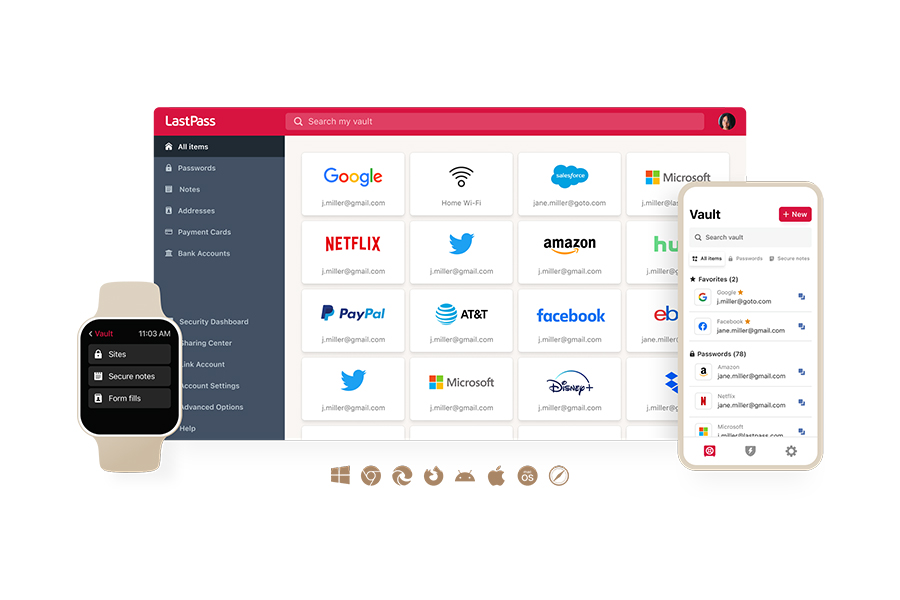
Everything starts in the vault. Each employee gets an encrypted vault that holds their work logins, along with other sensitive business information like API tokens, Wi-Fi credentials, and payment cards, organized into folders.
LastPass runs on a zero-knowledge approach, so every vault is encrypted locally with 256-bit AES before it reaches our servers. We never have access to your master password or your stored data.
Your team works out of the vault through the LastPass browser extension, available for Chrome, Firefox, Safari, and Edge.

When an employee lands on a site they have credentials for, LastPass autofills the username and password in one click. There's no toggling between screens or apps.
When someone signs up for a new tool or needs to reset a password, LastPass generates a strong, randomized one right in the browser, with the length and complexity you set.
Credentials that need to be shared get shared securely through the vault instead of over Slack or email. As an admin, you decide which folders each person or group can see. Say your marketing team shares a single scheduling-tool login. You put those credentials in a folder only they can access, everyone who needs it gets it automatically, and it stays invisible to the rest of the company.
This also makes it easy to offboard employees. When someone leaves your organization, or needs to lose access, you can easily revoke their access, without impacting the rest of the team.
See which tools and logins your team is actually using
The number of SaaS and AI tools the average team relies on has grown faster than most IT teams can keep track of. Employees sign up for new apps on their own, usually with a work email and often without flagging it to anyone: a design tool to finish a one-off project, an AI assistant to speed up writing, a scheduling app a single team adopts. 59% of organizations say employees adopt SaaS tools without checking with IT first, and 56% say sensitive company data ends up in unvetted applications as a result.
The problem isn't that employees are doing something wrong. It's that you can't secure access to an account you don't know exists. You don't know which tools are holding company data, who's logging into them, or whether those logins are protected by anything more than a reused password.

SaaS Monitoring closes that blind spot, and it runs through the same browser extension your team already uses for autofill. There are no separate agents to install and nothing for employees to set up.
You can see which apps your team is using, how each person logs in (SSO, a vaulted password, a passkey, or an unvaulted password typed straight in), and whether they're on personal or corporate credentials.

For example, you might see that four people are using ChatGPT, two on corporate accounts and two on personal ones, some through Google SSO and the rest with passwords. From there you decide: approve it as a standard tool, restrict it, or move everyone onto the corporate account.

This is the clearest place LastPass overlaps with what a PAM does, since both give you visibility into access across the organization. The difference is scope. A PAM discovers privileged and service accounts buried in your infrastructure, while LastPass shows you the everyday-tool and credential picture across your whole team, and it's something you can switch on in an afternoon rather than stand up with a security team.
That's what Axxor, a global manufacturer with facilities in the Netherlands, Poland, and the US, used it for. Process Engineer Wout Zwiep used SaaS Monitoring to surface which AI tools employees had started logging into, then decided which to bring under management.
"People are experimenting with AI tools like OpenAI and Canva. We don't want to block innovation, but we do want to guide it safely." — Wout Zwiep, Axxor. (Read the full Axxor case study.)
Set and enforce the rules for how your team logs in
Not everyone in your business needs the same security settings, because not everyone is exposed to the same risk. Someone in finance logging into banking and payroll portals is handling far more sensitive access than a contractor who needs a shared project board for a few weeks. Apply a single security standard across the whole company and you land in one of two bad spots: settings strict enough to protect the finance team become a daily obstacle for everyone else, or settings loose enough to keep general staff moving that leaves your most sensitive accounts underprotected.
LastPass gives you over 120 admin policies, and you scope them to individual users or groups rather than the whole company at once. They're built to enable without technical customization, and you start from a recommended set of defaults instead of a blank slate. A few examples:
-
Require MFA for your finance team when they access banking portals
-
Enforce a 16-character password minimum for IT staff while keeping general employees at 12
-
Set different rules for contractors than for full-time employees
-
Block logins from TOR networks across the whole org, or from jailbroken phones
-
Prohibit offline vault access for anyone working on a shared computer

Policies govern your own credentials and accounts. SaaS Protect handles the tools your team reaches for out in the browser, and it gives you three levels of response instead of a blunt allow-or-deny:
-
Block an unapproved app outright. Anyone who tries to open it sees a LastPass block screen, which you can customize to explain why or point them to an approved alternative.
-
Warn without blocking. Attach a message employees see on login, for instance a reminder not to paste confidential data into a generative AI tool.
-
Nudge with an informational pop-up. If your company has an account with one vendor, you can flag it when someone visits a competitor, like a reminder about your DHL account when they land on UPS or FedEx.
The result is control that fits how people actually work. You hold finance to a higher standard than general staff, give a new AI tool a warning instead of an outright ban, and point people to the account you already pay for.
Keep control of access as people join and leave
Every time someone joins or leaves, your access setup has to change with them, and shared credentials are the part that's easiest to miss. A new hire needs the logins for the tools their team uses. Someone who leaves needs all of it pulled. The hard cases are the shared accounts: the team subscription five people use, the vendor portal login that's been passed around for years. When that person leaves, they often still know those passwords, and the only way to be sure they've lost access is to reset every shared credential they ever touched and hand the new ones back out to everyone who still needs them.
Forsters, a London law firm with more than 500 employees, knew this problem well. With people regularly joining and leaving, InfoSec Manager Neil Bell saw every departure as a standing risk to the firm's system access.
"The risk of losing access to systems when people left the firm was high." — Neil Bell, InfoSec Manager, Forsters LLP.
Because credentials live in your LastPass vault and are shared through it, none of that is necessary. You grant access to a shared login by adding someone to the group or folder that holds it, and you remove it the same way. When an employee leaves or changes roles, you revoke their access from the Sharing Center, and the credential itself stays in the vault, intact and still working for everyone else, just no longer visible to them. There's no mass password reset and no redistributing new logins across the team. Onboarding runs the same way in reverse: a new hire joins the right groups and inherits exactly the folders their role calls for, and nothing it doesn't.
For Forsters, that closed the gap. When someone leaves now, their passwords stay secured in the vault, so a departure no longer opens a window of unauthorized access. (Read the full Forsters case study.)
Catch weak and breached credentials before they're a problem
Your Security Dashboard gives you a single view of your team's credential health. Even inside LastPass, not every credential is equally strong: some get imported from old setups, some get reused across personal accounts, some are exposed in a breach at another company that shared an employee's email. The dashboard shows an overall security score across every enrolled user and breaks down who has weak passwords, who's reusing credentials, and whose email addresses have surfaced in known data breaches, all without exposing the passwords themselves. You can see that three people on a team need to update weak credentials without ever viewing what those credentials are.
Dark Web Monitoring feeds into that same view. If an employee's email shows up in a breach, both the employee and the admin are alerted, so instead of finding out months later, you can reset the one affected credential right away.
Love Struck, an international food and beverage company, uses LastPass for this kind of ongoing monitoring. For Managing Director Paul Longega, the value is that it runs on its own instead of being one more manual chore
"LastPass alerts us to password vulnerabilities, checks if any credentials have appeared in data leaks or on the dark web, and rates the strength of our passwords. Having that level of automated monitoring has been incredibly valuable." — Paul Longega, Love Struck (Read the full Love Struck case study.)
Roll it out across your business in an afternoon
A major benefit of LastPass, especially for small to midsize businesses, is how easy it is to deploy LastPass throughout your organization. The best security tool does nothing if it's too heavy to deploy or your team won't use it. This is usually where the enterprise-grade options ask the most by requiring device agents, configuration, and a security team to run the setup.
But LastPass works from the browser, which makes deployment much simpler. You create your account, invite your team, and employees install the browser extension. Setup runs in minutes, with no device agents or compliance scaffolding to stand up first.
Two businesses show what this looks like at opposite ends of scale.
OTO Technology, a managed service provider rolling LastPass out for clients across France, the US, and Japan, gets onboarding sessions down to under five minutes per user. (Read the full OTO Technology case study.)
HOLT CAT, a Caterpillar equipment dealer with 3,500+ employees, used all 2,500 of its initial seats in year one and expanded to 3,500 by year two, hitting 70% adoption with employees requesting access on their own.
"The results have been absolutely remarkable, we've reduced our risk significantly and have successfully prevented any password leaks from occurring this year." (Read the full HOLT CAT case study.)
Plus, with LastPass you get an Adoption Dashboard that shows you three numbers at a glance:
-
Your license consumption rate (how many of the seats you've bought are in use)
-
Your enrollment rate (how many invited people have activated)
-
Your active usage rate (how many enrolled users have actually used LastPass in the last 30 days).
If something comes up, LastPass has 24/7 support by phone, email, or chat, with a real person whenever you need one.
Next steps
PAM and password managers aren't two versions of the same tool. A password manager secures the everyday credentials your whole team uses and gives you control and visibility over them. A PAM mediates the privileged sessions a few people use to run your systems, injecting credentials, recording sessions, and rotating access.
So the question isn't which one is better, it's which problem you actually have. If you're running a lot of privileged accounts, or you're under compliance requirements that demand session recording and audit trails, that's a PAM problem, and a password manager won't solve it. If what you're dealing with is everyday credentials spread across a growing pile of SaaS and AI tools, getting shared and reused across the team, that's what a business password manager is built for.
For a lot of small and midsize businesses, it's the second one. That's what LastPass is built for. You get the core password manager (an encrypted vault, secure sharing, and autofill), plus a layer of business controls on top that includes visibility into which tools your team is using, access rules scoped by role, and control over credentials as people come and go.
You can start a 14-day free trial or schedule a demo to see how LastPass would work within your organization.


