
Every business relies on credentials to access SaaS applications, AI tools, cloud platforms, and internal systems. Without secure and easy-to-use credential management software, users will fall back on risky behaviors, including: creating weak passwords, re-using the same passwords across multiple accounts, sharing credentials over spreadsheets, Slack, email, etc. The best credential management software offers a solution for teams by providing: Secure credential storage and sharing: A centralized, encrypted vault your team can use to store, access, and share credentials. Customizable password policies: Making it easy to require MFA, set password complexity rules, restrict access based on role, and apply rules to single employees, entire teams, or the whole organization. Detecting compromised credentials: The best credential management software can identify any employee credentials that are at risk or already compromised. Plus, some software even offer SaaS and AI visibility, showing you what tools your team is using and which credentials they used to log in. We’ve put together this guide to the top credential management software to help you choose the best option for your organization. Our guide will cover: 1. LastPass 2. BitWarden 3. Bit4ID 4. 1Password 5. Keeper 6. Dashlane 7. NordPass LastPass offers secure, easy-to-use credential management software with advanced features usually only found in more expensive and complex enterprise tools. With LastPass, you get: An encrypted vault where you can store and share credentials, including login information as well as other sensitive information, like API keys and company credit cards. A secure browser extension that your team will use to autofills passwords and put in MFA (TOTP) codes. You can also customize credential visibility through folders, for full control over who has access to which passwords. Plus, with LastPass, you can discover which tools employees are using, as well as which credentials they’re using to access them. This means you can use LastPass to manage shadow IT and your SaaS sprawl. By knowing which tools your team is using, you can bring approved tools into your SaaS stack and restrict any tool you don’t want people to use. LastPass is ideal for small to midsize companies, or companies with a limited IT department, as you can quickly set up LastPass. All of our features are browser-based for ease of use and deployment. You can learn more about LastPass by signing up for a demo, starting your free trial, or continue reading below.
1. LastPass
Over 120 admin policies, such as requiring two-factor authentication, setting password complexity rules, or blocking logins from TOR networks. These policies can be applied to individuals, teams, or the entire organization.
Securely store and share credentials with an encrypted vault

When you use LastPass, we store your credentials in the LastPass Vault, which is encrypted locally using 256-bit AES. We use a zero-knowledge approach, meaning we never have access to your master password or credentials. In addition to usernames and passwords, you can use your vault to store other sensitive info, like payment information, Wi-Fi credentials, Social Security numbers, and driver’s license numbers. You can organize these credentials in folders and control which employees can access which folders. For example, you can create one folder with social media accounts for the marketing team or another for external vendors. Each team member also gets their own vault, where they can see both their private folders and folders that have been shared with them. When users sign up for a new platform, those credentials can be easily stored in their vault. A key part of managing credentials is revoking access from certain individuals as needed. This was specifically relevant for one of our clients, Forsters LLP. They’re a London law firm with over 500 employees. They saw staff regularly leaving and taking secure credentials with them. As Neil Bell, InfoSec Manager, explained, "The risk of losing access to systems when people left the firm was high." This issue was solved once they started using LastPass. When employees leave, you can revoke their company credentials, and they will maintain their personal passwords. (Read full case study.) LastPass allows you to enable over 120 secure policies and apply them as widely (the whole organization) or granularly (a single employee or team) as needed. These policies set the parameters on how a user must log in. For example, you can require multi-factor authentication, block logins from TOR networks, set password complexity requirements, and more, all managed from the same place. To make setup easier, LastPass starts you off with recommended default policies so you don’t have to start from scratch. Of course, you can adjust these as needed.
Customize how your team accesses credentials
Log in with quick and easy autofill
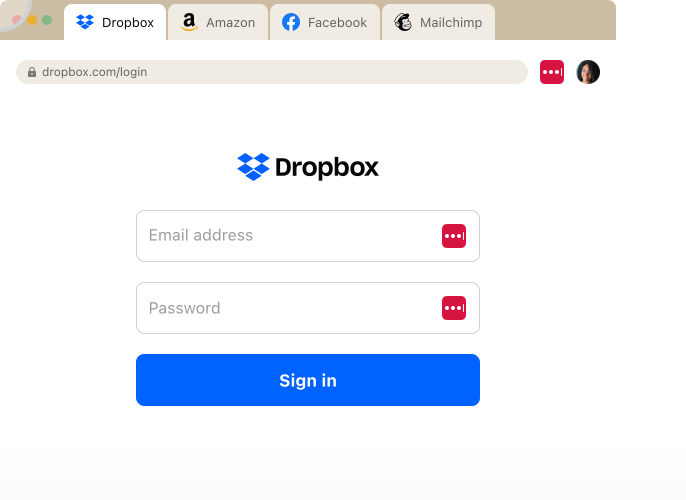
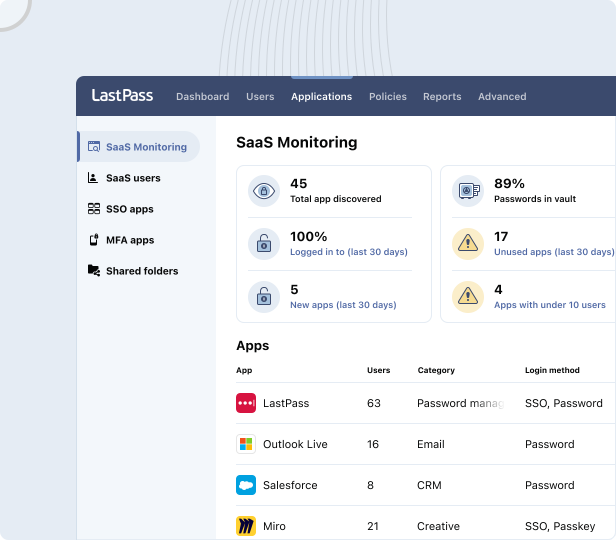
The LastPass browser extension pulls secure credentials from your vault and autofills passwords and MFA codes for quick and easy login. It’s available for Chrome, Firefox, Safari, and Edge. When a user logs into a new tool for which credentials are not saved in the Vault, the LastPass extension prompts them to save credentials, which are then automatically stored in their individual Vault. When a user needs to replace or create a new password, the LastPass extension auto-generates a strong, randomized password with customizable length and complexity. LastPass also works alongside SSO for businesses that use identity providers like Okta or Azure AD. This means you can log in with your SSO tool where applicable, and then use LastPass for all other credentials, where perhaps SSO isn’t available or it’s just not cost effective to use. A key aspect of credential management is getting eyes on the credentials your team is using that you’re not aware of yet. It’s increasingly common for employees to sign up for new tools and platforms to help them do their job. But often this happens without your IT department vetting a tool first. 55% of organizations say employees adopt SaaS tools without checking with IT first, leading to serious security risks. Imagine an employee at your company signs up for a work tool and uses it with company data. SaaS Monitoring builds in protection for shadow IT directly into the LastPass browser extension. As an admin, you can see which apps employees are using, how they logged in (SSO, vaulted password, passkey, or unvaulted password), and with which type of account (personal or company). Your dashboard gives you visibility into how many apps have been discovered, how employees are logging in, which haven’t been used in the last 30 days, and whether credentials are sitting outside the vault. You can also drill into specific tools, seeing how many employees are using that tool, how they created their passwords, and when they last logged in. Once you’re aware of what tools employees are using and how, SaaS Protect lets you control access. With SaaS Protect, you can: Block unapproved applications, showing users a customizable block screen explaining why the app was blocked or directing them to an approved alternative. Show a warning when employees try to log in to a specific tool without blocking access. For example, you can set a warning reminding employees not to share confidential company data when using ChatGPT. Allow access with informational pop-ups. For example, you might remind employees of the approved company vendor when they access the website of an unapproved one. This flexibility is a big benefit for a lot of our clients. Axxor, a global manufacturer, used SaaS monitoring to ensure employees experimenting with AI tools were doing so safely. As their Process Engineer explained, "We don't want to block innovation, but we do want to guide it safely." The dashboard lets them see which tools employees are using and choose which ones to manage. (Read the full Axxor case study.) The LastPass Security Dashboard allows you to easily keep track of your organization’s security status by showing you an overall security score for all enrolled users. You can see who has weak passwords or reused credentials.
See what SaaS and AI tools your team is using
Control access to tools
Get a detailed company security overview
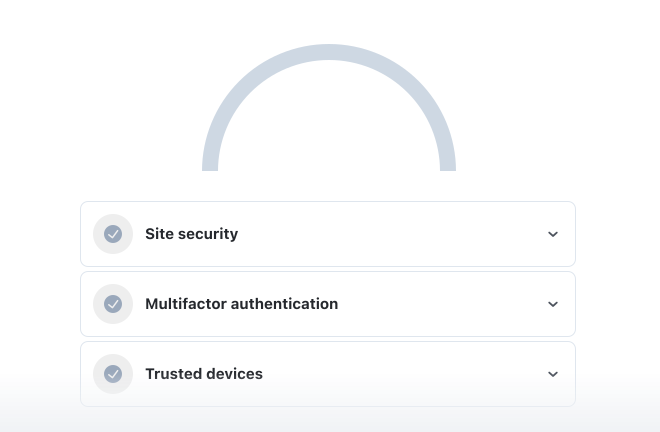
Dark Web Monitoring alerts you when an employee's email address is found in any security breaches. This allows you to take action before compromised credentials can be used to access business accounts. All of this visibility comes without ever actually seeing any employee passwords. As Paul Longega, Managing Director at international food and beverage company Love Struck, shared, "LastPass alerts us to password vulnerabilities, checks if any credentials have appeared in data leaks or on the dark web, and rates the strength of our passwords. Having that level of automated monitoring has been incredibly valuable." (Read the full Love Struck case study.) LastPass also shows you an Adoption Dashboard to help you keep track of adoption. You can see: How many licenses have been used How many employees have activated their accounts Who hasn’t used LastPass in the last 30 days You can take action directly from this dashboard, sending reminders to inactive users or users who aren’t yet enrolled with a single click. This is especially useful for remote workplaces where you can’t easily walk over and remind somebody to enroll in LastPass. HOLT CAT, a Caterpillar dealer with over 3,500 employees and 350 applications, was able to hit 70% adoption by the second year of using LastPass. As their Senior IT Security Manager said, "The results have been absolutely remarkable; we've reduced our risk significantly and have successfully prevented any password leaks from occurring this year." (Read the full HOLT CAT case study.) If LastPass seems like it can be the right credential management software for your organization, or if you’d like to learn more, you can: Otherwise, you can keep reading to learn more alternative credential management software options available to you. Bitwarden is an open-source credential management platform that stores passwords, passkeys, API keys, and other sensitive information in an encrypted vault. You can use Bitwarden's cloud-hosted service or self-host the platform on your own infrastructure, making it a good option if you need greater control over where credential data is stored. Credentials are organized inside "Collections," which function as shared vaults for teams and departments. Administrators can control which users have access to each Collection, while employees access their credentials through browser extensions, desktop and mobile apps, or the web vault. Bitwarden also supports autofill, password generation, passkeys, and secure credential sharing, making day-to-day access straightforward. Where Bitwarden stands out is its open-source approach, making it particularly popular with developers. Its codebase is publicly available and undergoes regular third-party security audits. For more information, you can: Bit4ID SafeAccess Credential Management System (CMS) is designed for organizations that issue digital certificates and hardware-based authentication credentials, such as smart cards, USB security tokens, and employee badges. These types of credentials are commonly used by government agencies, healthcare organizations, financial institutions, manufacturers, and other organizations that require stronger identity verification than usernames and passwords alone. You can use the platform to issue authentication credentials, replace them if they're lost, renew them before they expire, suspend them temporarily, or revoke them when an employee leaves the organization. Credentials can be provisioned centrally by IT, issued through a self-service enrollment process, or distributed automatically using Active Directory policies. Compared to credential management software built around encrypted password vaults, Bit4ID is designed for a different type of environment. Instead of helping employees securely store and autofill passwords for SaaS and AI applications, it helps IT teams manage the credentials employees use to access company laptops, secure networks, VPNs, and other protected systems. For more information, you can: 1Password is a credential management platform that stores passwords, passkeys, secrets, and other sensitive information in encrypted vaults. Employees can access credentials through browser extensions, desktop and mobile apps, or the web, while administrators can organize vaults for individuals, teams, or entire departments with customizable access permissions. The platform is designed around multiple vaults, letting you separate credentials by team, project, or sensitivity level. Employees can securely share credentials through shared vaults with permissions managed by administrators, while features like autofill, password generation, passkeys, and Watchtower help simplify secure access and identify weak or compromised credentials. Where 1Password stands out is its broader secure access capabilities. In addition to credential management, the platform offers developer-focused features such as SSH key management and secrets automation, as well as Extended Access Management, which adds capabilities like device trust and application access controls. This makes it a good fit for organizations with dedicated IT and security teams that want credential management as part of a broader access management strategy. If you’re primarily looking for straightforward credential storage and sharing, you may find that you don't need the platform's broader feature set. For more information, you can: Keeper is a credential management platform that combines password management with privileged access management (PAM). Credentials are stored in encrypted vaults, while shared folders and granular permissions allow administrators to control how employees and IT teams access sensitive accounts. The platform is designed to support organizations that need to manage both everyday employee credentials and privileged accounts. In addition to password management, Keeper offers features such as secrets management, privileged session management, and connection management, allowing IT teams to manage credentials used by administrators, servers, databases, and other critical systems from a single platform. Where Keeper stands out is its focus on PAM. You can use Keeper to apply granular permissions to shared credentials, monitor access to privileged accounts, and manage machine credentials alongside employee passwords. This makes it a strong option for businesses with more advanced security and compliance requirements. Smaller organizations looking mainly for secure credential storage, sharing, and autofill may find that they don't need the platform's broader privileged access capabilities. For more information, you can: Dashlane is a credential management platform that stores passwords, passkeys, and other sensitive information in encrypted vaults. Employees access credentials through browser extensions and mobile apps, where they can autofill logins, generate strong passwords, and securely share credentials with colleagues. In addition to credential management, Dashlane includes several security-focused features such as AI-powered phishing alerts, credential risk detection, dark web monitoring, and a built-in VPN. These capabilities are designed to help you identify compromised credentials and protect employees as they log into business applications. Compared to some credential management platforms, Dashlane offers a simplified admin console with limited functionality, lacking granular control over policies, user management, and reporting.Security policies are applied organization-wide rather than to specific users or groups, and administrators manage shared credentials through Collections instead of shared folders. If you require more granular administrative controls, you may prefer a platform with broader policy management. For more information, you can: NordPass is a credential management platform that helps you securely store, organize, and share passwords, passkeys, and other sensitive information. Employees access credentials through encrypted vaults using browser extensions, desktop and mobile apps, with built-in autofill and password generation helping simplify everyday logins. The platform focuses on core credential management capabilities rather than a broad set of administrative or security features. In addition to secure credential storage and sharing, NordPass includes dark web monitoring, email masking, and support for passkeys and single sign-on. Organizations that already use other Nord Security products, such as NordVPN or NordLocker, can also manage these services through the same vendor. Compared to some credential management platforms, NordPass offers a smaller set of administrative controls. It provides fewer security policies than many competitors, with more basic sharing permissions and limited customization for managing access across larger organizations. For more information, you can: If you want to learn more about how you can use LastPass as your credential management software, you can sign up for a free trial. How to set up your organization’s secure and encrypted vault and set specific permissions, so only the right people have access to key digital credentials How your team will use the LastPass browser extension to log in to their tools, save any new credentials, and create strong, unique passwords How you can customize how users access their credentials, including requiring MFA / TOTP codes and restricting access from TOR networks How you can use LastPass to see which un-vetted tools your team is using, how they’re logging in, and if necessary, set up restrictions For more information on credential management and aspects of secure access, you can read our articles on:
Track usage across your team
2. Bitwarden
3. Bit4ID
4. 1Password
5. Keeper
6. Dashlane
7. NordPass
Next steps and additional resources
You can also request a demo, where we will cover key features of LastPass, such as: