
1Password is built for businesses with dedicated security and IT operations teams, and they've been expanding that focus by acquiring several companies to add capabilities like device trust, SaaS management, and access controls on top of their core product.
The result is a broad set of features that come as separate add-ons, each with its own interface, which can make the overall experience feel fragmented and drive up cost. For small to midsize businesses, this can mean paying for capabilities they don't use while managing multiple interfaces.
In our experience, if you're a small to midsize business, what you need is a simpler solution to reduce risk exposure: a way to let your team securely log into the tools they use every day, while giving you visibility into what they're accessing, how they're logging in, and whether credentials are being shared or reused across accounts. You want something your whole team will actually adopt, without the complexity of add-ons or device agents.
We've put together this guide to walk through five 1Password alternatives for small to midsize businesses so you can compare your options and find the best fit.
Our guide covers:
1. LastPass: secure access for small businesses

LastPass is the best alternative to 1Password if you're looking for a simple-to-use, easy-to-adopt secure access tool built for small to midsize businesses.
Your team needs to access SaaS and AI tools to do their jobs, and without a proper secure access system in place, employees default to whatever method is quickest, not what's most secure. This means employees will sign up for new tools with a work email without checking with IT, using personal accounts for company work, sharing logins over Slack or email to collaborate faster, or reusing the same password across every tool they touch.
With LastPass you can:
- Discover which SaaS and AI tools your team is using. When your team uses the LastPass browser extension, you can see which sites they're logging into and how they're logging in (such as whether using personal or corporate accounts).
From there, you can allow or block specific apps, or add a custom pop-up that shows up when an employee visits a specific site — useful for reminding them of approved alternatives or things to consider, such as what type of info they can or can't share, without blocking access outright.
Your Security Dashboard brings this all together in one view by flagging weak or reused credentials, employees whose email addresses have appeared in known data breaches, and SaaS apps where employees may be creating risk. - Control access for everyone by setting over 120 admin policies that identify who can access what and how they must log in. These are policies you can enable for individuals or entire teams. For example, you can require multi-factor authentication (MFA) for sensitive accounts and require that your team use complex passwords.
- Simplify secure access by giving your team an encrypted vault for storing and sharing credentials, with a browser extension that autofills passwords and MFA codes so logging in just takes a single click. You can customize sharing permissions on each folder so credentials are only visible to the people who need them.
Because LastPass works from the browser, you can deploy it across your organization in an afternoon — no device agents or compliance setup required.
You can learn more about LastPass by signing up for a demo, starting your free trial, or continue reading below.
Monitor and manage the SaaS and AI tools your team is using
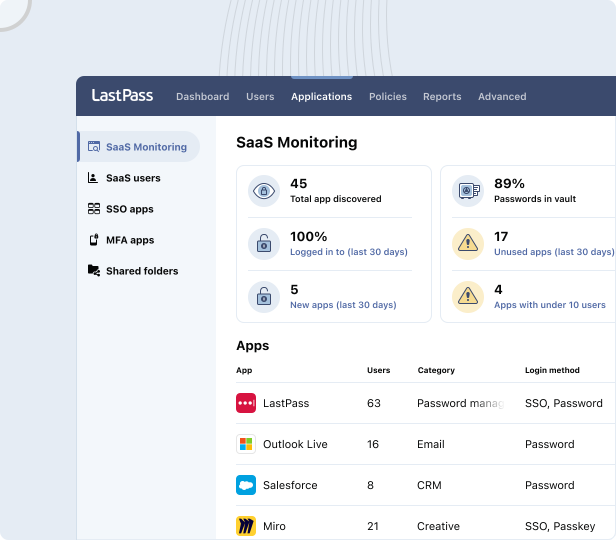
59% of organizations say employees adopt SaaS tools without checking with IT first. This is increasingly common with the popularity of newly developed AI tools and SaaS platforms. Companies often want employees to have the freedom to discover new and helpful tools, but they still want to keep their organization secure and compliant.
For example, let's say one of your designers finds a new AI design tool, signs up with their work email, and reuses the same password they use for other company accounts. If that tool gets breached, then those credentials are exposed.
With SaaS Monitoring — browser extension — you can see which apps your employees are using, how they're logging in (SSO, vaulted password, passkey, or unvaulted password), and whether they're using personal or corporate credentials. using personal or corporate credentials.
You can also drill into a specific app. Say you're looking at ChatGPT usage. You can see that four employees are using it — two through a corporate account, two through personal emails — and decide whether to approve it as a standard tool, restrict it, or push everyone to the corporate account.
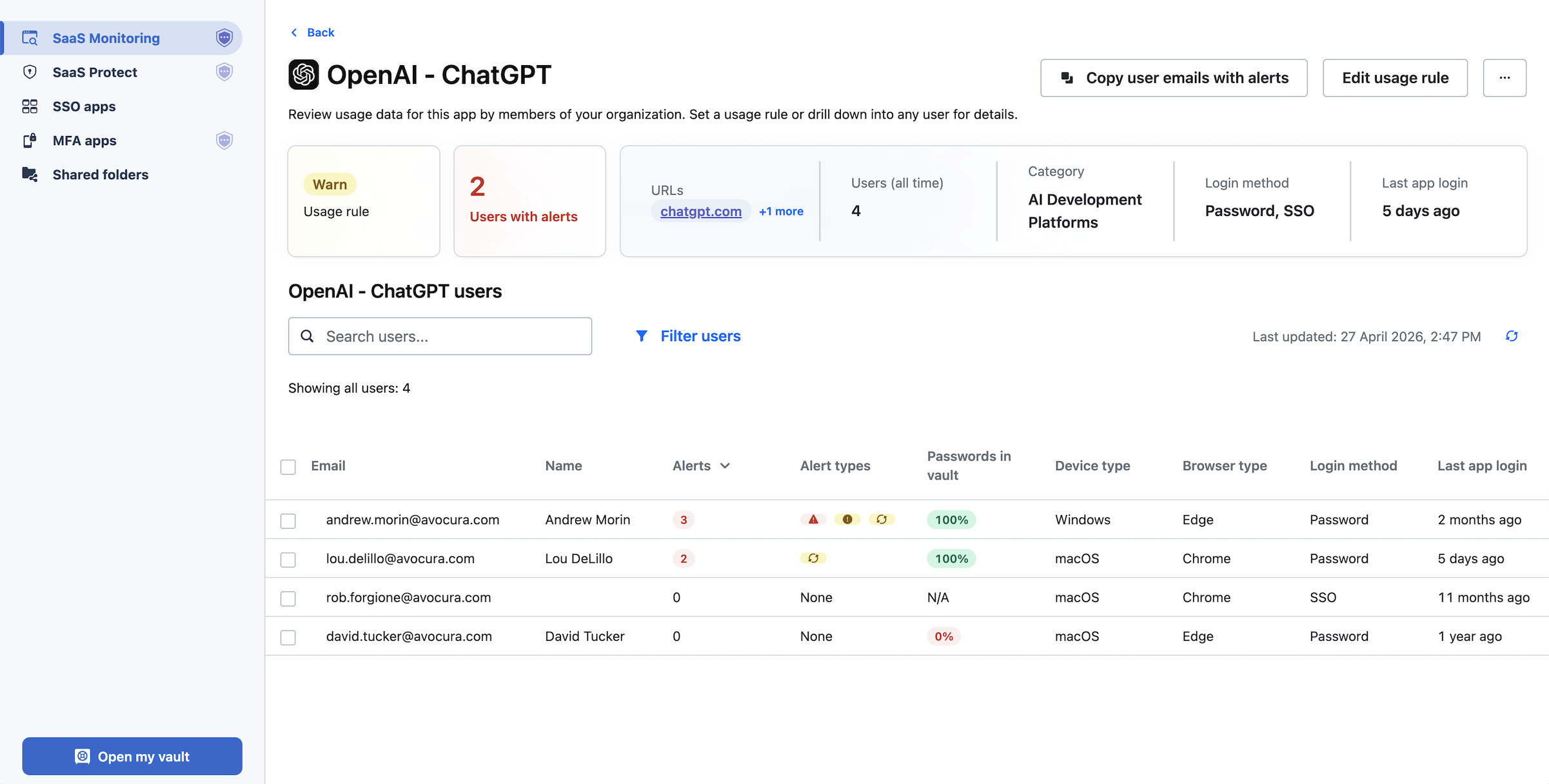
This visibility has several benefits, including:
- You can see which platforms are actually being used. For example, if one of the platforms you're paying for isn't regularly being used, you can consider canceling your subscription.
- You can see any new tools that your IT department doesn't know about, and then your IT department can vet those tools.
- You can see how employees log in. For example, if you see if employees are using unvaulted credentials, you can remind them to use SSO or vaulted passwords instead.
- You can spot when personal credentials are being used for work tools.
Learn more about SaaS Monitoring here.
Once you can see what's being used, SaaS Protect lets you act on it. You can allow or block specific apps or add a customizable pop-up that appears when an employee visits a specific site. The pop-up can remind employees of approved alternatives or give context on how to use a tool without blocking access outright. For example, if your company uses a specific shipping vendor, you can add a pop-up to unapproved alternatives that points employees back to the approved one.

As Wout Zwiep, a Process Engineer at Axxor, a global manufacturer that rolled out LastPass across three countries, explained: "People are experimenting with AI tools like OpenAI and Canva. We don't want to block innovation, but we do want to guide it safely." With LastPass, companies can reduce their exposure risk while letting their team members try new tools. Read the full case study here.
Securely store and share passwords, credentials, and more

Your LastPass vault is where your business stores and shares credentials and other sensitive information. It's encrypted, organized in folders, and accessible to your team through the browser extension and mobile apps.
Every employee gets their own individual vault for personal work credentials. You can also create shared folders that multiple people can access based on permissions you set. For example, you might create a shared folder for company social media accounts, one for software licenses, one for vendor logins, and one for your finance team's payment cards and API tokens. You can use your vault to store any other sensitive information your team needs to access but shouldn't be floating around in email or Slack.
When someone leaves your team, you can easily revoke their access to shared folders. This prevents unauthorized access without requiring you to change every shared password each time you offboard an employee.
Plus, every employee gets a free Families plan for personal use. They can store their personal credentials in the same LastPass account they use for work, so they're not toggling between apps.
This also strengthens company security: if an employee's personal email gets compromised and contains anything work-related (a forwarded login, a shared document link), that's a path to company data. When personal credentials are also stored securely in LastPass, exposure shrinks. And when the employee is offboarded, their personal passwords stay with them.
Note: All vaults are encrypted locally with 256-bit AES. LastPass uses a zero-knowledge approach, which means we never see your master password and can't access your stored data.
Quickly and securely log in to your sites
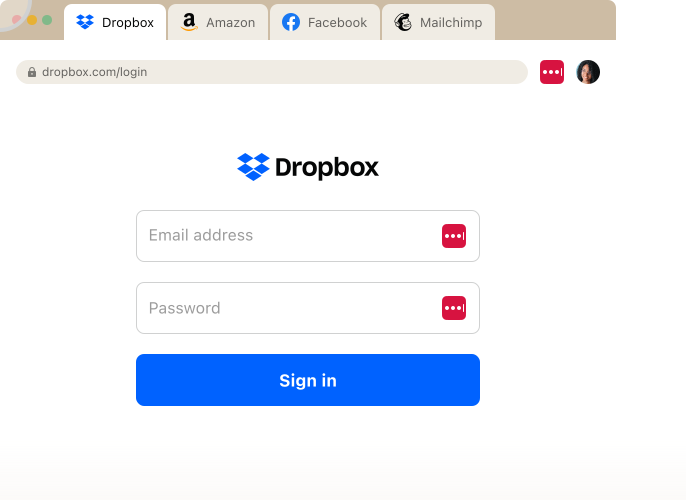
When an employee goes to a site, they have credentials for, the LastPass browser extension autofills those credentials for them, which means they don't need to toggle between screens to pull a password and log in. MFA codes fill in automatically too.
When employees log into a new site, LastPass prompts them to save the credentials. Those credentials get saved to their vault, and next time they visit the site, they can use the browser extension to log in. When they create a new account, LastPass generates a strong, unique password right in the browser, which helps prevent employees from using weak passwords or reusing the same passwords across accounts.
Our browser extension works on Chrome, Firefox, Safari, and Microsoft Edge.
Using LastPass with Single Sign-On (SSO)
If you already use an identity provider like Okta, Microsoft Entra, or Google Workspace for SSO, LastPass works alongside it. Your employees log in to SSO-supported apps through your identity provider like they always have, and LastPass covers the rest —t he apps where SSO isn't supported or where adding SSO isn't worth the cost. Many vendors charge 2–4x more for SSO-enabled tiers, so using SSO for every app isn't practical for most small and scaling companies.
You can also configure SSO apps directly through LastPass if you don't already have a separate identity provider, or if you want to consolidate identity and password management under one tool.
Customize how your team accesses secure information (with 120 admin policies)
Another key difference between 1Password and LastPass is the number of policies you can enable. At the time of this writing, 1Password offers around 25 policies, most of them applied company wide.
But with LastPass, you can set over 120 admin policies and scope them to individual users or groups. These policies are easy to enable and require no technical customization on your end.
For example, you can:
- Require MFA for your finance team before they access banking portals.
- Enforce 16-character password minimums for your IT group while keeping it at 12 for general staff.
- Prohibit offline access for employees working on shared computers.
- Block logins from jailbroken phones.
- Set different lockout periods, such as making the lockout period 10 minutes for a super admin account, and longer for everyone else.

To help you onboard your team securely, we have a set of recommended default policies when you sign up, so you're not configuring everything from scratch.
Get a detailed overview of your company's security rating
A challenging part of maintaining secure access for companies is knowing where the risks are. With LastPass, you can use your Security Dashboard to see:
- Which employees have weak or reused passwords
- Which employee email addresses have appeared in known data breaches (through our Dark Web Monitoring)
- Which SaaS and AI apps your team is logging into, and where employees may be creating risk — such as using personal credentials or accessing unapproved tools
Plus, it gives you an overall security score across your entire team.
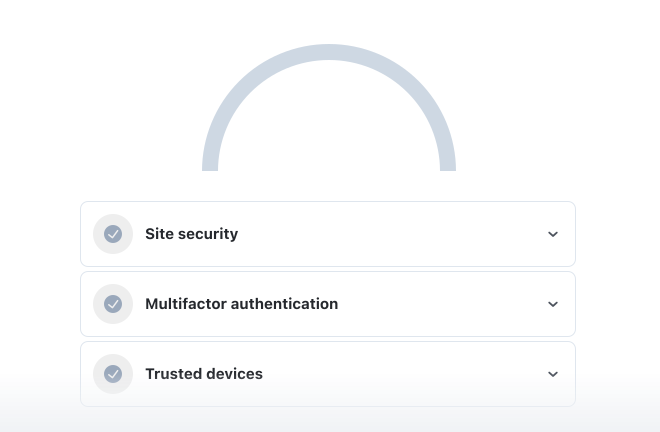
From the LastPass app, you can flag the employees who need to update their passwords and follow up directly.
Plus, an adoption dashboard to track usage across your team
A key aspect of secure access is getting high adoption across your team: the more your team uses LastPass, the more secure your company will be. Your Adoption Dashboard helps you track that progress and act on it.

You get three metrics at a glance:
- Your license consumption rate (how many of your purchased seats are in use)
- Your enrollment rate (how many invited users have activated their account)
- Your active usage rate (how many enrolled users have actually used LastPass in the last 30 days).
Each metric comes with actions you can take directly from the dashboard. If you have pending or expired invitations, you can resend them with one click. If you have inactive users who haven't logged in for 30 days, you can view who they are and send a reminder. You can also see how many licenses you have available, so you know when it's time to add more seats.
This is especially useful for businesses with employees spread across multiple locations or working remotely, where you can't just walk over and ask someone to set up their account. For example, HOLT CAT—a Caterpillar dealer with over 3,500 employees — rolled out LastPass and hit 70% adoption by year two. Their Senior IT Security Manager reported: "The results have been absolutely remarkable; we've reduced our risk significantly and have successfully prevented any password leaks from occurring this year." Read the full case study here.
Pricing
LastPass offers three plans.
- Teams is $4.25/user/month and includes shared folders, an admin console, and 25 security policies.
- Business is $7/user/month and includes 100+ security policies, group user management, and a free Families account for every employee.
- Business Max is $9/user/month and adds SaaS Monitoring, SaaS Protect, unlimited SSO apps, and advanced MFA.
You can find full pricing details here or start your free trial.
2. Keeper

Keeper is a good 1Password alternative if you need FedRAMP or StateRAMP certification, or if you want password management and privileged access management (PAM) from a single vendor. It's popular with government agencies and regulated industries, and it's been expanding into PAM with secrets management, privileged session management, and connection manager features.
Keeper encrypts each vault, folder, password, and file with its own unique AES-256 key. It offers granular vault access controls, so admins can set detailed permissions for who can view, edit, share, and archive items across shared folders.
But while Keeper's initial pricing is competitive ($4 per user per month), multiple users have reported significant price increases at renewal (sometimes 40–200% higher than the first-year rate).
Plus, several features that are included in other password managers' base plans, like dark web monitoring, advanced reporting, and customer support, are paid add-ons with Keeper. And when folder creators leave an organization, their shared folders can become "orphaned," meaning no one retains clear ownership or management access to the credentials inside them.
Keeper also doesn't offer SaaS or AI visibility, so there's no way to see what tools your employees are signing into outside the vault or control access to unapproved applications.
Keeper features
- Encrypted vault with record-level encryption
- Granular vault access permissions (view, edit, share, archive, delete)
- Secrets management, privileged session management, connection manager (PAM)
- Admin console with role-based access and permission structures
- Security dashboards and custom reporting (200+ event types; advanced reporting requires add-on)
- Dark web monitoring (requires add-on)
- Import tool for migrating from other password managers
- Time-based sharing, one-time sharing, self-destructing records
- SSO integration
- FedRAMP, StateRAMP, FIPS 140-3 certifications
- MSP program with competitive MSP pricing
- Mobile apps
Keeper pricing
Keeper's Business plan starts at $4/user/month. Their Enterprise tier is $6/user/month and adds SCIM provisioning, shared admin, and Active Directory sync. Advanced features like dark web monitoring, advanced reporting, and compliance reports are available as paid add-ons.
Read our comparison article on LastPass vs. Keeper
3. Dashlane

Dashlane is a good 1Password alternative if you want a clean, easy-to-adopt interface with built-in phishing protection. It started as a consumer password manager and has been expanding into the business market, investing in AI-powered security features through its Omnix platform: real-time phishing alerts, credential risk detection across the organization, and automated Slack nudges to flag risky behavior.
Dashlane includes a built-in VPN (Hotspot Shield) at no extra cost, which is unusual for a password manager. It also offers in-browser passkeys and master-password-free accounts. The browser extension is fast, with machine-learning-adapted form filling, and user reviews consistently highlight how easy it is for non-technical employees to get started.
On the business side, Dashlane's admin controls are more limited. It offers roughly 16 org-level policies, and those policies apply organization-wide, so they can't be assigned to specific groups or users. Admin roles are limited to Admin, Group Manager, and User, with no custom roles available. Sharing uses "Collections" rather than folders, which some admins find less intuitive.
Dashlane offers some visibility into credential risk and SaaS usage, but it's focused more on credential detection and protection than on SaaS access governance. You can see some of what's being used, but it's a more limited view compared to tools with dedicated SaaS monitoring and control features. For a small businesses where employees are regularly trying new tools without checking with IT, that's a gap worth considering.
All customer vault data is hosted in Dublin, Ireland, with no option to choose a different data center. For admins, email and chat are available in English, French, German, and Spanish. Live chat is available Monday through Friday, 6 AM to 6 PM ET. Zoom calls and phone support are available in English only, Monday through Friday, 9 AM to 6 PM ET. For end users, chat with an agent is available in English, French, German, or Spanish, Monday through Friday, 9 AM to 6 PM ET.
Dashlane features
- Encrypted vault with zero-knowledge architecture
- Browser extension with machine-learning-adapted autofill
- Built-in VPN (Hotspot Shield)
- Passwordless login (in-browser passkeys, master-password-free accounts)
- AI-powered phishing alerts and credential risk detection (Omnix)
- Automated Slack nudges for risky behavior
- Dark web monitoring (limited to five email addresses per user)
- ~16 organization-wide admin policies
- SSO integration
- Sharing via Collections
- Limited API (read-only, limited endpoints)
- Mobile apps
Dashlane pricing
Dashlane's Business plan is $8/user/month. They also offer a Credential Protection plan at $4/user/month, but it doesn't include password management. There is no lower-tier option that includes full password management for smaller teams.
Read our comparison article on LastPass vs. Dashlane
4. Bitwarden

Bitwarden is a good 1Password alternative if open-source transparency matters to your organization, or if you want the option to self-host your credential data. Its code is fully public and undergoes regular third-party security audits by Cure53, which makes it popular with developers, IT teams, and organizations where being able to inspect the code yourself is a requirement.
Bitwarden is the least expensive option among the major password managers. The Teams plan is $4/user/month for unlimited users and includes SCIM provisioning. The Enterprise plan is $6/user/month.
Bitwarden offers self-hosting for organizations that want full control over their infrastructure, and EU and US data residency options for cloud-hosted accounts.
The tradeoffs are visible in the day-to-day experience. Bitwarden's interface is functional but commonly described as less polished than competitors. It uses "Collections" instead of shared folders, and sharing works differently—items are owned by the organization, there's no nested folder hierarchy, and you can't directly share individual items (you use a separate text-based "Send" feature for that). There's no built-in SSO identity provider. Reporting is limited, as well. There is no consolidated security dashboard, no continuous monitoring, and no automated breach notifications. And support is email and ticket-based only, with no phone support.
Bitwarden does offer Access Intelligence, which flags weak or reused credentials across your team and includes a phishing blocker. But it only has visibility into applications where credentials are already stored in Bitwarden. It can't detect non-vaulted logins or show you which SaaS and AI tools employees are accessing outside the vault, and there's no way to block or restrict access to unapproved applications.
Bitwarden features
- Encrypted vault (open-source, audited by Cure53)
- Browser extension and mobile apps
- Self-hosting option
- EU and US data residency (cloud-hosted)
- Secrets Manager for DevOps workflows (CLI and API)
- Passphrase generator
- ~18 admin policies
- SCIM provisioning (requires admin confirmation per user)
- Sharing via Collections (organization-owned)
- "Send" feature for sharing text/files with non-users
- Argon2id key derivation (optional, alternative to PBKDF2)
- Free individual tier
Bitwarden pricing
Bitwarden Teams is $4/user/month for unlimited users. Enterprise is $6/user/month and adds advanced policies, SSO integration, and API access. There is a free tier for individual users.
Read our comparison article on LastPass vs. Bitwarden
5. NordPass
NordPass is a good 1Password alternative if you're looking for the lowest price on this list, don't need more advanced features like those found in LastPass, or if your business already uses Nord products like NordVPN and NordLocker and you want to bundle everything under one vendor.
NordPass is the cheapest option on this list at $3.99/user/month for up to 250 users. It has a clean, modern interface that users describe as easy to set up and adopt. It uses XChaCha20 encryption and Argon2id key derivation, which are newer cryptographic standards than the AES-256 and PBKDF2 used by most competitors. It can also be bundled with NordVPN and NordLocker for organizations that want a single vendor for multiple security tools. NordPass includes 3GB of file storage per user (compared to 1GB for most competitors) and an email masking feature for privacy.
NordPass has ~8 admin policies — the fewest of any password manager on this list. Sharing permissions are limited to "can view," "can edit," or "can autofill," with no multi-level folder permissions. Items can only be shared between members whose accounts are in the same data center. There's no phone support — only chat and email. And NordPass is one of several products Nord Security maintains alongside NordVPN, NordLayer, and NordLocker, which means development resources are spread across the full product line rather than focused on password management alone.
NordPass also doesn't offer any SaaS or AI visibility — you won't be able to see what tools your employees are signing into or control access to unapproved applications.
NordPass features
- Encrypted vault with XChaCha20 encryption
- Browser extension and mobile apps
- Argon2id key derivation
- Email masking
- 3GB file storage per user
- ~8 admin policies
- Basic sharing (view or edit permissions)
- Dark web monitoring
- SSO integration
- Bundling with NordVPN and NordLocker
- Chat and email support
NordPass pricing
NordPass Business is $3.99/user/month for up to 250 users. Enterprise pricing is $5.99/user/month for 250+ users and adds a dedicated account manager, SSO via Entra ID and Okta, and user provisioning via Active Directory and SCIM.
Read our comparison article on LastPass vs. NordPass
Choosing the Best 1Password alternative for your business
If you're looking for a 1Password alternative, the right choice depends on what's driving the switch. If you want open-source transparency and the lowest price, Bitwarden is worth evaluating. If you want a bundled VPN and proactive phishing alerts, Dashlane has that. If you need FedRAMP certification and privileged access management, Keeper covers it.
But if what you need is a secure access tool that your whole team will adopt without a steep learning curve — one that gives you credential management, access control, granular admin controls, SaaS Monitoring, and Dark Web Monitoring without requiring device agents or a dedicated security team to manage — LastPass is built for that.
We use a zero-knowledge approach, meaning we never have access to your master password or your stored data. From there, you get the functionality that matters for businesses: a secure password vault, a browser extension for autofill, over 120 customizable security policies you can scope to specific teams or individuals, and SaaS monitoring that shows you how your team is accessing the tools they use every day.
LastPass offers three business plans:
- Teams ($4.25/user/month, billed annually) – For small businesses and startups that need shared folders, an admin console, and 25 security policies.
- Business ($7/user/month, billed annually) – Includes 100+ security policies, group user management, and a free LastPass Families account for every employee.
- Business Max ($9/user/month, billed annually) – Everything in Business, plus SaaS Monitoring, SaaS Protect, unlimited SSO apps, and advanced MFA.
All three plans come with a 14-day free trial. You get full access to the vault, browser extension, admin policies, Security Dashboard, and SaaS monitoring, so you can see how it works with your team before committing.
Setup takes a few minutes. You create your account, invite your team, and your employees install the browser extension. From there, everyone in your company can start saving and autofilling credentials right away. If they're already storing passwords in Chrome, Microsoft Edge, or other browsers, they can import those into LastPass so no credentials get left behind.
And if you need help along the way, we have 24/7 support available by phone, email, or chat.
Additional resources on password management, reducing your exposure, and more
- The Best Password Manager for Businesses
- Top 10 Cybersecurity Frameworks Every Business Should Know
- 10 Ways to Protect Your Business from Credential Theft
- Three LastPass Admin Policies to Enable Today
- A Small Business Guide to Agentic AI Identity & Access Management
- What's the Difference Between Hackers, Malware, and Data Breaches?
- What Are Malware Attacks? Types, Examples, and How to Prevent Them


