
Authenticator apps generate a six-digit code that refreshes every 30 seconds, which you enter after your password to prove it's really you. That code is a time-based one-time password (TOTP), generated from a secret key your app and the account share (set up when you scan the QR code) plus the current time, so it only works on that device and only for those 30 seconds.
That makes it safer than getting codes by text. SMS codes can be intercepted or redirected through SIM-swapping; a TOTP code never leaves your device, so there's nothing in transit to steal.
When you're evaluating authenticator apps, here's what to look for:
-
Backup and recovery: What happens if you lose your phone? Some apps back your codes up to the cloud so you can restore them on a new device. Others keep everything on the device only, which is more private but means a lost phone can lock you out of the accounts it protects.
-
Privacy and data collection: Does the app require an account to work? Does it sync your secrets to the cloud, and if it does, can the vendor read them?
-
Platform support: Does it run on iOS, Android, and desktop, or just one of them?
-
Multi-device sync: Can you pull up your codes on more than one device, or are you tied to a single phone?
-
Business integration: Does it connect to the password manager, SSO provider, or admin console your organization already runs?
-
Admin enforcement: If you're rolling this out to a team, can you require (multi-factor authentication) MFA for specific people or roles, or can you only recommend it and hope everyone follows through?
LastPass Authenticator is a free 2FA app (iOS and Android) that generates TOTP codes and lets you approve logins with a one-tap push notification instead of typing a code. It works with any account that supports standard TOTP, not only LastPass.
LastPass is also a password manager for businesses with admin controls a standalone authenticator can't offer, including 120+ admin policies, SaaS monitoring, and more. We'll cover the authenticator app on its own first, then those wider features.
LastPass: an authenticator app (plus other key security features for businesses)
Our free authenticator app generates a six-digit TOTP code every 30 seconds, and for supported logins it can also send a push notification you approve with one tap instead of typing a code. You add an account by scanning a QR code, and it works with any service that supports standard TOTP or Google Authenticator, not only LastPass.
With the LastPass authenticator app, you get:
-
Backup and recovery: Lose or replace your phone and your codes aren't gone. Free encrypted cloud backup restores every one of them on a new device in a couple of seconds, so you're not re-enrolling dozens of accounts by hand. It's opt-in: you switch it on in settings and link a free LastPass account with MFA enabled. And because your codes are encrypted on your device before they're backed up, we can't read them (our zero-knowledge approach).
-
Privacy and data collection: You don't need a LastPass account to use it, and your codes are generated and stored right on your device. You can optionally back them up to the cloud so you don't lose them if your phone does, and even then they're encrypted on your device first, so we can't read them.
-
Platform support: The app runs on iOS and Android, and if you have a LastPass Premium, Families, Business, or Teams plan, you can generate codes from your wrist on Apple Watch or Wear OS too. There's no standalone desktop version, since the app is built around approving logins from the phone that's with you.
-
Multi-device sync: When you turn on cloud backup (which needs a free LastPass account), your codes are saved so you can restore them onto another device, like a second phone or a tablet, and generate codes there too. One-tap push approvals arrive on the most recent device you set up; on any other device, you open the app and type the code in yourself.
-
Business integration: On its own, the app is a personal 2FA tool: it generates codes for your logins, and that's where it stops. It connects to the wider LastPass setup when your company runs LastPass as its password manager, and the app becomes the method employees use to approve MFA prompts when they log into their vault. So the integration isn't something you configure in the authenticator itself; it comes from pairing it with LastPass on the business side, which is what the rest of this article covers.
-
Admin enforcement: When you use LastPass Business instead of the free authenticator app, you can create admin policies that require MFA rather than leaving it to each employee. Working from the Admin Console, you can require MFA for vault access and apply it to a single person, a group, or the whole company. You can require new hires to set up an MFA option within a set number of days of joining, so no one slips through. And you can limit which authenticator apps are allowed, so your team standardizes on one method instead of a mix. That's the layer a standalone authenticator doesn't have, and it's what the rest of this article gets into.
You can download LastPass Authenticator here:
How LastPass can help keep your organization secure
So far we've looked at LastPass Authenticator on its own: a free app for generating and approving MFA codes.
But if you're an organization that wants to help your team access their accounts securely, an authenticator app is only one piece. You also need somewhere safe to store credentials, a way to require MFA rather than just suggest it, visibility into which apps your team is actually logging into, and proof of your security posture when a customer or auditor asks. The LastPass password manager and its business plan cover those jobs.
Here's how the main pieces work, starting with where your credentials live.
An encrypted, secure vault
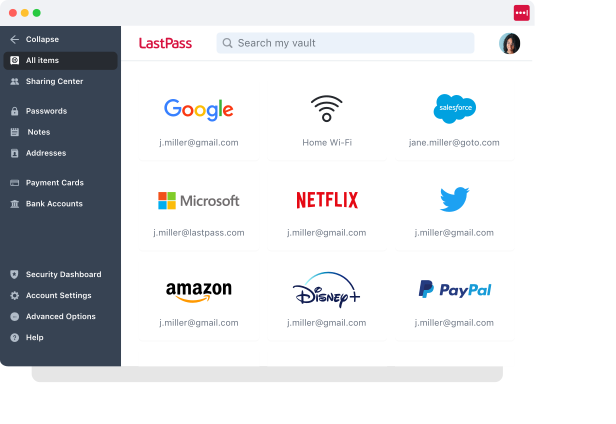
The vault is where LastPass stores your team's passwords, passkeys, and other credentials so no one has to reuse "Password123" or keep a spreadsheet of logins. Each person gets their own vault, organized into folders, and reachable from the browser extension and the mobile apps.
Everything in it is encrypted locally with 256-bit AES before it ever reaches LastPass's servers. LastPass uses a zero-knowledge approach, which means it never has access to your master password or your stored data. So even in the event of a breach on LastPass's side, what an attacker would reach is ciphertext, not your passwords.
The vault also fixes a practical problem when someone leaves. You revoke their access from the Sharing Center in your account, and the company credentials stay put: the departing employee loses access, but the passwords they used stay in your organization's vault instead of walking out the door with them.
This was a real concern for Forsters LLP, a London law firm of 500+ employees. A stretch of turnover on the IT team meant people were leaving and taking critical access credentials with them, and the firm's existing setup for managing those credentials wasn't centralized or consistent. As InfoSec Manager Neil Bell put it, "The risk of losing access to systems when people left the firm was high." After moving to LastPass, credentials stay in the vault regardless of who comes or goes, so a departure no longer means chasing down access. (Read the full Forsters LLP case study.)
Plus, every employee gets a free LastPass Families account, which makes the separation cleaner. Work credentials and personal passwords live in the same tool but stay distinct, so when someone leaves you revoke the company logins while they keep their personal ones. This also lowers your exposure. A compromised personal inbox, through a weak password, a forwarded file, or a password-reset link, is a common route into work systems, and employees are less likely to have weak passwords if they are using a personal LastPass account.
An easy-to-use browser extension
Without a password manager, logging into an MFA-protected account is a manual sequence: enter your password, open your authenticator app, find the right account, and copy the six-digit code before it refreshes. Across every login and every employee, that friction adds up.
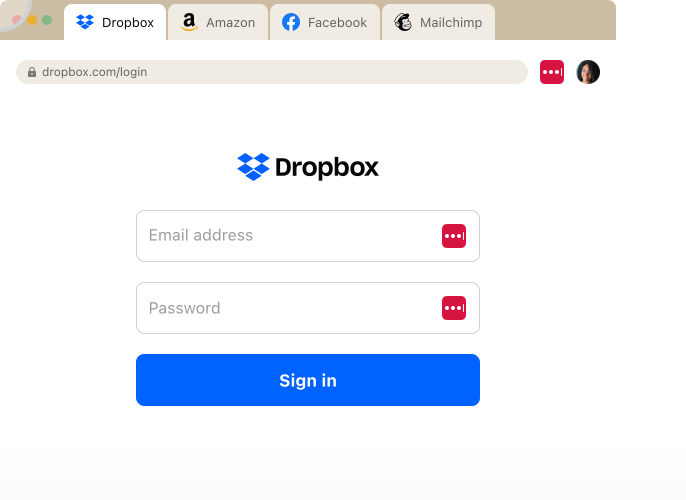
When you use the LastPass browser extension (Chrome, Firefox, Safari, and Edge) on desktop, it handles that sequence for you. For any account where the login and its TOTP secret are stored in the vault, it autofills the username, password, and current MFA code together the moment you reach the login page: no phone, no app, no copying. For accounts set up with push approval instead, you approve the prompt with one tap in LastPass Authenticator.
The extension also generates passwords at the point of creation. When someone signs up for a new tool or resets an old one, LastPass produces a strong, random password in the field and saves it to the vault, so no one has to invent one on the spot (which is where weak and reused passwords come from).
120+ admin policies
With the LastPass business plan, you can set over 120 admin policies and scope them to individual users or groups. They're toggles in the admin console rather than scripts: easy to enable, with no technical customization on your end. When you first sign up, LastPass turns on a recommended set of defaults, so you're not configuring your security rules from scratch.
For an authenticator app specifically, that's what lets you require MFA instead of only recommending it. You can mandate app-based MFA for the people who handle the most sensitive access and set lighter rules elsewhere. Some of what the policies let you enforce:-
Require MFA for your finance team when they log into banking portals, without forcing the same step on everyone.
-
Enforce a 16-character password minimum for IT staff while keeping it at 12 for general employees.
-
Block logins from TOR networks across the entire organization.
-
Set different rules for contractors and full-time employees, down to lockout periods and offline vault access on shared computers.
Because the policies attach to users and groups, you match the control to the risk. Someone on your finance team logging into a banking portal doesn't have the same security needs as a contractor checking a shared project board, and you can set rules that reflect that instead of applying one blanket standard to everyone.
A Security Dashboard
With LastPass, you get a Security Dashboard that gives you an overall security score across all enrolled users, then shows you:
-
Who has weak passwords
-
Who's reusing their master password
-
Whether any employee email addresses have appeared in known data breaches.
Love Struck, an international food and beverage company, relies on the dashboard for exactly this. As Managing Director Paul Longega put it: "LastPass alerts us to password vulnerabilities, checks if any credentials have appeared in data leaks or on the dark web, and rates the strength of our passwords. Having that level of automated monitoring has been incredibly valuable." (Read the full Love Struck case study.)
SaaS Monitoring and SaaS Protect
An authenticator app protects the accounts you've set it up on. It can't do anything about the accounts you don't know exist: the AI writing tool someone signed up for with a work email, the free design app a team started using without telling IT. Those logins never reach your policies, and you can't require MFA on an account you can't see.
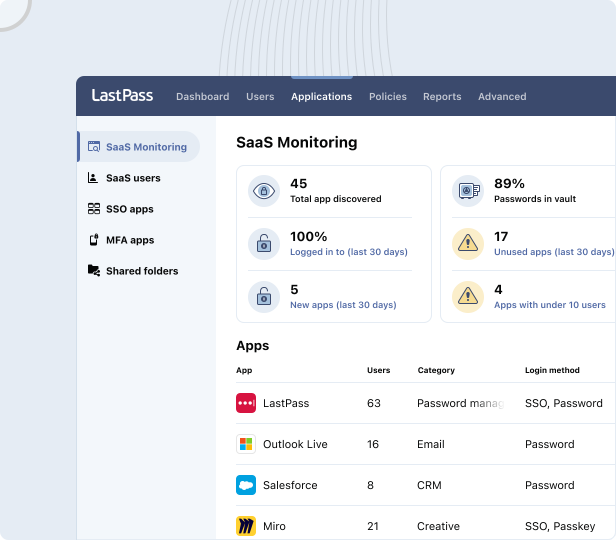
Our SaaS Monitoring feature closes that gap. Working through the same browser extension your team already uses for autofill, it shows which SaaS and AI tools employees are actually logging into, how they're logging in (SSO, a vaulted password, a passkey, or an unvaulted password typed in by hand), and whether they're using corporate or personal credentials. There's no extra software to deploy; the visibility comes from the extension that's already there.
Axxor, a global manufacturer with facilities in the Netherlands, Poland, and the US, used it to surface exactly this. As Process Engineer Wout Zwiep described it: "People are experimenting with AI tools like OpenAI and Canva. We don't want to block innovation, but we do want to guide it safely." SaaS Monitoring showed them which tools employees had adopted on their own, so they could decide which to bring under management instead of guessing. (Read the full Axxor case study.)
Once you can see what's in use, SaaS Protect is how you act on it. It works two ways:
-
Block an app outright. Anyone who tries to open it sees a LastPass block screen in their browser, which you can customize to explain why it's blocked or point them to an approved alternative.
-
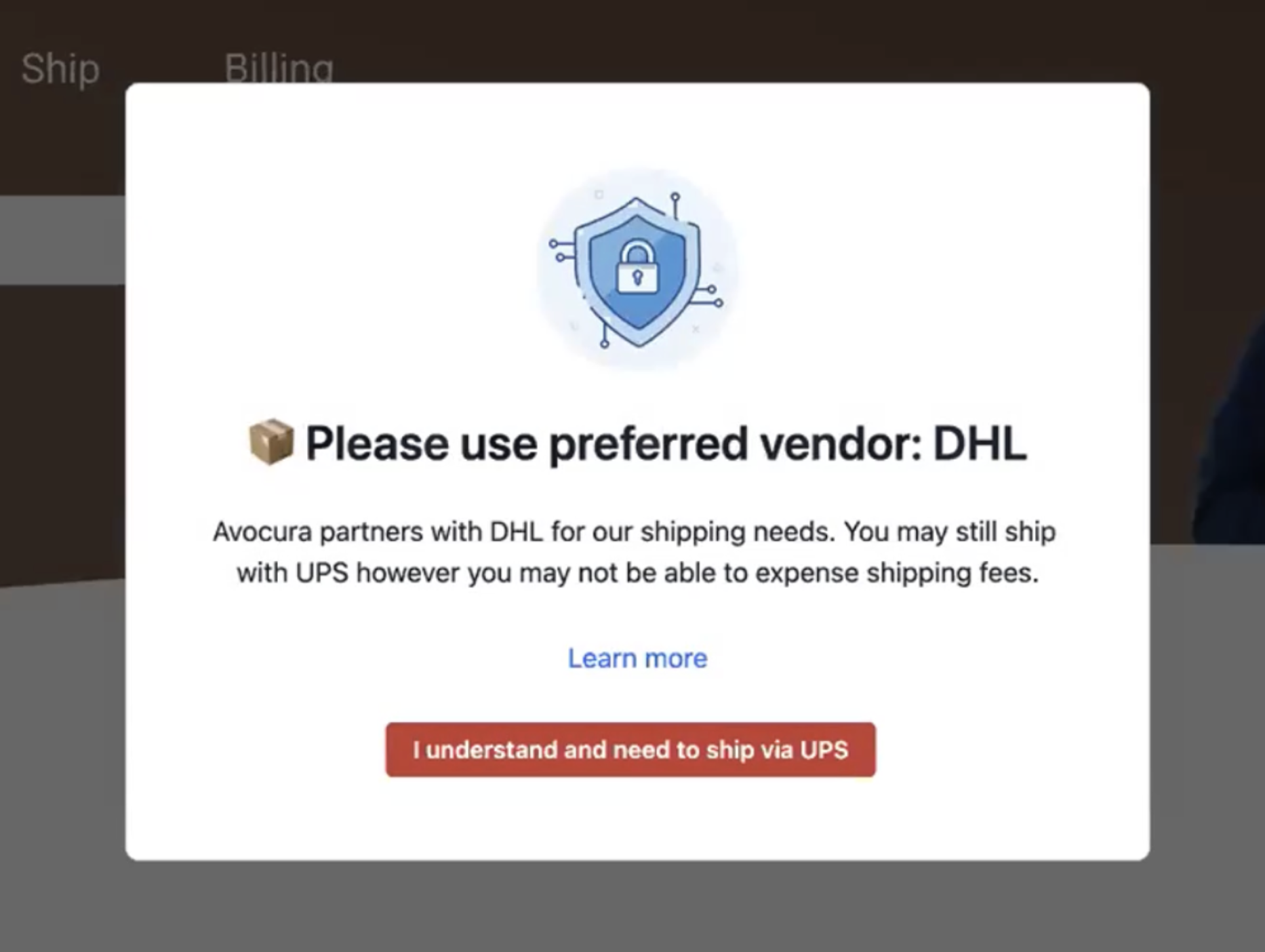
Show a custom pop-up without blocking. You let the app through but attach a message at login: a warning (say, reminding employees not to paste confidential data into a generative AI tool) or an informational nudge (say, noting that your company has a DHL account when someone visits UPS or FedEx).
To see how it works for your team, you can:
Other authenticator apps
If you don't need the business layer and just want a straightforward app to generate codes, any of these six will do the job. They differ mostly on backup, platform support, and whether they lean toward individuals or organizations.
Google Authenticator. You can use Google Authenticator to generate TOTP codes on iOS or Android. You scan the QR code a service shows you when you turn on 2FA, and the app starts producing codes for it. If you lose your phone, you can sync your codes to your Google account and restore them, or leave sync off and keep them on the device. What you can't do is manage it for anyone but yourself: there's no admin console to require it or control it across a team, so it fits one person rather than an organization.
Microsoft Authenticator. You can use Microsoft Authenticator to generate TOTP codes and to approve logins with a one-tap push instead of typing a code, on iOS or Android. When you approve a push, it makes you type a number shown on the login screen, so you can't accidentally wave through a prompt you didn't start. And if you're logging into a Microsoft account, you can drop the password altogether and just approve from the app. Switching phones is the part to watch: your backup goes to your Microsoft account on Android or to iCloud on iOS, and you can't restore across the two, so moving from Android to iPhone means setting your accounts up again.
But if your organization runs Microsoft 365 and Entra ID, admins can require the app and manage it centrally through Entra. That control lives in Entra, not in the app itself, but it's real central management, which something like Google Authenticator has nowhere. Outside the Microsoft ecosystem you lose that advantage; the app still works, but there's less reason to pick it over the others here.
Authy. Free, iOS and Android. Its strength is recovery: encrypted cloud backups protected by a password you set, plus multi-device sync, so a lost phone isn't a lockout. Worth knowing the tradeoffs before you standardize on it: 1) The desktop apps were discontinued. 2) There's no admin console for requiring or managing it across a team. Best for individuals who want dependable multi-device backup.
Duo Mobile. The app itself is free (iOS, Android, and some smartwatches) and handles TOTP codes plus one-tap Duo Push approvals with biometrics. What sets it apart here is the platform behind it: Duo is Cisco's access-management product, and admins get a dashboard, adaptive access policies, SSO, device-trust checks, and directory sync, with integrations for tools like Microsoft 365, AWS, and VPNs. Of the apps in this section, it's the one actually built for admin enforcement (those capabilities come from the paid Duo platform, not the free app). That also makes it more than most individuals need. Best for businesses that want a dedicated MFA platform.
2FAS. Free and open-source, iOS and Android, with a browser extension and Apple Watch support. It requires no account and works offline, keeping your codes encrypted on your device; you can back them up to your own Google Drive or iCloud, or export an encrypted file you control. Because the code is public, anyone can inspect how it handles your data. There's no desktop app and no admin console. Best for privacy-minded individuals who want an open-source option without signing up for anything.
Aegis. Free, open-source, and Android only. It stores your codes in a local encrypted vault unlocked by biometrics or a password, with no account and no cloud sync. That makes it one of the more private options, at the cost of convenience (no multi-device sync, and nothing for iOS or for admins). Best for Android users who want full control over where their codes live.
Next steps and additional resources
If all you need is to generate and approve MFA codes, LastPass Authenticator does that for free on iOS and Android, and it works with any account that supports standard TOTP, not only LastPass. Download it and you're set up in a couple of minutes. You can download it from the Apple store or the Android store.
If you're rolling MFA out across an organization, the authenticator is the starting point, and the rest of LastPass is what makes it enforceable: a vault to store credentials, 120+ admin policies to require MFA for the people who handle your most sensitive access, and SaaS Monitoring and SaaS Protect to see and control the apps your team is actually logging into. That combination is what a standalone authenticator can't give you, and it's why LastPass fits businesses that want MFA to be something they can require and verify rather than only recommend.
To learn more, you can start a free trial or book a demo
For more articles securing access across your organization, these might help: