
Without a password manager, employees default to sharing and storing passwords and other secure information by doing whatever's fastest, not what's most secure. That means sharing logins over Slack, reusing the same password across tools, saving credentials in their browser, or signing up for new tools with a work email without checking with IT. This creates security issues across your organization and slows down productivity, as employees struggle to find the login info they need when they need it.
To solve these problems, companies can find a team password manager that makes it easy and secure for their team to share passwords and other credentials.
But another key aspect of maintaining secure access across your organization is monitoring and regulating which SaaS and AI tools your team is actually using, and how they're accessing them. According to the Cloud Security Alliance, 59% of organizations say employees adopt SaaS tools without checking with IT first.
That’s why, in our view, a good team password manager should both:
-
Make it simple and secure for your team to log in to their tools and share credentials.
-
Give you visibility into the SaaS and AI tools your team is using, and let you control how (or if) employees can access them.
In this article, we'll cover 7 team password managers and how each one stacks up on both jobs:
1. LastPass: a team password manager for small to mid-size businesses

LastPass offers a safe and user-friendly password manager for businesses, with advanced secure access features that are normally only found in more complex enterprise tools.
Here’s a quick overview of how LastPass works:
-
Every employee gets an encrypted vault for their work credentials, plus access to whatever folders you’ve shared with them.
-
The LastPass Browser Extension autofills your passwords in one click. On desktop, LastPass can fill in MFA (TOTP) codes that you're using for extra security. When an employee signs up for a new account, the browser extension makes it easy for them to create and store strong passwords.
-
LastPass gives you visibility into which SaaS and AI tools your team is signing into and how they're logging in. Plus, you have the controls to block, warn, or approve specific applications.
You can see how LastPass works with a 14-day free trial or by scheduling a demo. You can also read below for a detailed walkthrough of the product.
How LastPass helps your team store, use, and share credentials
Every employee gets an encrypted vault. Vaults are encrypted locally with 256-bit AES before anything reaches our servers, and LastPass uses a zero-knowledge approach, meaning we never have access to your master password or your stored data.
Inside the vault, your team can store more than just passwords. Secure API tokens, Wi-Fi credentials, payment cards, and other business information all live in folders that you, as the admin, decide who can access. You can create shared folders for teams, projects, or roles, so only the right people get access.
When someone leaves or changes roles, you can easily revoke access. The credentials stay in the vault; the departing employee loses access. No resetting every shared password.
Logging in with the LastPass browser extension
The LastPass browser extension, available for Chrome, Firefox, Safari, and Edge, makes it easy to log into tools and also save new passwords.
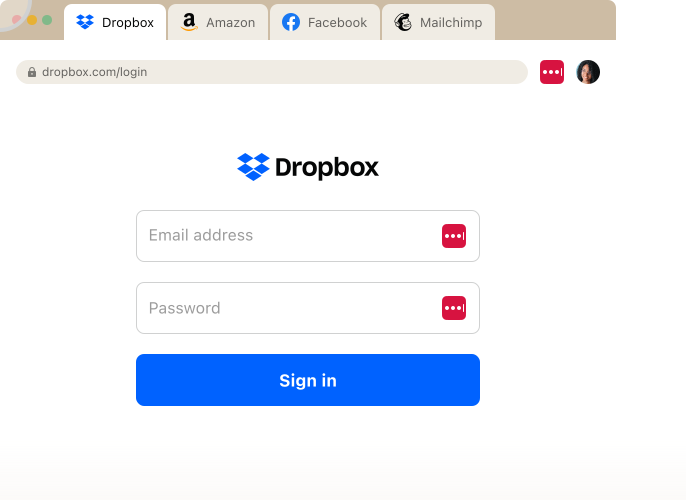
When an employee goes to a site they have credentials for, LastPass autofills the username and password in one click.
When an employee signs up on a new site or needs to update a password, LastPass generates a strong, randomized password right in the browser, customizable by length and complexity. You can customize the requirements for passwords within your account, which is something we write about in our post on creating a password policy.
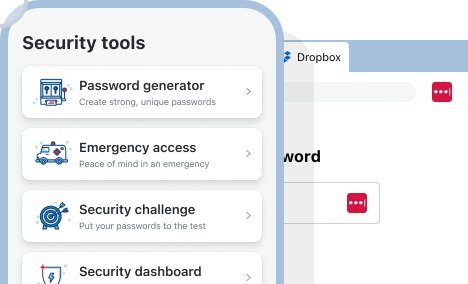
Over 120 admin policies to determine who can log in using stored credentials
With LastPass, you get 120 admin policies that you can scope to individual users or groups. These policies are easy to enable and require no technical customization on your end. A few examples:
-
Enforce 16-character password minimums for IT staff while keeping it at 12 for general employees
-
Require MFA for your finance team when they access banking portals
-
Set different rules for contractors versus full-time employees
-
Prohibit offline vault access for employees on shared computers
-
Set different lockout periods for different account types

When you first sign up, LastPass provides a recommended set of default policies, so you're not configuring everything from scratch.
This combination of an encrypted vault, granular sharing, and scoped policies is what makes LastPass adoption work in practice. OTO Technology, a managed service provider that deploys LastPass for clients across France, the US, and Japan, found that onboarding sessions take under five minutes per user. Employees install the browser extension, log in, and start working without additional setup.
Plus, free Families plan for all employees
Every employee also gets a free Families plan for personal use. They can store their personal credentials in the same LastPass account they use for work, so they're not toggling between apps. If an employee's personal email gets compromised and contains anything work-related, like a forwarded login, a shared document link, then that's a path to company data. When their personal credentials are also stored securely in LastPass, that exposure shrinks.
How LastPass helps you monitor and regulate SaaS and AI access
The browser extension that handles autofill also handles SaaS Monitoring. This means that you can see which apps your employees are using, how they're logging in (SSO, vaulted password, passkey, or unvaulted password), and whether they're using personal or corporate credentials, without additional agents or separate deployment.
All of this shows up in your admin dashboard.

Once you know what your team is using, you can:
-
Block unapproved applications outright. Users who attempt to access a blocked app see a LastPass block screen in their browser. You can customize the screen to explain why the app is blocked or direct them to an approved alternative.
-
Attach a warning message. For example, if employees are signing into a generative AI tool, you can set up a rule reminding them not to share confidential company data.
-
Add informational pop-ups. If your company uses DHL as a shipping provider, you can set up a pop-up when an employee goes to UPS or FedEx, reminding them that your company has an account with DHL.

You can also streamline operations and cut down on expense by removing tools that your team is no longer using or combining multiple individual accounts into one enterprise plan.
See your company’s security rating at a glance
With LastPass, you’re given a security dashboard that gives you an overall security score across all enrolled users. The dashboard breaks down who has weak passwords, who's reusing their master password, and whether any employee email addresses have appeared in known data breaches through dark web monitoring.
Axxor, a global manufacturer with facilities in the Netherlands, Poland, and the US, used SaaS monitoring to surface employee logins to AI tools like OpenAI and Canva, then decided which to bring under management. As Wout Zwiep, their Process Engineer, puts it: "People are experimenting with AI tools like OpenAI and Canva. We don't want to block innovation, but we do want to guide it safely." (Read the full case study here.)
Additional LastPass features
Here are some additional benefits of using LastPass as your team password manager:
-
SSO compatibility. When you already use an identity provider like Okta, Microsoft Entra, or Google Workspace for SSO, LastPass works alongside your provider. Your employees log in to SSO-supported apps through your identity provider like they always have, and LastPass covers the rest.
-
An adoption dashboard. On your dashboard, you get three metrics at a glance: your license consumption rate (how many of your purchased seats are in use), your enrollment rate (how many invited users have activated their account), and your active usage rate (how many enrolled users have actually used LastPass in the last 30 days).
-
24/7 support by phone, email, or chat. You can reach a real person whenever you need help.
For more information about LastPass, you can:
2. 1Password

1Password is a team password manager built for larger enterprises and technically minded teams with dedicated security or IT staff. 1Password includes some advanced features that target developer workflows: SSH key management for storing and rotating SSH credentials, a CLI for automating secrets in scripts and deployments, and Travel Mode, which lets employees hide sensitive vaults when crossing international borders.
Over the past few years, 1Password has acquired several companies to build out what they call Extended Access Management. They’ve added capabilities like device trust, SaaS management, and access controls on top of their core password manager. The result is a broad set of features, but they come as separate add-ons, each with its own interface, which can make the overall experience feel fragmented and drive up costs.
1Password also lets you share credentials with people outside your organization via links, which is useful when you regularly work with contractors or external vendors.
On the admin side, 1Password offers around 25 security policies applied at the organization level, but they can’t be scoped to specific users or groups. Phone support is available during business hours only (9–5 EST).
For small to midsize businesses without dedicated IT teams, the complexity of managing multiple add-on interfaces may not justify the enterprise-grade capabilities. But for organizations with a dedicated security team that need developer-focused tooling, 1Password is a strong fit.
For more information on 1Password:
3. Bitwarden

Bitwarden is a team password manager built on open-source code, publicly auditable, and regularly audited by Cure53. When open-source transparency is a requirement for your organization and your team is technical enough to manage the tool with minimal hand-holding, Bitwarden is worth considering.
Bitwarden also offers self-hosting for organizations that want full control over their infrastructure, plus EU and US data residency options for cloud-hosted accounts. This makes Bitwarden attractive for teams with data sovereignty requirements.
There are some areas where Bitwarden falls short for business teams:
-
Limited SaaS visibility. Bitwarden has Access Intelligence, which flags weak or reused credentials and includes a phishing blocker. But Access Intelligence only has visibility into applications where credentials are already stored in Bitwarden. Bitwarden can't detect non-vaulted logins or show you which SaaS and AI tools employees are accessing outside the vault, and there's no way to block or restrict access to unapproved applications.
-
Fewer admin controls. Around 18 admin policies are available, with no ability to scope policies to specific users or groups.
-
Less polished interface. The interface is functional but commonly described as less refined than premium competitors. Sharing works through "Collections" rather than intuitive shared folders, and items are owned by the organization with no nested folder hierarchy.
-
No phone support. Support is email and ticket-based only, which may be a challenge for lean IT teams that need fast answers.
When your team is technical and comfortable managing the tool themselves, Bitwarden offers a solid, transparent option at a low price point. When you're looking for more built-in admin controls, SaaS visibility, or hands-on support, Bitwarden may require more work on your end.
For more information on Bitwarden:
4. Dashlane

Dashlane is a team password manager with a clean, easy-to-adopt interface and built-in phishing protection. Dashlane covers the password management fundamentals such as an encrypted vault, autofill, password generator, and credential sharing. But Dashlane also bundles in a built-in VPN (Hotspot Shield) and proactive phishing alerts that flag risky sites before employees interact with them.
The Dashlane interface is reportedly clean and easy for non-technical employees to adopt, with machine-learning-adapted form filling that performs well in day-to-day use. Dashlane has also been investing in AI-powered security features through their Omnix platform: real-time phishing alerts, credential risk detection across the organization, and automated Slack nudges to flag risky behavior.
Where Dashlane falls short for business teams:
-
Limited admin policies. Around 16 security policies are available, applied at the organization level rather than to specific users or groups.
-
Limited SaaS and AI visibility. Dashlane offers some visibility into credential risk and SaaS usage, but the visibility is focused more on credential detection and protection than on SaaS access governance. You can see some of what's being used, but it's a more limited view compared to tools with dedicated SaaS monitoring and control features.
-
Limited data residency. All customer vault data is hosted in Dublin, Ireland, with no option to choose a different data center.
-
Business hours support only. Live chat, Zoom calls, and phone support are available Monday–Friday, 9 AM–6 PM ET.
For more information on Dashlane:
5. Keeper

Keeper is a team password manager built for regulated industries and government agencies, or for organizations that want password management and privileged access management (PAM) from a single vendor. Keeper is popular with government agencies and has been expanding into PAM with secrets management, privileged session management, and connection manager features.
Keeper encrypts each vault, folder, password, and file with their own unique AES-256 key. Keeper also offers granular vault access controls, so admins can set detailed permissions for who can view, edit, share, and archive items across shared folders.
Where Keeper falls short for general business teams:
-
Pricing can escalate. Multiple users have reported significant price increases at renewal, sometimes 40–200% higher than the first-year rate.
-
Key features are paid add-ons. Several features that other password managers include in base plans, including dark web monitoring, advanced reporting, and customer support, are available only as paid add-ons with Keeper.
-
No SaaS or AI visibility. There's no way to see what tools employees are signing into outside the vault or control access to unapproved applications.
-
Orphaned folder risk. When folder creators leave an organization, their shared folders can become "orphaned," meaning no one retains clear ownership or management access to the credentials inside them.
When you're in a regulated industry that requires FedRAMP compliance or needs PAM capabilities alongside password management, Keeper is worth evaluating. For general small-to-midsize businesses, the add-on pricing model and lack of SaaS visibility may be limiting.
For more information on Keeper:
6. NordPass

NordPass is a team password manager built by the company behind NordVPN, focused on basic password management at the lowest price point. NordPass covers core features like an encrypted vault, autofill, password generator, credential sharing. Plus, NordPass uses XChaCha20 encryption with Argon2id key derivation, which are newer cryptographic standards than the AES-256 and PBKDF2 used by most competitors. NordPass also includes 3GB of file storage per user and an email masking feature, and can be bundled with NordVPN and NordLocker for organizations that want a single vendor across multiple security tools.
For teams that just need basic, affordable password management without advanced admin features, NordPass is a practical choice, especially when you already use NordVPN and want to bundle.
Where NordPass falls short for business teams:
-
Minimal admin policies. Only around 8 admin policies are available, the fewest of any competitor listed here. Sharing permissions are limited to "can view," "can edit," or "can autofill" with no multi-level folder permissions.
-
No SaaS or AI visibility. You can't see what tools employees are signing into or control access to unapproved applications.
-
No phone support. Chat and email only.
-
Data center sharing limitations. Items can only be shared between members whose accounts are in the same data center, which limits flexibility for distributed teams.
For more information on NordPass:
7. KeePass

KeePass is a free, open-source password manager that stores credentials in an encrypted local file on your computer. KeePass has been around for over two decades and is popular with individual users, developers, and technical teams who want full control over where their data lives. KeePass supports AES-256 encryption and is a no-frills, local-only credential store.
KeePass is a good fit when you're an individual user or a small technical team that wants a free local vault and doesn't need centralized management. For business teams, there are significant gaps:
-
Outdated interface with a steep learning curve. For non-technical employees who just need to log in to their tools and get work done, the KeePass interface can be difficult to adopt, and tricky to adopt tools run the risk of your team going back to bad password management practices.
-
Core features require third-party plugins. Browser autofill, cross-device syncing, and password strength reports all require manually installing and managing third-party plugins. Out of the box, KeePass doesn't do much beyond store passwords in a local file.
-
No centralized team management. There's no admin console, no shared vaults with per-user permissions, and no way to revoke one person's access without changing the master password for everyone. KeePass supports application-level restrictions through enforced configuration files, but you can't scope different policies to different users or groups.
-
No built-in cloud sync. You have to roll your own sync solution through Dropbox, Google Drive, or a network share. If two people edit the same database file at the same time, you're relying on manual merge handling that doesn't scale.
-
No live customer support. Just community forums and documentation. When there's an issue, there's no dedicated team to help you.
-
No SaaS or AI visibility. KeePass is a local password store with no organizational visibility. As discussed, your team is signing up for new tools every week, tools such as AI platforms, design apps, project management software. KeePass cannot help you manage that SaaS sprawl.
For more information on KeePass:
Choosing the right team password manager for your business
When you're looking for a team password manager, you want a tool that gives every employee a secure vault, makes credential sharing across the team simple and controlled, and gives you visibility into which SaaS and AI tools your employees are signing into. Several tools cover the basics, but they go about the job in different ways. For example, Bitwarden takes the open-source route. They have an auditable code, self-hosting, and a low price, but limited admin controls and no SaaS visibility outside the vault. Keeper focuses on regulated industries and PAM, with FedRAMP certification but escalating renewal costs and several features locked behind paid add-ons.
LastPass is built to handle both credential management and SaaS visibility. You get the basics of what makes a good team password manager, plus the advanced features that help you reduce the risks of shadow IT.
Setup takes a few minutes. You create your account, invite your team, and your employees install the browser extension. From there, everyone in your company can start saving and autofilling credentials right away. When they're already storing passwords in another tool or in browsers like Chrome or Edge, they can import those into LastPass so no credentials get left behind.
And when you need help along the way, we have 24/7 support available by phone, email, or chat.


