
KeePass is a free open-source password manager that gives you complete control over your data. For individual users and technically minded teams who want a local-only, no-frills approach to credential storage, it does the job well. It stores passwords in an encrypted local file, supports strong encryption (AES-256), and gives you full control over where your data lives.
But IT admins and business owners end up looking for an alternative because:
-
The interface can feel outdated and difficult for non-technical team members to adopt. KeePass was designed for power users, and the learning curve can be steep for employees who just need to log into their tools and get work done. This is a critical issue, as if your team doesn’t use the credential management system you have in place, you’re not really secure.
-
Core features like browser autofill, cross-device syncing, and password strength reports require manually installing and managing third-party plugins. Out of the box, KeePass doesn't do much beyond store passwords in a local file.
-
There's no centralized team management. No shared vaults with per-user permissions, no admin console, and no way to revoke one person's access without changing the master password for everyone. KeePass does support application-level restrictions (like preventing exports or printing) through enforced configuration files, but you can't scope different policies to different users or groups the way cloud-based password managers allow.
-
There's no cloud sync built in. Because you're rolling your own sync solution, typically through Dropbox, Google Drive, or a network share, if two people edit the same database file at the same time, you're relying on manual merge handling that doesn't scale.
-
There's no live customer support. Just community forums and documentation pages. This means if there’s an issue, you don’t have a dedicated customer support team to help you.
And critically, there's no visibility into what SaaS or AI tools your employees are using or how they're logging in. Your team is signing up for new tools every week — AI platforms, design apps, project management software — often with their work email and a reused password, without telling IT. 59% of organizations say employees adopt SaaS tools without checking with IT first. KeePass has no eyes on any of this. It's a local password store with no organizational visibility.
In this post, we cover the 6 best KeePass alternatives for businesses:
-
LastPass
-
Bitwarden
-
1Password
-
Dashlane
-
Keeper
-
NordPass
1. LastPass

LastPass is the best KeePass alternative if you're looking for a simple-to-use, easy-to-adopt secure access tool built for small to midsize businesses. It's designed to give you everything KeePass lacks — centralized management, browser autofill, admin policies, SaaS visibility, and live support — while maintaining strong credential security through a zero-knowledge model and 256-bit AES encryption.
Unlike KeePass, where getting started requires configuring plugins, setting up sync solutions, and training your team on an outdated interface, LastPass setup takes a few minutes: create your account, invite your team, and employees install the browser extension. OTO Technology, a managed service provider that deploys LastPass for its clients across France, the US, and Japan, found that onboarding sessions take under five minutes per user.
If your team is currently storing passwords in KeePass or in browsers like Chrome and Edge, LastPass supports importing those credentials so nothing gets left behind during migration.
Below we look at how LastPass helps you:
-
Discover which SaaS and AI tools your team is using, how they're logging in, and whether they're using personal or corporate credentials.
-
Control access with over 120 admin policies scoped to specific users or groups.
-
Simplify secure access with an encrypted vault, shared folders, and a browser extension that autofills passwords and MFA codes in one click.
You can learn more about LastPass by signing up for a demo or starting your free trial.
Securely store and share credentials across your team
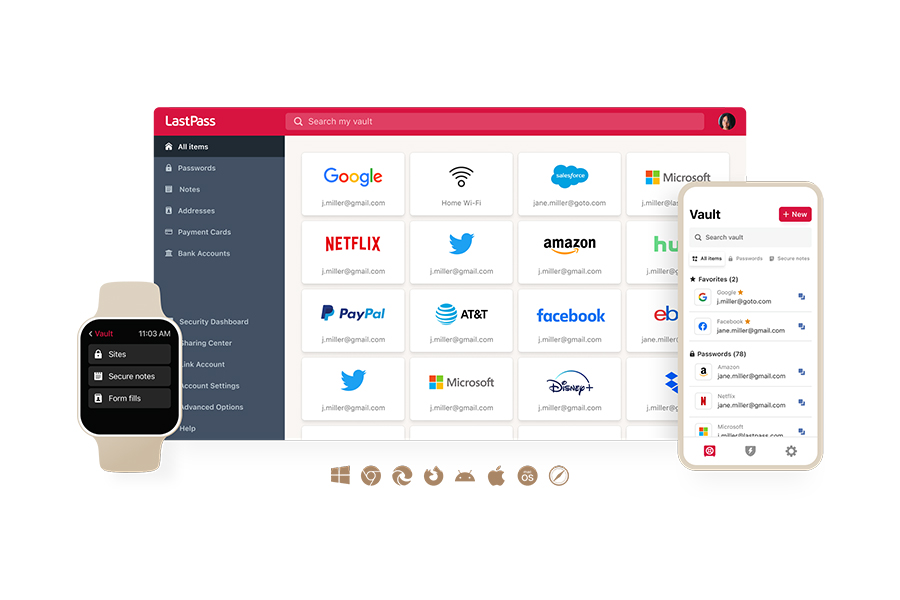
Every employee gets their own vault for personal work credentials, plus access to shared folders that admins control. You can create folders for social media accounts, software licenses, vendor logins, payment cards, API tokens, Wi-Fi credentials, and more — organized by team, role, or function.
This is a fundamental difference from KeePass's flat-file structure. KeePass stores everything in a single .kdbx file per user. If you need to share credentials, you're either sharing the entire database file (a security risk), emailing passwords (worse), or setting up a shared file on a network drive that multiple people access simultaneously (prone to conflicts and version issues).
With LastPass, sharing is granular and controlled. You decide which folders each person or group can access, and you manage it all from a central admin console.
When someone leaves the team or changes roles, you revoke their access from the Sharing Center. The credentials stay in the vault; the departing employee loses access. You don't need to change every shared password each time you offboard someone.
Keeping credentials secure during offboarding was a real concern for Forsters LLP, a London law firm with over 500 employees. A period of IT team turnover meant staff were leaving and taking critical access credentials with them. As their InfoSec Manager, Neil Bell put it, "The risk of losing access to systems when people left the firm was high." After switching to LastPass, passwords are retained in the vault regardless and there's no risk of unauthorized access. (Read the full case study here.)
Employees also get a free LastPass Families account. This means they can manage personal passwords in the same tool they use for work. When offboarded, company credentials are revoked while personal data remains with the employees. This also reduces the company's risk exposure: if an employee's personal email gets compromised because of a weak password, and that inbox contains anything work-related — a forwarded document, a password reset link, a shared file — that becomes a path to company data.
Easily log into your tools with the LastPass browser extension
The LastPass browser extension — available for Chrome, Firefox, Safari, and Edge — autofills passwords and MFA codes in one click. When an employee goes to a site they have credentials for, LastPass fills in the username and password automatically. If there's an MFA code, it fills that too. You don't need to toggle between screens or devices.

This is one of the biggest differences from KeePass. With KeePass, browser autofill requires installing and maintaining a third-party plugin like KeePassXC-Browser or Kee, and keeping it compatible across browser updates. With LastPass, autofill works natively from the moment you install the extension.
When employees sign up for a new site, LastPass generates a strong, randomized password right in the browser — customizable by length and complexity — and prompts them to save it. This directly addresses the password reuse problem that KeePass doesn't actively prevent. KeePass has a password generator, but it doesn't sit where employees do their work, so it requires extra steps that many skip.
Over 120 admin policies scoped to users and groups
With LastPass, you have over 120 security policies you can enable, and you can scope each one to specific users or groups.

For example, you can:
-
Require MFA for your finance team when they access banking portals.
-
Enforce 16-character password minimums for IT staff while keeping it at 12 for general employees.
-
Block logins from TOR networks across your entire org.
-
Set different rules for contractors versus full-time employees.
-
Prohibit offline vault access for employees on shared computers.
Compare this to KeePass, where there's no admin console, no per-user or per-group scoping, no password complexity enforcement, and no visibility into whether employees are following your security requirements. You either apply the same restrictions to everyone or to no one.
When you first sign up with LastPass, we provide a recommended set of default policies so you're not starting from scratch.
See what apps your team is using and regulate access
59% of organizations say employees adopt SaaS tools without checking with IT first.
As Wout Zwiep, a Process Engineer at Axxor, a global manufacturer that rolled out LastPass across three countries, explained: "People are experimenting with AI tools like OpenAI and Canva. We don't want to block innovation, but we do want to guide it safely." (Read the full case study here.)
With KeePass, you have absolutely no way to detect this — it's a local password store with no organizational awareness.
But with LastPass, you get SaaS Monitoring. You can see what AI tools and apps your employees are signing into, how they're logging in (personal vs. corporate credentials, SSO vs. password), and which apps aren't being managed. All of this shows up on your dashboard, with no additional agent software needed — it works through the already-installed browser extension.
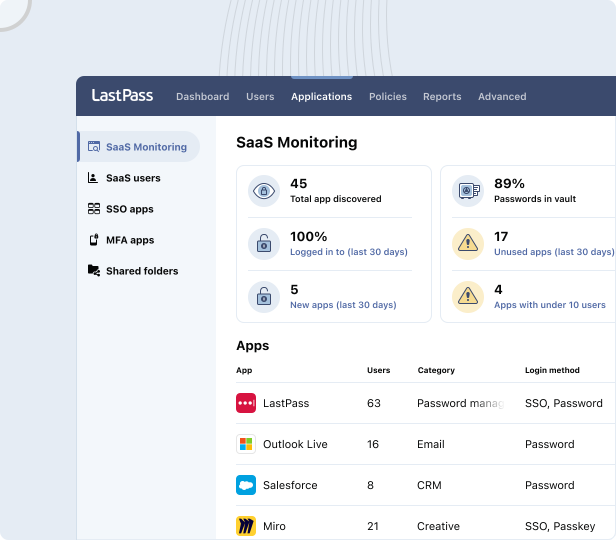
For example, in the dashboard image below you can see that four employees are using ChatGPT — two with corporate accounts and two with personal ones. You can see whether they created passwords or used Google SSO, and when they last logged in. From there, you can decide whether to approve it as a standard tool, restrict it, or migrate everyone to a corporate account.

This visibility lets you see which platforms are actually being used (and which ones you're paying for but no one touches), discover tools your team has adopted without telling IT, and detect when employees are logging into work apps with personal credentials.
Plus, with our SaaS Protect features, you can:
-
Block unapproved applications outright. When an app is blocked, users who attempt to access it see a LastPass block screen in their browser. You can customize this to explain why the app is blocked or direct them to an approved alternative.
-
Attach a warning message that employees see when they try to log in. For example, if employees are signing into a generative AI tool, you can set up a rule reminding them not to share confidential company data.
-
Add informational pop-ups. For example, if your company uses DHL as a shipping provider, you can set up a pop-up when an employee goes to UPS or FedEx, reminding them that your company has an account with DHL.

This advanced capability is typically found only in enterprise SaaS management tools that cost significantly more and require dedicated IT teams to deploy.
Monitor your company’s overall security risk
The Security Dashboard gives you an overall security score across all enrolled users. It breaks down who has weak passwords, who's reusing their master password, and whether any employee email addresses have appeared in known data breaches through dark web monitoring.
You get this visibility without ever seeing the actual passwords. You can tell that three people on your team have weak credentials and need to update them, but the passwords themselves stay hidden.
We also have an Adoption Dashboard that shows license consumption, enrollment rates, and active usage. You can see who has activated their account and who hasn't, and send reminders with one click. This is especially useful when rolling out to a team that previously used KeePass individually. You can track the migration's progress and follow up with anyone who hasn't made the switch.
HOLT CAT, a Caterpillar equipment dealer with 3,500+ employees, used all 2,500 of their initial seats in the first year. By year two, they expanded to 3,500 seats with 70% adoption — driven in part by employees requesting access on their own after seeing how easy the tool was to use. (Read the full case study here.)
Single sign-on (SSO) compatibility
LastPass works alongside SSO providers like Okta or Microsoft Entra. SSO covers the apps that support it, and LastPass covers the rest, especially smaller SaaS tools that either don't offer SSO or charge 2–4x more for SSO-enabled tiers. You're not choosing between the two; they work together. The Business Max plan includes unlimited SSO apps.
KeePass has no SSO integration at all.
24/7 Support
LastPass offers 24/7 support by phone, email, or chat. You can reach a real person whenever you need help. This is a direct contrast to KeePass's community-forum-only model, where getting an answer depends on whether another user has encountered your specific issue and responded.
Pricing
LastPass offers three business plans:
-
Teams ($4.25/user/month, billed annually) – For small businesses and startups that need shared folders, an admin console, and 25 security policies.
-
Business ($7/user/month, billed annually) – Includes 100+ security policies, group user management, and a free LastPass Families account for every employee.
-
Business Max ($9/user/month, billed annually) – Everything in Business, plus SaaS Monitoring, SaaS Protect, unlimited SSO apps, and advanced MFA.
All three plans come with a 14-day free trial with full access to the vault, browser extension, admin policies, Security Dashboard, and SaaS Monitoring.
Start your free trial or request a demo.
2. Bitwarden: an open-source alternative for technical teams

Bitwarden is the closest spiritual successor to KeePass. It's open-source, publicly auditable, and undergoes regular third-party security audits by Cure53. If open-source transparency is a requirement for your organization and your team is technical enough to manage the tool with minimal hand-holding, Bitwarden is worth considering.
Plus, unlike KeePass, Bitwarden offers native cross-device sync, browser extensions, and mobile apps out of the box — no plugin configuration required.
Self-hosting is available for organizations that want full control over their infrastructure, plus EU and US data residency options for cloud-hosted accounts. This makes Bitwarden attractive for organizations with data sovereignty requirements that still want the open-source philosophy of KeePass without the local-file limitations.
But there are some areas where Bitwarden falls short for business teams, including:
-
Limited SaaS visibility. Bitwarden has Access Intelligence, which flags weak or reused credentials and includes a phishing blocker. But it only has visibility into applications where credentials are already stored in Bitwarden. It can't detect non-vaulted logins or show you which SaaS and AI tools employees are accessing outside the vault, and there's no way to block or restrict access to unapproved applications.
-
Fewer admin controls. Around 18 admin policies are available — more than KeePass's zero but significantly fewer than LastPass's 120+. There's no ability to scope policies to specific users or groups.
-
Less polished interface. The interface is functional but commonly described as less refined than premium competitors. Sharing works through "Collections" rather than intuitive shared folders, and items are owned by the organization with no nested folder hierarchy.
-
No phone support. Support is email and ticket-based only, which may be a challenge for lean IT teams that need fast answers.
If your team is technical and comfortable managing the tool themselves, Bitwarden gives you a solid, transparent option at a low price point. If you're looking for more built-in admin controls, SaaS visibility, or hands-on support, it may require more work on your end.
3. 1Password: for larger enterprises and power users

1Password is a good KeePass alternative if you're a larger enterprise or a technically minded team that needs developer-focused features. Where 1Password stands out is in power-user tooling: SSH key management, a CLI for secrets automation, and Travel Mode, a unique feature that lets employees hide sensitive vaults when crossing international borders.
Over the past few years, 1Password has acquired several companies to build out what they call Extended Access Management — adding capabilities like device trust, SaaS management, and access controls on top of their core password manager. The result is a broad set of features, but they come as separate add-ons, each with its own interface, which can make the overall experience feel fragmented and drive up costs beyond the base $7.99/user/month pricing.
You can share credentials with people outside your organization via links, which is useful if you regularly work with contractors or external vendors.
On the admin side, 1Password offers around 25 security policies applied at the organization level — not scoped to specific users or groups like LastPass allows. Phone support is available during business hours only (9–5 EST), compared to LastPass's 24/7 availability.
For small to midsize businesses without dedicated IT teams, the complexity of managing multiple add-on interfaces and the higher price point may not justify the enterprise-grade capabilities. But if your organization has a dedicated security team and needs developer tooling, 1Password is an option to consider.
4. Dashlane: a user-friendly option with a built-in VPN

Dashlane is a good KeePass alternative if you want a clean, easy-to-adopt interface and don't need granular admin controls. It covers the password management fundamentals — vault, autofill, password generator, credential sharing — and bundles in a built-in VPN (Hotspot Shield) and proactive phishing alerts that flag risky sites before employees interact with them.
The interface is clean and easy for non-technical users to adopt, with machine-learning-adapted form filling that performs well in day-to-day use. For teams whose main frustration with KeePass is the outdated interface and steep learning curve, Dashlane's user experience is a significant step up.
Where Dashlane falls short for business teams:
-
Limited admin policies. Around 16 security policies are available, applied at the organization level rather than to specific users or groups — significantly fewer and less granular than LastPass's 120+.
-
Limited SaaS and AI visibility. Dashlane offers some visibility into credential risk and SaaS usage, but it's focused more on credential detection and protection than on SaaS access governance. You can see some of what's being used, but it's a more limited view compared to tools with dedicated SaaS monitoring and control features.
-
Limited data residency. All customer vault data is hosted in Dublin, Ireland, with no option to choose a different data center.
-
Business hours support only. Live chat, Zoom calls, and phone support are available Monday–Friday, 9 AM–6 PM ET.
For more information on Dashlane, you can:
5. Keeper: best for regulated industries and government

Keeper is a good KeePass alternative if you need FedRAMP or StateRAMP certification, or if you want password management and privileged access management (PAM) from a single vendor. It's popular with government agencies and regulated industries, and it's been expanding into PAM with secrets management, privileged session management, and connection manager features.
Keeper encrypts each vault, folder, password, and file with its own unique AES-256 key. It offers granular vault access controls, so admins can set detailed permissions for who can view, edit, share, and archive items across shared folders.
Where Keeper falls short for general business teams:
-
Pricing can escalate. Initial pricing starts at $4/user/month (Business plan), but multiple users have reported significant price increases at renewal — sometimes 40–200% higher than the first-year rate.
-
Key features are paid add-ons. Several features that other password managers include in base plans, including dark web monitoring, advanced reporting, and customer support, are available only as paid add-ons with Keeper.
-
No SaaS or AI visibility. There's no way to see what tools employees are signing into outside the vault or control access to unapproved applications.
-
Orphaned folder risk. When folder creators leave an organization, their shared folders can become "orphaned," meaning no one retains clear ownership or management access to the credentials inside them.
If you're in a regulated industry that requires FedRAMP compliance or needs PAM capabilities alongside password management, Keeper is worth evaluating. For general small-to-midsize businesses, the add-on pricing model and lack of SaaS visibility may be limiting.
For more information on Keeper, you can:
6. NordPass: the budget option for basic password management

NordPass is a good KeePass alternative if your primary goal is to move off KeePass's local-file model at the lowest possible cost. At $3.99/user/month, it's the cheapest option on this list.
NordPass is from the same company that owns NordVPN. It covers core password management features, including vault, autofill, password generator, and credential sharing, and uses XChaCha20 encryption with Argon2id key derivation, which are newer cryptographic standards. It also includes 3GB of file storage per user and an email masking feature.
For teams that just need basic, affordable password management without advanced admin features, NordPass is a practical choice — especially if you already use NordVPN and want to bundle.
Where NordPass falls short:
-
Minimal admin policies. Only 8 admin policies are available — the fewest of any competitor listed here. Sharing permissions are limited to "can view," "can edit," or "can autofill" with no multi-level folder permissions.
-
No SaaS or AI visibility. You can't see what tools employees are signing into or control access to unapproved applications.
-
No phone support. Chat and email only.
-
Data center sharing limitations. Items can only be shared between members whose accounts are in the same data center, which limits flexibility for distributed teams.
For more information on NordPass, you can:
Choosing the right KeePass alternative for your business (comparison at a glance)
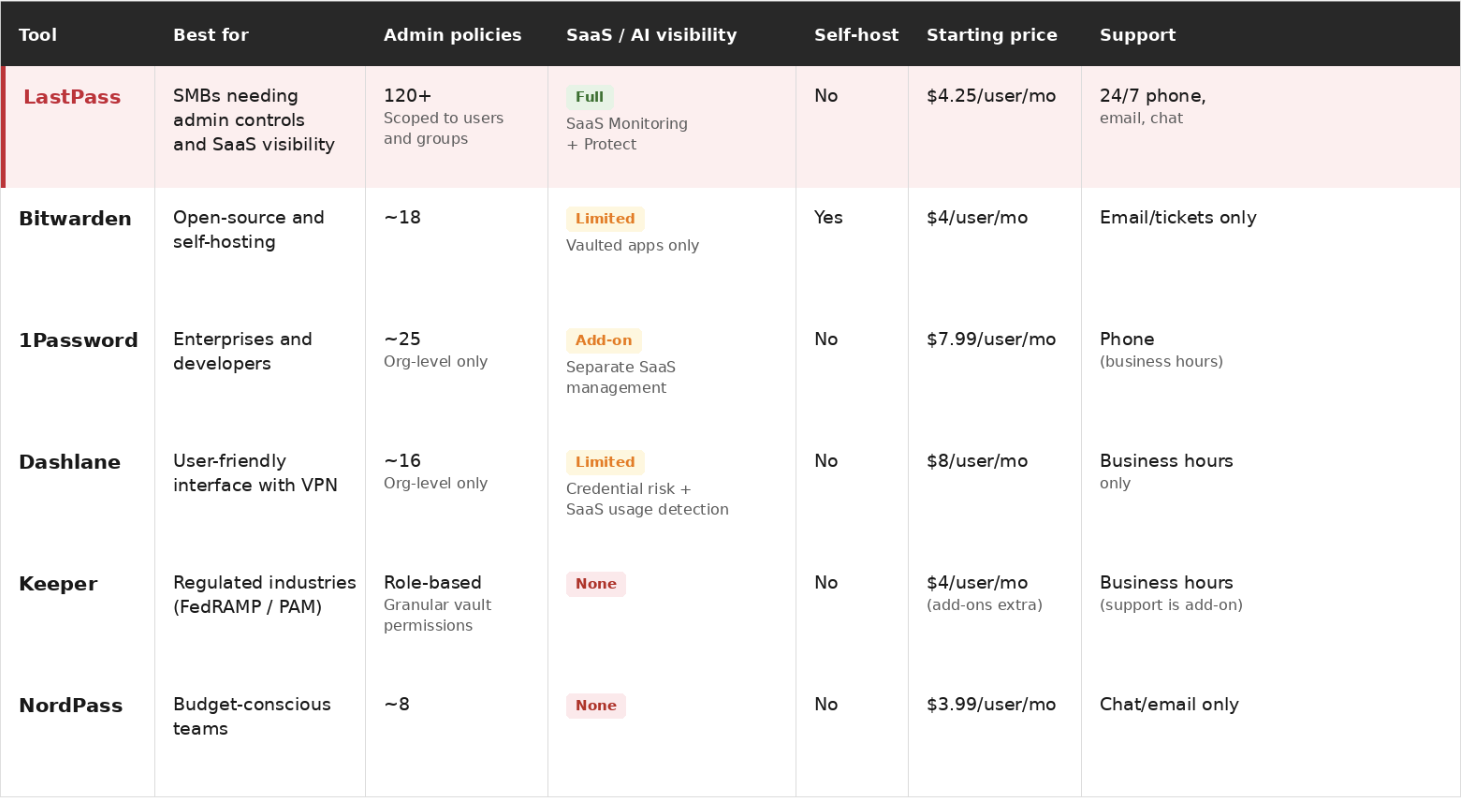
If you're moving off KeePass, the right choice depends on what matters most to your organization:
-
If you want open-source transparency and the lowest price, and your team is technical enough to manage the tool themselves, Bitwarden is worth evaluating.
-
If you need FedRAMP certification and privileged access management for a regulated environment, Keeper covers that niche.
-
If you're a large enterprise with dedicated security teams and need developer tooling like SSH key management and Travel Mode, 1Password is an option.
-
If you just need the cheapest option for basic password management without advanced admin needs, NordPass works at $3.99/user/month.
But if what you need is a secure access tool that your whole team will actually adopt, one that gives you credential management, granular admin controls, SaaS visibility, and real support without requiring plugin dependencies or a dedicated security team, LastPass is built for that.
LastPass is built on a zero-knowledge approach, meaning we never have access to your master password or your stored data. From there, you get the functionality that matters for businesses: a secure password vault, a browser extension for autofill, over 120 customizable security policies you can scope to specific teams or individuals, and SaaS Monitoring that shows you how your team is accessing the tools they use every day.
LastPass offers three business plans:
-
Teams ($4.25/user/month, billed annually) – For small businesses and startups that need shared folders, an admin console, and 25 security policies.
-
Business ($7/user/month, billed annually) – Includes 100+ security policies, group user management, and a free LastPass Families account for every employee.
-
Business Max ($9/user/month, billed annually) – Everything in Business, plus SaaS Monitoring, SaaS Protect, unlimited SSO apps, and advanced MFA.
All three plans come with a 14-day free trial. On your free trial, you get full access to the vault, browser extension, admin policies, Security Dashboard, and SaaS Monitoring, so you can see how it works with your team before committing.
Setup takes a few minutes. You create your account, invite your team, and your employees install the browser extension. From there, they can start saving and autofilling credentials right away. If they're already storing passwords in KeePass, Chrome, Microsoft Edge, or other browsers, they can import those into LastPass so nothing gets left behind.
And if you need help along the way, we have 24/7 support available by phone, email, or chat. Whether it's a question about configuring policies or getting your team migrated, you can reach a real person whenever you need to.


