
For most businesses, there are two types of SaaS monitoring tools, both of which solve very different problems:
-
The first kind monitors which SaaS apps your team is using. Who signed up for what and how they're logging in (a corporate account or a personal one, SSO or a password they reused from somewhere else). More and more, people are signing up for new tools to help them do their job and they’re not always vetting platforms with IT before signing up for an account. This is called shadow IT. In one recent survey, 55% of organizations said employees adopt SaaS tools without checking with IT first. This leads you open to risks that you’re not even aware of. In this case, SaaS monitoring tools are tools that give you visibility into what apps and sites your team is using.
-
The second kind monitors whether the SaaS apps your business depends on are actually working. Uptime, response times, error rates, the gradual slowdown that happens before something fully fails. Let's say your team runs on Salesforce, a payment processor, and a couple of customer-facing APIs. When one of them starts failing, you want to hear it from a dashboard, not from your customers.
In this post, we go over both, looking at how your team can use each type. We'll start with the tools for monitoring SaaS usage and access, including the best option for small to midsize businesses managing shadow IT.
Note: Feature comparisons in this article are current as of May 2026.
Best SaaS monitoring tool for managing shadow IT
LastPass

LastPass is a password manager that small to midsize businesses use to store credentials securely and let their team log in through a browser extension. But unlike most password managers, LastPass comes with advanced security features that you can use to see which tools and apps your team is actively using and set up restrictions as needed.
Two features do most of the work, and both run through the same browser extension your team already uses for password autofill, so there are no device agents or extra software to install (making LastPass ideal for small to midsize businesses):
-
SaaS Monitoring: shows you which apps your team is actually logging into.
-
SaaS Protect: lets you block, warn, or allow those apps based on the rules you set.
SaaS Monitoring: see which SaaS and AI tools your team is using
When you use LastPass, you can see which apps your team is logging into, how they're logging in (SSO, a vaulted password, a passkey, or an unvaulted password), and whether they're using personal or corporate credentials. This works because as your team uses the LastPass browser extension, we track their user activity.
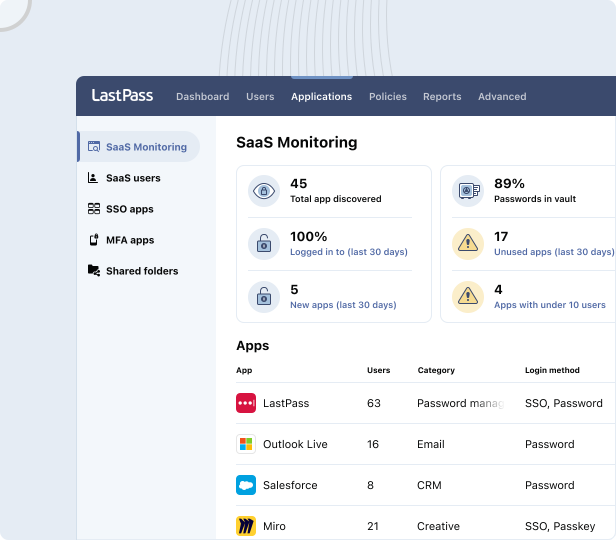
This activity shows up in your SaaS Monitoring dashboard.

In addition to security, you can use your SaaS Monitoring dashboard to help with cost. When you can see every app in use, you can spot the duplicates (two teams paying for different tools that do the same job) and the licenses nobody's touched in months, then consolidate.
Restrict or guide access with SaaS Protect
With LastPass, it’s easy to set up restrictions or otherwise guide user behavior. Specifically, you can:
-
Block an app outright: You’d do this for any app/tool that you don’t want your team to access, period. When you block an app, anyone who tries to open it sees a LastPass block screen in their browser. You can customize that screen to explain why the app is blocked or point them to an approved alternative.
-
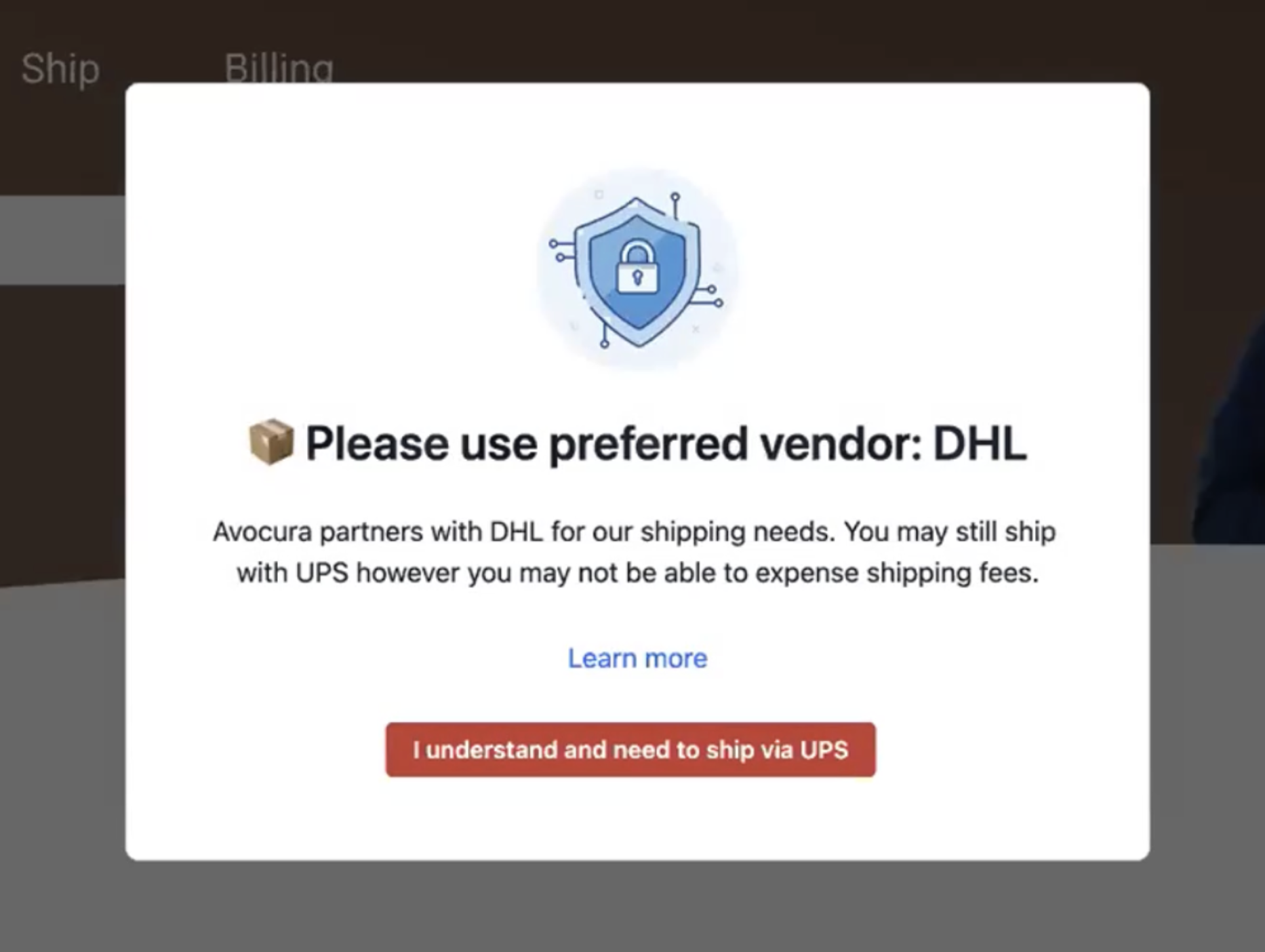
Add a custom pop-up when someone visits a site: You’d use this if you’re okay with your team using the tool they’re trying to access but you want to provide additional context about the tool in question. A warning might remind someone opening a generative AI tool not to paste confidential company data into it. An informational pop-up might remind someone who visits UPS or FedEx that your company already has an account with DHL.
See where credentials are at risk with the Security Dashboard
When you use LastPass, you also get a Security Dashboard that gives you an overall security score for your whole team. This includes:
-
Who's using weak passwords
-
Who's reusing the same one across accounts
-
Who hasn't turned on MFA
Plus, you get dark web monitoring for your team. LastPass checks your team's email addresses against a database of breached credentials (LastPass uses a partner, Enzoic, for this) and alerts you in near real time if one turns up. When you first switch it on, it also runs a one-time retroactive check going back 12 months, so you catch exposures that already happened.
From the admin console, you can pull a report of everyone with an unresolved breach alert and follow up with them directly, or flag the people who need to fix a weak or reused password.
Enforce consistent rules with admin policies
With LastPass, you have access to over 120 admin policies. These policies cover password requirements, MFA, access controls, and account restrictions. You can scope each one to individual users or groups, instead of applying one blanket rule to everyone.
Here are a few examples of admin policies and how you can enable them across your team:
-
You can require MFA where the risk is highest: mandate it for your finance team accessing banking portals, without forcing the same friction on everyone.
-
You can set different password rules by role: a 16-character minimum for IT staff, 12 for general employees.
-
You can separate contractors from full-time staff: different lockout periods, sharing limits, or access rules for each.
-
You can restrict by device or location: let people skip MFA on a trusted office IP but require it remotely, or block offline vault access on shared computers.
LastPass starts you with a recommended set of default policies, and you organize people into groups (synced from Microsoft Entra, Okta, Google Workspace, or your directory) so a policy or shared folder applies to everyone in a group at once.
You can customize who can modify these admin policies. LastPass uses four admin roles (user, helpdesk admin, admin, and super admin), so your IT helpdesk can handle day-to-day password support without getting access to everything. And every policy change and user action is captured in exportable audit logs, so when you need to prove compliance, the record is already there.
Everything runs through one browser extension
One of the reasons LastPass works for a business without a dedicated IT team is that our app is easy to deploy. Even our advanced features like SaaS Monitoring and SaaS Protect aren't separate software with their own agents to install on every device. They run through the same LastPass browser extension your team uses every day.
Your LastPass Browser Extension is also how your team interacts with LastPass every day.
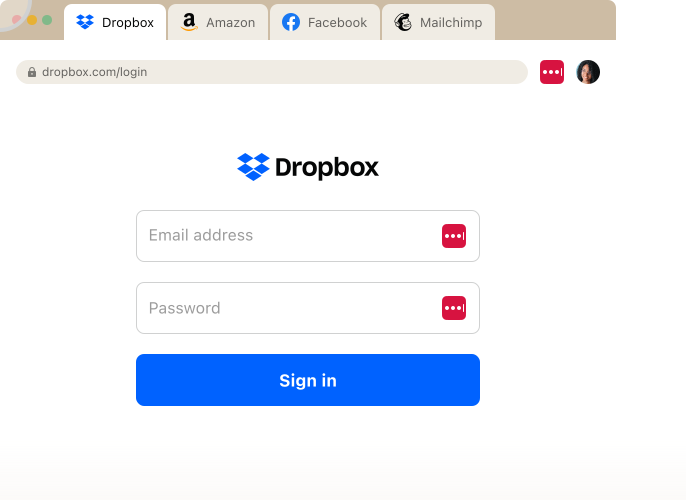
When someone lands on a login page for a site they've saved, LastPass fills in their username and password for them, and enters their MFA code, in a single click. There's no typing a password from memory, no resetting it when they forget, no copying a code out of an authenticator app before it expires. When they sign up for something new, the extension generates a strong, unique password and saves it to their vault on the spot.
That vault is where each user’s credentials live. They can keep more than passwords there (API tokens, Wi-Fi credentials, payment cards, and other business info), and you can share credentials through encrypted folders scoped by team, project, or role, so only the right people can see a given login. Vaults are encrypted locally with 256-bit AES before anything reaches LastPass's servers, and LastPass uses a zero-knowledge approach, so it never has access to your master password or what's inside.
Because monitoring rides on the extension everyone already has, turning it on doesn't change how your team works. They keep logging in the way they always have, while you get visibility and control in the background. And it only captures business app usage when someone is signed in with their company email in a browser that has the extension installed, so personal logins stay private.
See whether adoption is sticking with the Adoption Dashboard
The more people who use LastPass, the more secure your organization will be. The Adoption Dashboard helps you track usage rates and track adoption.

Your dashboard shows three helpful numbers:
-
License consumption: how many of the seats you've paid for are in use. Buy 50 and use 32, and you're paying for 18 you could reclaim or reassign.
-
Enrollment rate: how many of the people you invited have activated their account. A low number tells you onboarding stalled, and exactly who still needs a nudge.
-
Active usage rate: how many enrolled users have actually used LastPass in the last 30 days. This is the one that tells you whether adoption stuck, or whether people enrolled and then drifted back to old habits.
Each number comes with an action you can take from the same screen: re-invite people who never responded, remind enrolled users who've gone quiet, or export the list to send your own message.
One thing that helps adoption happen on its own: every employee gets a free LastPass Families account (a personal vault plus five licenses to share). It gives them a reason to use LastPass for their own logins, not just the ones IT assigned, so the habit forms faster.
Overall, LastPass is easy to deploy, even across larger companies. HOLT CAT, a Caterpillar heavy equipment dealer with more than 3,500 employees, filled all 2,500 of their initial seats in the first year, then expanded to 3,500 and reached 70% active adoption by year two. (Read the full HOLT CAT case study.)
Other password managers with SaaS monitoring
A few other password managers also give you some visibility into the apps your team uses. Two worth knowing:
1Password
Through its Extended Access Management platform (and a tool called SaaS Manager, formerly Trelica by 1Password), 1Password discovers the SaaS and AI apps in use across an organization, including unsanctioned ones, and reports on usage, license spend, and compliance. 1Password can flag or block risky apps and automate access reviews, pulling discovery from identity providers, finance systems, device agents, and the 1Password browser extension. This is a more extensive SaaS governance layer than most password managers offer, and it's aimed largely at organizations with a dedicated security team to run it.
Dashlane
Dashlane's angle is credential risk rather than app discovery. Dashlane's Credential Risk Detection surfaces weak, reused, and compromised passwords across the workforce, including on apps outside SSO and for employees who aren't on Dashlane, and can flag when someone is using an unmanaged app for work. Paired with dark web monitoring and Slack-based alerts, Dashlane gives you visibility into where credentials are at risk, though Dashlane stops short of the full SaaS inventory and app-by-app controls of a dedicated SaaS monitoring tool.
SaaS monitoring tools for software performance and reliability
The second type of SaaS monitoring answers a different question: are the apps your business runs on actually up and working? That covers the SaaS tools you depend on (Salesforce, Microsoft 365, your payment processor) and any apps or APIs you run yourself. These tools watch uptime, response times, and errors, and alert you when something breaks, ideally before your team or your customers notice.
Here are five worth looking at, depending on what you need to watch and how much you want to manage.
-
Datadog. A full observability platform that pulls metrics, logs, and traces into one place, with synthetic checks that test your apps and endpoints from the outside. Its APM ties traces to logs and metrics so you can find the source of a slowdown, not just see that something is down. Best for engineering or DevOps teams running their own cloud apps and APIs. (Learn more about Datadog.)
-
Site24x7. An all-in-one monitoring tool (part of ManageEngine) that covers website uptime, application performance, servers, networks, and cloud from a single dashboard. Site24x7 is aimed at giving smaller IT teams broad coverage without the cost or complexity of an enterprise platform. Best for lean teams that want to watch a lot of things in one place affordably. (Learn more about Site24x7.)
-
Dotcom-Monitor. Focused on synthetic monitoring: Dotcom-Monitor runs scripted versions of critical user journeys (a login, a checkout, a booking flow) from locations around the world and flags the moment one breaks. Best for businesses where a multi-step web workflow is tied directly to revenue and you need to catch a broken step before customers hit it. (Learn more about Dotcom-Monitor.)
-
ThousandEyes. A Cisco tool built around digital experience and network-path visibility. When a SaaS app feels slow, ThousandEyes helps you see whether the problem is your network, the public internet, or the vendor's side. Best for distributed teams that need to answer "is it us or is it them?" when a third-party app degrades. (Learn more about ThousandEyes.)
-
UptimeRobot. The simplest option here: UptimeRobot checks whether your sites, APIs, and services are responding at regular intervals, alerts you when they're not, and can publish a status page. Best for small teams or owners who mainly need to know the moment something goes down, without running a full monitoring stack. (Learn more about UptimeRobot.)
Final thoughts: choosing the right SaaS monitoring tool
Start by settling which kind of SaaS monitoring you need. If the problem is not knowing what your team is signing into, and what that exposes you to, you want a usage-and-access tool. If the problem is whether the apps you rely on are up and fast, you want a performance-and-reliability tool.
For the first job, LastPass is a great option for small to midsize businesses. It shows you which apps your team is using and how, lets you block or guide access to the risky ones, and runs through the browser extension your team already uses to log in, so there's nothing extra to deploy. You can start a free trial or book a demo to walk through how our key features will help fulfill your secure access needs.
For the second job, the right pick depends on what you're watching: Datadog for full observability of your own apps and APIs, ThousandEyes for tracing whether a slowdown is you or the vendor, Site24x7 for broad all-in-one coverage, UptimeRobot for simple up-or-down alerts, and Dotcom-Monitor for critical multi-step web workflows.


