
Most data breaches trace back to a password that was stolen, weak, or reused. A password management policy can help offset these risks by giving your team the guidelines they need to create strong, unique passwords and define how they can share credentials across the organization.
But writing a policy is just step one. When it comes to logging in and sharing credentials, users often default to whatever method is easiest and fastest, which can mean falling back on bad habits like re-using passwords and sharing credentials over Slack or text. These behaviors lead to breaches and costly password resets. (Up to half of IT help desk tickets are password resets and on average a single password reset costs a company $70.)
So to make your password management policy effective, you want to give your team the tools they need to securely store, share, and access credentials.
Below, we look at:
-
What to put in your password management policy
-
How to enforce your rules and see how your team is really logging in
-
A free, current-standards policy template you can adapt
Note: Throughout this article, we cover LastPass, a password manager designed for small to midsize businesses. LastPass helps your team securely store passwords and other sensitive information securely and easily. Plus, you can manage SaaS sprawl and Shadow IT by showing you which SaaS and AI tools your team is signing into. You can start a 14-day free trial or schedule a demo to see how LastPass would work within your organization.
What to put in your password management policy
A good policy is specific enough that your team knows what to do and you can check whether they did it. For example, if your policy says employees need to "use strong passwords," that's vague and unhelpful. It doesn't tell them what counts as a strong password or how to create one, so the rule gets ignored.
How specific you need to get also depends on what your business has to comply with. Let's say you handle payment card data, which puts you under PCI DSS. "Use strong passwords" won't pass an audit. Instead, you want your policy to name the 12-character minimum, the 90-day rotation on in-scope systems, and the account lockout PCI requires, so your team meets the standard and you can prove it to an auditor.
Below we go over the components to include in your password management policy, with examples of what we mean when we say "be specific."
Scope
Scope is what determines whether your policy actually covers the accounts that matter. It needs to name both the people it applies to (full-time employees, contractors, temporary staff) and the systems it governs (company email, financial tools, customer data platforms, and the SaaS apps people sign into for work).
Often policies draw this too narrowly, covering "company accounts" without saying what counts as one. A contractor with access to your billing system either falls under the same rules as the admin who set it up, or slips through a gap you didn't know you'd left.
Password creation requirements
This is the core of the policy, and it comes down to three rules covering length, composition, and what specific password format to ban.
Password length matters more than anything else, so start there.
Current NIST guidance (SP 800-63B-4, updated July 2025) sets a floor of 15 characters for password-only accounts and 8 when MFA is enabled. CIS recommends 14 or more. For most businesses, 14 to 16 characters is a sensible floor, with 16 or more for admin and privileged accounts. A passphrase like "coffee-stapler-march-velvet" is both harder to crack and easier to remember than something like "P@ss1!9".
Composition used to mean forcing a mix of uppercase letters, numbers, and symbols. NIST has moved away from that, because mandatory complexity rules push people toward predictable patterns, where the capital goes at the front and the number and symbol go at the end. Your policy should permit all character types, including spaces, but it shouldn't mandate a specific mix.
Some passwords should be banned outright, because they're the first thing an automated attack tries. Block dictionary words, sequential strings like 123456, repeated characters, your company name, and any password known to have appeared in a breach. Two practical rules belong here too. Set a maximum length of at least 64 characters, and allow pasting into password fields. Both sound minor, but if someone generates a 40-character password and can't paste it, they'll pick something shorter and weaker instead.
Additional resources:
Account protection (MFA and account lockout times)
Multi-factor authentication is the highest-value rule after length, because it makes a stolen password far less useful on its own.
At a minimum, you generally want to require MFA for admin accounts, finance accounts, and anything with access to sensitive data, and ideally require it everywhere. In your policy, you want to specify the MFA method your team will use. Authenticator apps are stronger than SMS codes, which can be intercepted through SIM-swapping, so it may be worth stating a preference for app-based MFA rather than leaving it open.
Account lockout belongs here as well. Set a threshold for failed login attempts, somewhere between 5 and 8 is standard, along with a lockout duration. This blocks brute-force and password-spraying attacks, where an attacker runs thousands of common passwords against your accounts until one works.
Additional resources:
Role-based requirements
Not every account carries the same risk, and your policy shouldn't pretend otherwise. The cleanest policies set one baseline for everyone, then layer stricter requirements onto the roles that need them.
Let's say you're writing rules for two people. One is on your finance team and logs into a banking portal and your payroll system every day. The other is a contractor who checks a shared project board twice a week. If you hold both to the same standard, you'll either over-restrict the contractor or under-protect the finance account. A role-based policy gives the finance account a longer minimum, mandatory MFA, and a short session timeout, while keeping things lighter for the contractor.
Spell out which roles get which requirements. Admin accounts, anyone touching financial or customer data, and service accounts are the usual candidates for the stricter tier.
Additional resources:
Change and expiration rules
This is the rule most older policies get wrong. The old standard was a forced password change every 90 days. NIST, Microsoft, and the UK's NCSC have all moved away from that, because forced rotation leads people to make small, predictable changes (Password1 becomes Password2) that attackers already expect. Current guidance is to require a change only when there's a reason, like a credential showing up in a known breach, signs of unauthorized access on the account, or an employee leaving the company.
However, there’s an exception. If your business handles payment card data, PCI DSS v4.0 still requires a 90-day rotation for in-scope systems, along with 12-character minimums, account lockout after 10 failed attempts, and unique first-time passwords that get changed after first use. Your expiration rule may need to read differently for systems in PCI scope than for everything else.
Additional resources:
Storage, handling, and sharing
In your policy, you want to be clear about where passwords can be stored. Passwords shouldn't sit in browsers, spreadsheets, or sticky notes, and they shouldn't be shared over Slack or email.
When a credential genuinely needs to be shared across a team, the policy should point to a secure method for doing it rather than leaving people to improvise.
For most companies, this means using a business password manager that has a safe, encrypted vault.
Additional resources:
Enforcement and monitoring
Finally, you want to make sure your policy covers enforcement and monitoring. Name who owns the policy, how compliance gets checked, and what happens when rules and regulations aren’t met.
This is also the natural seam between writing a policy and running one.
At this point you have a complete policy on paper, but you need to use a password manager to enforce your policies.
Further, your policy can only be checked against the accounts you know about. When an employee signs up for a new AI tool with their work email and reuses a password to do it, that account becomes part of your security picture, and you have no way to see it, let alone enforce a rule on it, unless you use a tool that gives you visibility like LastPass.
Next, we look at how you can use LastPass to help you enforce your password management policy across your entire team.
Additional resources:
-
How SaaS Monitoring gives you visibility into what tools your team is using
-
How SaaS Protect helps you restrict access to specific sites and tools
How to implement and enforce your policy with LastPass

LastPass can help you enforce your password management policy across your organization. It's a password manager with admin controls, which means it does two jobs at once. For your team, it stores and fills credentials so the secure way to log in is also the easiest one. For you, it applies the rules you wrote at the point of login, so the policy gets followed without anyone having to police it by hand.
When you use LastPass, you can discover which SaaS and AI tools your team is signing into and how they're logging in, control access across the organization by setting and scoping over 120 admin policies to users or groups, and simplify secure access with an encrypted vault and a browser extension that generates and fills compliant passwords automatically. Together, that covers both the enforcement and the visibility a written policy can't handle on its own.
Below, we look at the key features. You can also start your free trial or schedule a demo.
Set and scope over 120 security policies
LastPass gives you more than 120 security policies, and you can apply each one to your whole organization, to a group, or to a single user. This is where the role-based tiers from your policy stop being a paragraph in a document and start being enforced.

Take the finance-versus-contractor split from earlier. You can require app-based MFA for your finance team when they access banking portals, enforce a 16-character minimum on admin accounts while keeping general staff at 14, and set lighter rules for contractors, all from one admin console. You can also block logins from TOR networks across the whole organization, or set account lockout thresholds and get notified when someone trips one.
When you first set things up, LastPass gives you a recommended set of default policies, so you're adjusting a working baseline rather than building from a blank page.
Generate and autofill policy-compliant passwords automatically
The browser extension is what makes the password rules hold without anyone thinking about them. When an employee signs up for a new app, LastPass generates a strong, randomized password right in the browser, built to the length and complexity rules you set, and saves it to their vault.
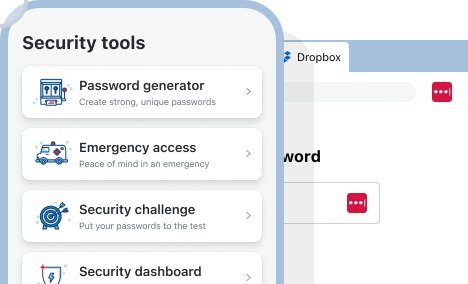
The employee never has to interpret the policy, because the tool builds a compliant password for them. When they come back to that site, LastPass autofills their username, password, and MFA code in one step, so the secure option is also the fastest one. There's no toggling between apps and no reason to fall back on a weak password they can remember. The extension works on Chrome, Firefox, Safari, and Edge.

Store and share credentials in an encrypted vault

With LastPass, your credentials are encrypted on your own device with 256-bit AES before they're ever sent to our servers. That's what a zero-knowledge approach means, so we never have access to your master password or the data in your vault. When you create an account, you set up your organization's vault, and each team member gets their own, holding their private folders and any folders that have been shared with them.
This is where the storage and sharing rules in your policy get a place to actually happen. Instead of a credential sitting in a browser or getting passed around over Slack, it goes in a folder you control. Those folders can hold more than passwords, including API tokens, Wi-Fi credentials, and payment cards, and you decide which ones each person or team can see. You might keep one shared folder for social media accounts, one for software licenses, and one for vendor logins.
The same structure handles offboarding, which is one of the moments your policy should trigger a credential change. When someone leaves or switches roles, you revoke their access from the Sharing Center. The credentials stay in the vault, and the person loses access to them.
That was the problem Forsters LLP, a London law firm with more than 500 employees, ran into during a stretch of IT team turnover, when people were leaving and taking critical access credentials with them. As InfoSec Manager Neil Bell put it, "The risk of losing access to systems when people left the firm was high." With credentials held in the vault, they stay with the company when the person goes, and there's no scramble to recover them. (Read the full Forsters case study here.)
Employees also get a free LastPass Families account, so they can manage personal passwords in the same place as their work credentials. When they leave, you revoke the company credentials and they keep the personal ones, which keeps the two cleanly separated. It's also better for your security. If an employee's personal email gets compromised through a weak password and that inbox holds anything work-related, like a forwarded document or a password reset link, your exposure goes up. A secure place for their personal logins lowers that risk.
See weak, reused, and breached credentials in one place
The Security Dashboard gives you an overall security score across your enrolled users and breaks down who's using weak passwords, who's reusing credentials, and whether any employee emails have shown up in a known breach. You get all of this without ever seeing anyone's actual passwords, because of the zero-knowledge approach the vault runs on.
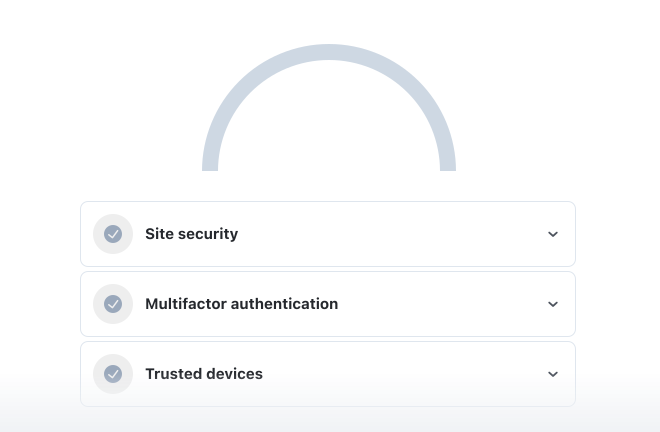
This is also what makes the change-on-compromise rule in your policy workable. Dark web monitoring continuously checks your employees' stored emails against known breach databases, and when there's a match, it alerts both the employee and their admin. Instead of rotating everyone's passwords on a schedule, you change the specific credentials that are actually at risk.
See which apps and tools your team is signing into
Your password policy applies to every work account in principle, but you can only confirm it's being followed on the accounts you actually know about. SaaS Monitoring shows you the ones you don't. You can see which apps employees are signing into, how they're logging in (through SSO, a vaulted password, or an unvaulted one), and whether they're using corporate or personal credentials.

An employee signing into a new AI tool with a personal account and a reused password is exactly the kind of access your written policy never reaches, and now you can see it.
Block, warn, or guide access to specific apps
With LastPass, you can easily block an unapproved application outright, or attach a warning message that appears when someone visits a risky tool, pointing them to an approved alternative instead.

Next steps, plus a free password policy template
In this guide, we covered what goes into a password management policy, from password length and MFA to role-based rules and how compliance frameworks like PCI DSS and HIPAA change the requirements.
To help you turn that into an actual document, we put together a free template that covers every component from this article, built on current NIST and CIS guidance. You can adapt each section to your business, your compliance requirements, and your risk profile. A healthcare provider under HIPAA and a retailer under PCI DSS will fill it in very differently.
But a written policy only works if your team actually follows it, across every app they log into. That takes a tool that enforces your rules at the point of login and gives you visibility into the accounts your team is really using.
That's what LastPass does. Because it runs from the browser, deployment doesn't require device agents or a long setup. OTO Technology, a managed service provider that deploys LastPass for clients across France, the US, and Japan, found that onboarding takes under five minutes per user. From there, you can track adoption on a dashboard that shows who's using LastPass and who hasn't started yet, and support is available 24/7 by phone, email, or chat.
To see how this works for your team, you can start a 14-day free trial or schedule a demo.


