Passwords protect everything your business cares about: customer data, financial accounts, internal systems, and sensitive documents. When those passwords are weak or poorly managed, your entire organization becomes vulnerable.
This guide covers 10 password practices that can help protect your business from credential-based attacks. You'll learn how tools like LastPass make it easier to generate strong passwords, share credentials securely, and monitor for breaches. You'll also find practical tips for building a security-aware culture across your team.
- A password manager eliminates the need for spreadsheets and sticky notes while keeping credentials encrypted and organized.
- Random, machine-generated passwords are far stronger than anything you could create yourself.
- Multifactor authentication adds a critical second layer of protection to every account.
- Regular password audits help you catch weak, reused, or compromised credentials before attackers do.
- LastPass gives businesses secure sharing, dark web monitoring, and over 120 security policies to protect their teams.
10 password practices to strengthen your business security
1. Use a password manager instead of relying on memory or spreadsheets
Remembering unique, complex passwords for every work account is unrealistic. That's why so many people fall back on risky habits like reusing passwords or storing them in spreadsheets.
A password manager stores all your team's credentials in an encrypted vault. Each person only needs to remember one master password to access everything else. This makes strong, unique passwords practical across your entire organization.
Password managers also autofill credentials on websites and apps. This saves time and reduces the chance of employees falling for lookalike phishing sites.
LastPass Secure Access Essentials offers password management capabilities as part of our offering of best in class security solutions for small businesses. Secure Access Essentials gives teams the tools they need to discover unapproved AI tools and SaaS apps, control access for everyone, and simplify secure access.
2. Generate random passwords rather than creating them yourself
Humans are predictable when creating passwords. We use names, birthdays, favorite sports teams, and common words. Attackers know this, and their password-cracking tools are built to exploit these patterns.
A password generator creates truly random strings of characters that are impossible to guess. A generated password that's good includes uppercase and lowercase letters, numbers, and special characters.
Aim for at least 16 characters when generating passwords. The longer and more random the password, the harder it is to crack through brute force attacks.
3. Never reuse passwords across multiple accounts
When hackers find a password in a data breach, they try it on other websites to see if it's been reused. This technique is called credential stuffing, and it's one of the most common attack methods. If an employee uses the same password for email and business banking, one breach can compromise both.
Every account needs its own unique password so that a breach at one service doesn't put other accounts at risk. A password manager makes this easy by generating and storing unique passwords for each account, so no one has to remember them.
4. Enable multifactor authentication wherever possible
A password alone isn't enough to protect critical accounts. Multifactor authentication (MFA) requires a second form of verification, something like a code from an authenticator app or a fingerprint scan.
Even if someone steals an employee's password, they can't access the account without that second factor. This stops most credential-based attacks in their tracks.
Prioritize MFA for your most sensitive accounts first: email, banking, cloud storage, and admin panels. Then roll it out across the rest of your business applications.
5. Share credentials through secure tools, not email or chat
Emailing passwords to coworkers may seem convenient, but it creates serious risks. Emails can be intercepted, forwarded, or sit in inboxes indefinitely. The same goes for Slack messages or text threads.
Secure password sharing tools encrypt credentials before they leave the sender's device. Some tools also let employees share access without revealing the actual password, and admins can revoke access at any time.
Shared folders make it easy to organize credentials by team, project, or department. This keeps everyone productive while maintaining a clear audit trail.
6. Audit your password health regularly for weak or compromised credentials
Most people have no idea how many weak or reused passwords are lurking in their accounts. Without regular audits, these vulnerabilities pile up over time.
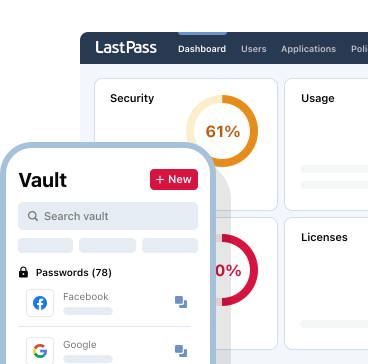
A Security Dashboard can scan your stored passwords and flag problems. You'll see which passwords are weak, which ones you've reused, and which ones have appeared in known data breaches.
Schedule regular password audits, at least quarterly for most businesses. Treat flagged passwords as urgent and update them right away.
7. Train employees to recognize phishing attempts
Phishing emails trick people into entering credentials on fake login pages that look identical to real ones. Regular security training teaches your team to spot red flags: suspicious sender addresses, urgent language, and links that don't match the expected domain.
Simulated phishing exercises help reinforce this training. When employees experience realistic test attacks, they become better at recognizing real ones.
8. Remove access immediately when employees leave
Former employees who retain access to company systems are a major security risk. Whether the employee left on good terms or not, their credentials should be deactivated the moment they're no longer with the company.
A password manager lets you revoke access to shared credentials directly, so departing employees lose access to sensitive logins right away. Directory integrations can automate this further by syncing with your HR system or identity provider to remove access across all connected applications automatically.
Don't forget about shared accounts and passwords. When someone leaves, update any credentials they had access to.
9. Monitor the dark web for leaked company credentials
Data breaches happen constantly, and your employees' work email addresses and passwords may already be circulating in hacker forums. LastPass includes dark web monitoring that scans these sources and alerts you when your company's credentials appear.
This gives you time to act before attackers do. When you get an alert, you can force a password reset for affected accounts and investigate any suspicious activity.
10. Make strong passwords the easy default for your team
Browser extensions that autofill credentials make logging in faster than typing passwords manually. Password generators that create new passwords with one click remove the temptation to reuse old ones.
When you deploy a password manager with autofill enabled by default, employees don't have to change their workflow to stay secure. Good password habits become automatic.
How LastPass helps you protect your business with better password practices
LastPass makes it simple to put these password practices into action across your entire team. The built-in password generator creates strong, random passwords for every account, and the browser extension autofills them so nobody has to remember or type anything.
For businesses, LastPass offers encrypted password sharing with shared folders organized by team or project. Admins can set permissions so employees see only what they need.
The Security Dashboard shows you which passwords across your organization are weak, reused, or have been compromised. Dark web monitoring alerts you when company credentials appear in data breaches, giving you time to respond before attackers strike.
Native integrations for Microsoft Entra ID, Okta, Google Workspace, and OneLogin let you automate user provisioning and deprovisioning. Admins also get over 120 customizable security policies to enforce password requirements across the organization.
LastPass supports multifactor authentication options including the LastPass Authenticator app, Google Authenticator, YubiKey, and FIDO2 biometrics like Windows Hello and Touch ID.
LastPass Business includes 24/7 support through phone, email, and chat.
LastPass SaaS Protect and SaaS Monitoring give IT teams complete visibility and control over every cloud app in their environment — automatically detecting unapproved AI tools and SaaS apps, enforcing security policies, and reducing risk with ease from a single dashboard.
Try LastPass for yourself today with a free trial.
- Easy-to-use interface
- Seamless, safe password sharing
- Native directory integrations
- Scalable and compliant to your needs