
Single sign-on (SSO) software lets your team log into the apps they use all day with one identity instead of a separate password for every tool. An employee logs in once through a single identity provider, and that login carries them into each connected app. SSO aims to provide two things at once: access that's secure (one place to enforce your login rules and shut off access when someone leaves) and access that's convenient (no juggling a dozen passwords to get through the day).
But there are two things to consider when relying on SSO:
-
Not every app works with SSO. This means you’ll need an additional password manager to help your team log into those apps securely and efficiently.
-
It isn’t always feasible to use SSO. SSO is usually locked behind a higher pricing tier, with vendors often charging two to four times the per-user price for the tier that includes it (the "SSO tax").
In this post, we're going to cover:
-
What single sign-on software is and how it works
-
Where single sign-on tools differ, and what to weigh when you're evaluating your options
-
How small to midsize businesses can use LastPass to log in securely
-
The traditional SSO tools worth considering, and when you need one
How does single sign-on work?
Single sign-on runs through an identity provider, which is a system that holds your team's identities and authenticates them on behalf of your other apps. Connecting an app to the identity provider sets up a secure, agreed-upon way for the two to exchange login information. The most common standard for that is SAML (Security Assertion Markup Language), an XML-based format that's been the default for business web SSO for years. A newer one, OIDC (OpenID Connect), does the same job in a more modern format built on OAuth and is common for web and mobile apps.
When someone in your organization opens a connected app, the app doesn't ask for a password. Instead, the app redirects the user to the identity provider, where they log in. The identity provider authenticates the user and sends the app a cryptographically signed message (a SAML assertion) confirming who they are. The app validates that signature against a certificate exchanged when the connection was set up, then logs the user in. This is what’s key about SSO: the user's password only ever goes to the identity provider; the app receives the signed assertion, not the credential.
Signing in also creates a session with the identity provider. While that session is active, opening another connected app runs the same check, but the identity provider recognizes the existing session and confirms the user without a second login. When the session ends, like when a user logs out or a policy requires re-authentication, the user logs in to the identity provider again.
Because every login goes through the identity provider, it's where access rules are set and enforced. Rules such as: requiring multi-factor authentication (MFA), restricting logins to approved locations, and removing a user's access to every connected app at once when they leave. This means when you evaluate SSO tools, you want to make sure they offer the admin policies you need to improve security across your team.
Where single sign-on tools differ
Single sign-on tools vary along a handful of concrete lines:
-
Protocols. SAML and OIDC are the two main SSO standards, and most major SaaS apps and identity providers support both. SAML is the enterprise default for workforce logins (Salesforce, Slack, Workday, Google Workspace), while OIDC powers "Sign in with Google"–style access and modern web and mobile apps. Some tools also support older standards like WS-Fed, Kerberos, or LDAP. Protocol support is rarely the deciding factor for mainstream apps, since the major ones speak SAML; it matters most for legacy, on-premises, or niche apps.
-
Apps that don't federate. Some apps don't support SAML or OIDC, so they can't accept an identity provider's assertion, which means they can't be federated. A few identity providers cover those apps anyway by storing and filling their passwords instead (Okta calls this Secure Web Authentication; Google and Ping offer equivalents). In that mode the credential is passed to the app, so for those apps the tool is functionally acting as a password manager rather than federating them.
-
Provisioning. Some SSO tools only authenticate users. Others use a standard called SCIM to create, update, and remove user accounts in the connected apps automatically as people join, change roles, or leave.
-
Authentication and access policies. Tools differ in which MFA methods they support, whether they offer conditional or adaptive access (rules based on device, location, or risk), and how session length and re-authentication are controlled.
-
Directory. A directory is the authoritative record of your users, including their accounts, the groups they belong to, and their attributes. Some tools include their own directory and act as that record. Others connect to a directory you already run, such as Active Directory or Google Workspace, and use it as their source of user identities rather than maintaining their own.
-
Logging and compliance. Tools differ in the access logs and audit trails they produce and in the compliance certifications they hold.
-
Deployment and pricing. Tools differ in cloud versus on-premises deployment, and in pricing structure,
How small to midsize businesses can use LastPass to securely log in to their tools
LastPass is a password manager and admin console built for small to midsize businesses. When you use LastPass, your team's credentials live in an encrypted vault that you manage from a central admin console, and everyone logs in to their tools through a browser extension that fills those credentials for them.
LastPass acts as the identity provider itself. You add your apps in the admin console, and LastPass logs your team into them over SAML, with no separate SSO product running behind it. It's built for what most small teams need (one login for your common apps, from a catalog of pre-integrated ones), and it's a lighter-weight option than a dedicated identity platform like Okta or Microsoft Entra (which we cover in more detail below). And if you do need an SSO like Okta or Microsoft Entra, LastPass integrates with it, so you can continue to use LastPass to log into all of your non-SSO apps.
In addition to SSO and password management, LastPass also offers two key features that helps your organization manage shadow IT and your SaaS sprawl:
-
SaaS Monitoring. With SaaS Monitoring, you can see which SaaS/AI tools your team is logging into. This includes tools you don’t know about yet. This can help you prevent data leaks, security breaches, as well as just confirm that your SaaS stack includes the tools your team needs to do their job.
-
SaaS Protect. With SaaS Protect, you can block, restrict, or grant access to individual sites. For example, you can block access to tools that you don’t want your team using. You can also create a custom pop up to instruct a team about how to use a site, such as letting users know they can access a tool like ChatGPT or Claude but they can’t upload sensitive data to those sites.
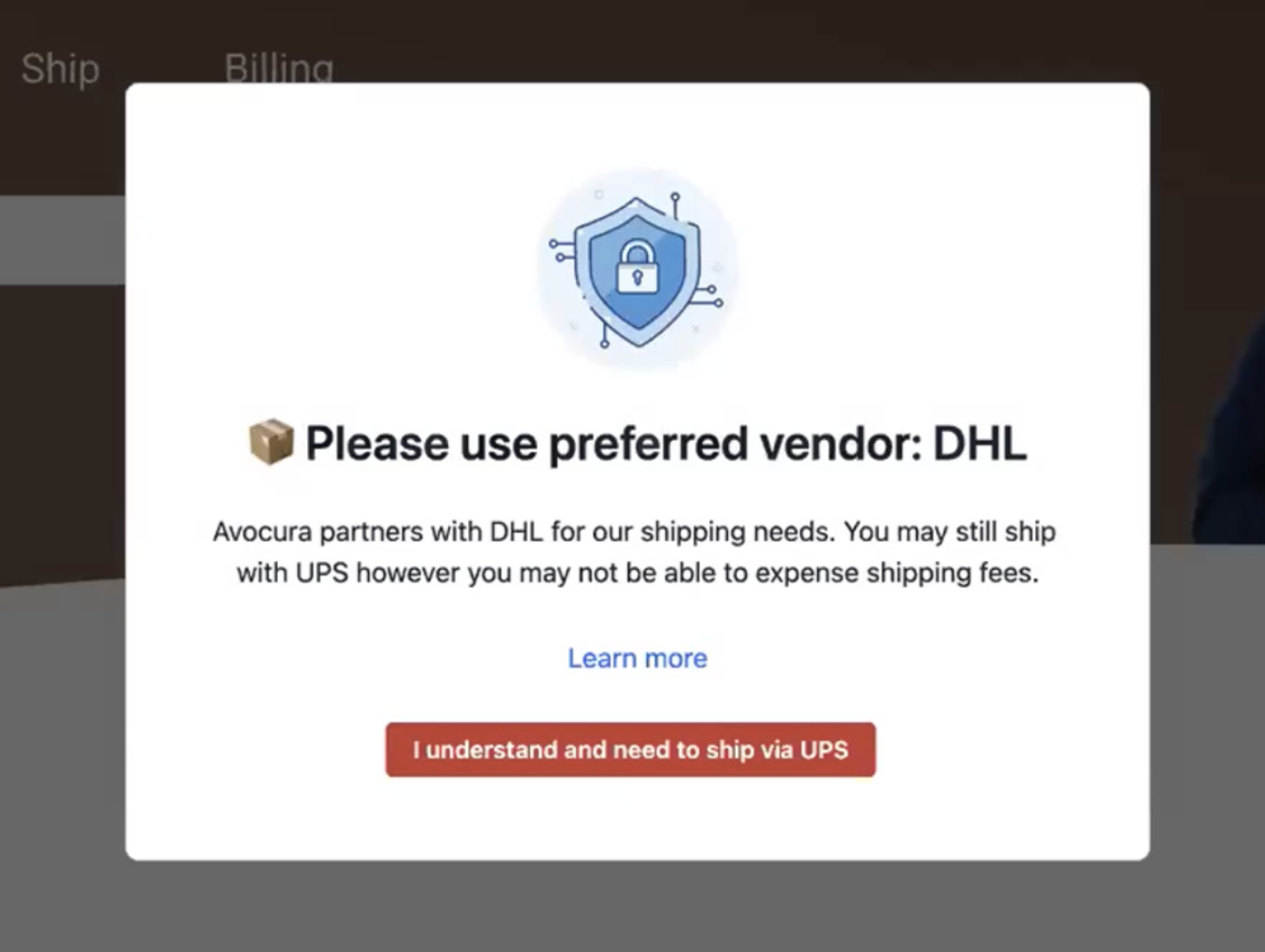
To learn more about how LastPass can help your team log in securely and efficiently, as well as help your organization manage shadow IT and SaaS sprawl, you can sign up for a free trial or schedule a demo. You can also keep reading below, where we cover key LastPass features in detail.
A secure and easy-to-use browser extension
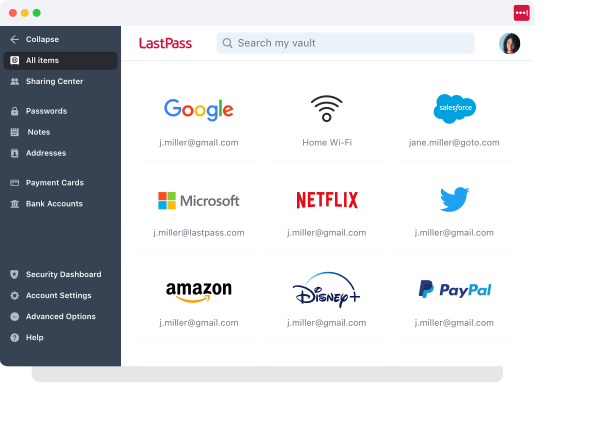
Your team's credentials live in an encrypted vault. You organize it into folders and give each person or group access to only the folders they need. Passwords are most of what's in there, but you can also store API keys, Wi-Fi credentials, and payment cards. The vault is encrypted locally with 256-bit AES, and LastPass uses a zero-knowledge approach, meaning we never see your master password or your stored data.
Because you control who can reach which folders, you manage access from one place. Let's say someone leaves the team: you remove their access to the vault in one move, and the shared credentials they'd been using stay in place for whoever takes over.
Forsters LLP, a London law firm with more than 500 employees, had that concern with turnover. "The risk of losing access to systems when people left the firm was high," says InfoSec Manager Neil Bell. (Read the full Forsters LLP case study.)
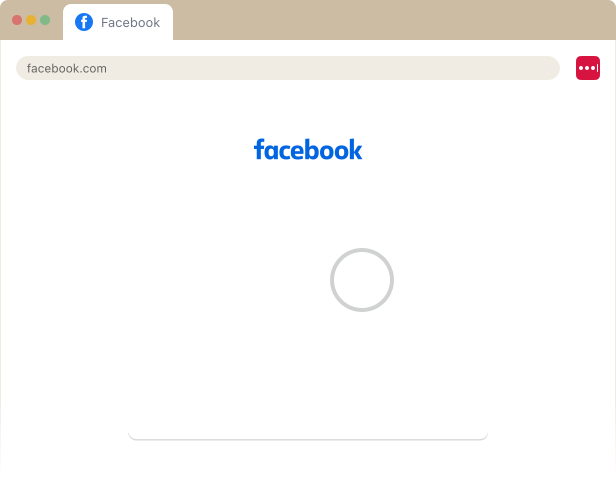
The browser extension is where your team uses the vault day to day. Once someone's logged in, it fills their username and password on the sites they visit. It also handles a few things alongside that:
-
Filling MFA codes: on desktop, the extension pulls in TOTP codes with the login, so there's no switching to a separate authenticator app.
-
Generating and saving passwords: when someone signs up for a new tool, the extension creates a strong, unique password and saves it to the vault.
-
Working across browsers: the extension runs on the major browsers, so the experience is the same from one person's setup to the next.
Your team can also log in from the LastPass mobile app, available on both Android and iOS, so the same credentials are on their phones.
Over 120 admin policies, scoped to users and groups
Admin policies are the rules you set from the admin console for how your team logs in and uses the vault. LastPass has over 120 of them. You can apply each one to everyone, to a specific group, or to a single user, and enabling them takes no technical setup on your end.
A few examples of what you can set:
-
Multi-factor authentication: require MFA and choose which methods are allowed.
-
Geofencing: permit logins from locations you trust (the office, an employee's home) and block them everywhere else.
-
Master password requirements: set how long and how strong master passwords have to be.
-
Offline access: decide whether the vault can be used offline, or only online with MFA or OTP codes.
-
Admin console limits: control how much of the admin console each admin can reach, so help-desk staff can support people without full access.
Because every policy can be scoped, you can hold the people handling your most sensitive systems to stricter rules than the rest of the team.
Managing shadow IT and shadow AI
Shadow IT and shadow AI are the tools your team uses that IT didn't sign off on: someone signs up for a new app or AI tool with a work email, or uses a personal account for work. SSO shows you the apps connected to it, but not the ones your team adopted on their own.
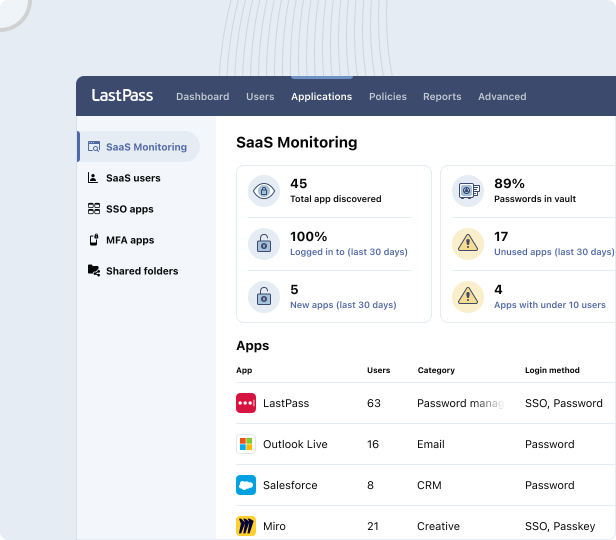
SaaS Monitoring shows you those. It works through the same browser extension your team already uses for autofill, so there's nothing extra to deploy. For each tool, you can see how people are getting in (SSO, a vaulted password, a passkey, or an unvaulted password), whether they're on corporate or personal credentials, and when they last logged in.
Let's say four people on your team are using ChatGPT. SaaS Monitoring shows you that two are on corporate accounts and two signed up with personal emails, which of them logged in with a password versus Google SSO, and when each was last active.
SaaS Protect is how you act on what turns up. For any tool, you can grant access, restrict access, or block the tool completely.
Axxor, a global manufacturer, used SaaS Monitoring to surface employee logins to AI tools like OpenAI and Canva, then decided which to bring under management. "We don't want to block innovation, but we do want to guide it safely," says Process Engineer Wout Zwiep. (Read the full Axxor case study.)
Other key features
Two more features sit outside sign-on but are worth knowing about.
A Security Dashboard
Your Security Dashboard gives you an overall security score across your enrolled users and flags weak, reused, and compromised passwords. It also runs dark web monitoring: if an employee's email address turns up in a known data breach, you're alerted.
"LastPass alerts us to password vulnerabilities, checks if any credentials have appeared in data leaks or on the dark web, and rates the strength of our passwords. Having that level of automated monitoring has been incredibly valuable," says Paul Longega, Managing Director at Love Struck. (Read the full Love Struck case study.)
An Adoption Dashboard
Your Adoption Dashboard tracks how much of your team is actually using LastPass. It shows three metrics: your license consumption rate (how many purchased seats are in use), your enrollment rate (how many invited users have activated their account), and your active usage rate (how many enrolled users have used LastPass in the last 30 days).
HOLT CAT, a Caterpillar equipment dealer with more than 3,500 employees, is one example of adoption at scale: it put all 2,500 of its initial seats to use in the first year and expanded to 3,500 seats, reaching 70% adoption by year two, with employees requesting access on their own. (Read the full HOLT CAT case study.)
Getting started with LastPass
LastPass comes in three business plans, all with a 14-day free trial:
-
Teams — $4.25/user/month: shared folders, an admin console, and 25 security policies. A fit for very small teams that mainly need a shared vault.
-
Business — $7/user/month: adds the over 120 admin policies, group user management, and a free Families account for everyone on the plan.
-
Business Max — $9/user/month: everything in Business, plus SaaS Monitoring, SaaS Protect, advanced MFA, and unlimited SSO apps.
Because LastPass runs from the browser, you can roll it out across your team without device agents or separate compliance setup. OTO Technology, an MSP that deploys LastPass for clients across France, the US, and Japan, onboards each user in under five minutes.
To see how LastPass can work as your password manager, SSO tool, or integrate with other SSO software, you can sign up for a free trial or schedule a demo.
Single sign-on software to consider for your business
Above, we covered using LastPass to log in to your tools. A dedicated identity platform does something structurally different from a password manager: it's a federated identity provider with a central directory. This means that SSO software authenticates users and, through a protocol called SCIM, can create and remove their accounts across every connected app automatically as people join or leave. If you need that automated provisioning across your whole stack, or the formal access reviews and audit trails that come with it, a dedicated single sign-on solution, in tandem with a password manager, can be the right approach. Here are four SSO software to consider.
Okta. A dedicated enterprise identity platform: SSO, MFA, a universal directory, a large app-integration catalog, and automated provisioning and deprovisioning through its Lifecycle Management. Its advanced capabilities (adaptive MFA, lifecycle automation, access governance) sit on higher tiers, and while it offers an entry-level plan, it's positioned and priced with mid-market and enterprise in mind. (View Okta's pricing.)
Microsoft Entra ID. Formerly Azure Active Directory, this is Microsoft's cloud identity platform, and the strongest fit if your organization already runs Microsoft 365, since a free tier is bundled with it. That free tier covers basic directory and SSO; conditional access comes with the P1 tier, risk-based protection and access reviews with P2, and fuller identity governance through a separate tier. (View Entra pricing.)
Google Workspace. If you're already on Google Workspace, it doubles as an identity provider. It supports SAML 2.0 and OIDC and has a catalog of pre-integrated apps, so your team can sign in to those with their Google credentials. Google also offers its identity features standalone as Cloud Identity, for organizations that want the directory without the full Workspace app suite. (View Google Workspace pricing.)
JumpCloud. A cloud directory platform popular with small and midsize businesses. Beyond SSO (SAML, with a catalog of pre-integrated apps) and MFA, JumpCloud bundles cross-platform device management for Windows, Mac, and Linux, plus Cloud LDAP, Cloud RADIUS, and identity lifecycle management. Its identity governance is lighter than a dedicated suite like Okta's or Entra's. (View JumpCloud pricing.)
Note: Plenty of our clients run both a dedicated SSO platform for the apps worth federating and for formal provisioning, and LastPass for the apps SSO doesn't reach and the credentials teams share. To make this set up easier, LastPass integrates with identity providers including Okta, Microsoft Entra, and Google Workspace, so the two work alongside each other.
To see how LastPass can work as your password manager, SSO tool, or integrate with other SSO software, you can sign up for a free trial or schedule a demo.
For more on securing access at your business, check out these articles: