
When someone leaves your company, there's a lot more to think about than returning a laptop. You've got logins to revoke, passwords to change, and devices to recover. It sounds like a lot, but once you've set up a solid process, each departure just means following the same steps.
This guide walks you through eight essential steps to offboard employees securely, from revoking access to documenting everything for compliance. LastPass automates much of this process, making it easy to remove users and revoke their access to shared passwords in just a few clicks.
- Create a standardized offboarding checklist before you need it so nothing slips through the cracks.
- Coordinate timing between HR, IT, and the manager to align on the employee's departure date and access cutoff.
- Revoke access to critical systems immediately upon departure to prevent unauthorized entry.
- Transfer ownership of shared accounts to ensure someone else maintains access to essential credentials.
- Recover company devices and disable remote access to prevent data from leaving your network.
- Change shared passwords the departing employee knew so those credentials are no longer valid.
- Remove the user from LastPass and SSO tools to revoke access across all connected apps.
- Audit access logs to confirm revocation and verify no permissions remain active.
How to offboard an employee securely
1. Create a standardized offboarding checklist before you need it
Having your offboarding checklist ready before you need it makes everything smoother. When someone hands in their resignation, you can focus on the transition instead of scrambling to figure out which accounts need attention.
Your checklist should cover every system, tool, and account your team uses. Think about cloud apps, internal databases, shared drives, email accounts, and any third-party services. Write down who's responsible for revoking access to each one.
Keep this document somewhere accessible, like a shared drive or your IT documentation hub. Review it quarterly to add new tools and remove old ones.
2. Coordinate timing between HR, IT, and the departing employee's manager
Offboarding works best when HR, IT, and the departing employee's manager are all on the same page. HR knows the departure date, IT controls system access, and the manager understands what the employee worked on. A quick sync between the three makes sure nothing falls through the cracks.
Schedule a quick meeting or send an email looping in all three parties as soon as you know someone is leaving. Agree on the exact time when access should be revoked. For voluntary departures, this might be the end of the day on their last day. For involuntary terminations, you may want to revoke access during the termination meeting.
3. Revoke access to critical systems immediately upon departure
Start with your most sensitive systems first. This means financial software, customer databases, HR records, and any tools with payment information. These deserve your attention before anything else.
Work through a priority list. Email and communication tools should be high up since they're often connected to other services through single sign-on. Cloud storage comes next because departing employees might try to download files before losing access.
If you're using a password manager with admin controls, you can revoke access to all shared credentials with a single action instead of hunting through dozens of individual accounts.
4. Transfer ownership of shared accounts and credentials
Some accounts belong to the company, not the individual. Social media logins, vendor portals, shared email addresses, and subscription services often fall into this category. Before someone leaves, figure out who will take over.
When possible, transfer ownership while the departing employee is still around. They can walk the new owner through any quirks, hand over any multifactor authentication devices, and confirm the transition happened smoothly. If that's not an option, make sure the new owner has admin access to reset credentials as needed.
Document these transfers in writing. You'll want a clear record of who now owns each account and when the handoff occurred.
5. Recover company devices and disable remote access
A return checklist helps you keep track of what's been collected and what's still outstanding. This is especially useful if your company has equipment spread across multiple offices or remote locations.
Don't wait until devices are returned to disable remote access. Revoke VPN credentials, remove the device from your mobile device management (MDM) system, and disable any remote desktop connections immediately when the employee leaves.
If a device isn't returned, you can remotely wipe it through your MDM tools. Make sure this capability is configured before you ever need it.
6. Change shared passwords the departing employee knew
Here's where things get tricky. If the former employee knew a password, changing it is the only way to guarantee they can no longer use it. This includes any shared team credentials, service accounts, and passwords that were stored in shared folders.
A password manager makes this manageable. You can see exactly which passwords someone accessed and generate new strong passwords for each one. Without a password manager, you're stuck guessing which credentials they might have memorized.
If you're using a secure access solution like LastPass with password management capabilities, updating shared passwords is straightforward. Change the credential in the shared folder, and everyone who still has access automatically gets the new version. No need to send passwords through email or chat.
- Easy-to-use interface
- Seamless, safe password sharing
- Native directory integrations
- Scalable and compliant to your needs
7. Remove the user from your password manager and SSO tools
Your password management solution and single sign-on (SSO) platform are the master keys to your company's access. Removing someone from these tools cuts off access to all connected applications at once.
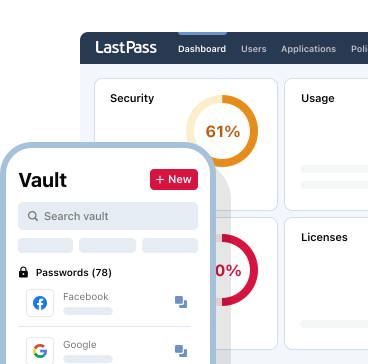
In LastPass, admins can delete a user's account and automatically revoke access to all shared folders and passwords. The process takes seconds and creates an audit trail showing when and how access was removed.
If you use an identity provider like Microsoft Entra ID, Okta, or Google Workspace, removing the user there can automatically remove them from LastPass too.
8. Audit access logs to confirm all permissions were revoked
After you've revoked access everywhere, check the logs to confirm it worked. Look for any login attempts after the revocation date and investigate anything suspicious.
Your password manager's admin dashboard should show active sessions and recent activity. SSO platforms track application access. Cloud services like Google Workspace and Microsoft 365 maintain detailed audit logs you can search.
Pay special attention to any successful logins after the departure time. These might indicate a credential that wasn't properly changed or an account you missed during offboarding.
How do I offboard a remote employee?
Offboarding remote employees follows the same basic steps, but device recovery takes more planning. You'll need to arrange shipping for laptops and any other company equipment. Some companies use prepaid shipping labels to make this easier.
The access revocation side is actually simpler with remote workers since everything is already digital. Remove them from the system, and their access is gone whether they're in the office or across the country.
One thing to double-check: remote employees sometimes use personal devices for work. Make sure any company data on those devices is wiped or transferred before their last day.
Why should you automate employee offboarding?
When your secure access solution and identity provider talk to each other, offboarding becomes remarkably simple. Remove someone from your directory, and that change ripples through every connected system automatically. One action, dozens of accounts handled.
Automation also keeps great records for you. Instead of manually documenting each step, the system logs every action as it happens. When audit time rolls around, you've already got everything you need.
The real win is confidence. You don't have to wonder if you forgot to revoke access to that random app someone signed up for six months ago. The system handles it for you.
How LastPass helps you offboard employees securely
LastPass simplifies the offboarding process. When someone leaves, you can remove their account from the Admin Console and immediately cut off their access to all shared passwords and folders. It takes seconds.
You can also see exactly which credentials the departing employee had access to, so you know which passwords need changing. The built-in password generator creates strong replacements with a single click.
LastPass connects directly with identity providers like Microsoft Entra ID, Google Workspace, Okta, and OneLogin. This means removing someone from your company directory can automatically remove them from LastPass too. One less thing to remember.
If your team is looking for a solution that makes access management simple, try LastPass Business.


