
Single sign-on (SSO) makes it easier for your team to log into the platforms they use every day. Instead of a separate password for Google Workspace, Slack, your CRM, and everything else, your team logs in once through one identity provider, and that login gets them into the connected apps. This means you have fewer passwords to manage across your organization, and you can grant or revoke someone's access to several tools at once.
But for most small businesses, putting every app on SSO isn't realistic, for three reasons:
-
Not every app offers it. Older tools, on-prem software, and plenty of niche apps never built SSO into their platforms.
-
The ones that do often charge for it. SSO is usually locked behind a higher pricing tier, with vendors often charging two to four times the per-user price for the tier that includes it (the "SSO tax").
-
Setup takes work. You connect each app to your identity provider one at a time and set who gets access, so getting your whole stack onto SSO takes more than flipping a switch.
That’s why, in this post, we look at:
How to figure out which apps belong on SSO
SSO is at its best for the apps your team logs into most. When you connect those popular apps to your SSO provider, you cut the daily password friction, enforce MFA at the door, and can revoke access to multiple tools at one time.
Because connecting an app costs money and setup time, the useful question is which apps are worth the investment. A few things tend to tip an app into "worth it" territory:
-
How often your team uses it. The apps everyone's in every day (Google Workspace, Slack, your CRM) save the most friction for the effort.
-
How sensitive the data is. For finance tools, customer records, or admin consoles, enforcing MFA centrally and cutting access fast carries real weight.
-
How much it churns with hiring. If you're regularly onboarding contractors or seasonal staff, provisioning and deprovisioning from one place saves repeated work.
-
Whether compliance touches it. Regulations and compliance standards like HIPAA or SOC 2 often expect centralized authentication and a clean audit trail.
-
Whether the app supports SSO affordably. If it's only available on a tier well above what you'd otherwise pay, that weighs against it.
The apps that check several of these boxes are your clearest candidates.
But as mentioned, not every app works with SSO. Some apps (older or niche ones) don't support SSO at all. Others lock SSO functionality behind a tier that isn't worth it for your size (the SSO tax again).
Finally, SSO tools do not help with managing SaaS sprawl. SaaS sprawl is when the number of apps your team uses keeps growing, usually with people signing up for new tools on their own without looping in IT. It’s not necessarily a thing you want to fully stop, as it’s good to have a team that is finding new tools to help them work more efficiently and more strategically. But you do want visibility into what tools your team is using, and you want a way for them to log in and use these tools securely.
Below we look at how LastPass, our password manager for small to midsize businesses, can:
-
Work as your SSO tool.
-
Integrate with your current SSO tool.
-
Help you monitor and restrict which tools your team uses.
How LastPass helps your team access tools securely and quickly
For plenty of small to midsize businesses, LastPass can work as their password manager and SSO. This is because with LastPass you get:
-
An encrypted vault where your team can store credentials and other sensitive data. You can set up permissions within the vault, so people only have access to what they need.
-
Over 120 admin controls that you can set to determine how users can log in, such as requiring multi-factor authentication (MFA codes) or preventing anyone from logging in from a Tor network.
-
A secure and easy-to-use browser extension. With our browser extension, your team can autofill saved credentials, and log in quickly and securely. In this way, LastPass functions like an SSO. Credentials are pulled automatically into the application, so your team can log in seamlessly.
-
Visibility into what tools your team is using. You can see which SaaS/AI tools your team is actively logging into. You can also set up restrictions on specific sites.
The SSO side works through SAML, so you connect the apps worth putting on SSO with the same tool you use as a password manager. Together, that covers the apps worth SSO and everything SSO can't reach.
LastPass acts as the identity provider itself: you add your apps in the admin console, and it logs your team into them over SAML, with no separate SSO product running behind it. It's built for what most small teams need (one login for your common apps, from a catalog of pre-integrated ones), and it's a lighter-weight option than a dedicated identity platform like Okta or Microsoft Entra. You'd reach for one of those when you need a central directory that provisions and removes accounts across every app automatically, or formal access reviews for compliance. And if you do need an SSO like Okta or Microsoft Entra, LastPass integrates with it, so you can continue to use LastPass to log into all of your non-SSO apps.
To see how LastPass fits, as a password manager, an SSO tool, or both, you can:
Or you can keep reading below to learn more about key features.
An encrypted vault

When you use LastPass, your team's credentials live in a secure, encrypted vault. You organize that vault into folders and give each person or group access to only the folders they need. You can store API keys, Wi-Fi credentials, and payment cards in there too, but most of what's in the vault is passwords: the logins your team uses every day.
It also gives your team something close to an SSO experience. Because the passwords live in the vault and you control who can reach them, people open a site and log in straight from the browser extension, without managing a separate password for each tool.
With your vault, controlling access is straightforward, and that was a key benefit for our client Forsters LLP, a London law firm with more than 500 employees. Staff turnover was a real worry for them. "The risk of losing access to systems when people left the firm was high," says InfoSec Manager Neil Bell. With LastPass, when someone leaves, their access is revoked in one move while the shared credentials stay safe in the vault. (Read the full Forsters LLP case study.)
Your vault is encrypted locally with 256-bit AES, and LastPass uses a zero-knowledge approach, so we never see your master password or your stored data.
120+ admin policies that you can scope down to individual users
Admin policies are the rules you set from the LastPass admin console for how your team logs in and uses the vault. You can apply each one to everyone, to a specific group, or down to a single user, and none of it takes technical setup on your end. LastPass currently has over 120 different admin policies you can set.

One of the main reasons to use SSO is control: making sure people log in securely, and deciding who can access what. Admin policies give you that same control across your whole LastPass setup, both the apps on SSO and everything in the vault, so you can hold your team to one standard without running a full identity platform to do it.
A few examples of what you can set:
-
Require multifactor authentication, and choose which methods are allowed.
-
Use geofencing to permit logins from trusted locations (your office, or an employee's home) and block them everywhere else.
-
Set how long and strong master passwords have to be.
-
Decide whether the vault can be used offline, or only online with MFA.
-
Limit how much of the admin console each admin can reach, so help-desk staff can support people without full control.
Because you can scope every policy, the people handling your most sensitive systems can be held to stricter rules than the rest of the team.
An easy to use browser extension with autofill
The browser extension is where your team actually uses LastPass. Once someone's logged in, it fills their usernames and passwords for them, so getting into a site is a click rather than a search through saved logins.
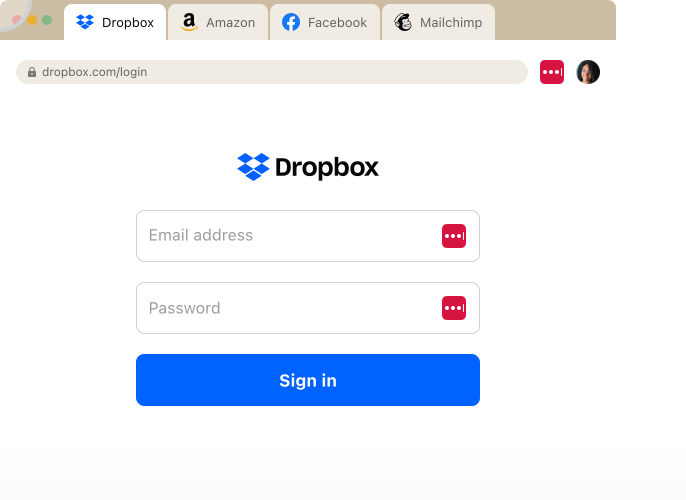
This is the part that makes LastPass feel like SSO day to day. Your team isn't typing or remembering individual passwords; they land on a site and the extension logs them in. For the apps you've put on SSO, that same extension is how people reach them too, so whether a tool is on SSO or just in the vault, the experience is the same.
It also handles the small things that otherwise slow people down:
-
Autofilling MFA codes along with the login, so there's no switching to a separate app.
-
Generating a strong, unique password whenever someone signs up for a new tool, and saves it to the vault automatically.
-
Working across the major browsers, so the experience doesn't change from one person's setup to the next.
SaaS Monitoring that shows you what tools your team is using
SaaS Monitoring shows you which SaaS and AI tools your team is using, through the same browser extension they already use for autofill, so there's no extra software to roll out.
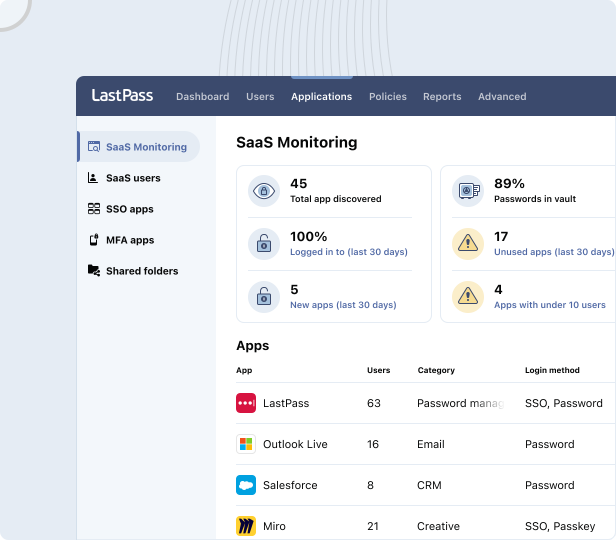
For each tool, you can see how people are getting in: SSO, a vaulted password, a passkey, or an unvaulted password. That tells you whether your team is actually using the SSO you're paying for, or signing into those same apps with a separate password on the side. You can also see who's on corporate versus personal credentials, and when they last logged in.
Say four people on your team are using ChatGPT. SaaS Monitoring shows you that two are on corporate accounts and two signed up with their personal email, which of them logged in with a password versus Google SSO, and when each was last active.
This can help you flag unvetted tools, see if you’re wasting money on software licensing, and it can also help you see which apps to potentially use SSO for.
At LastPass, we also make it easy to restrict access to sites with SaaS Protect.

For any tool that turns up, you can approve it as a standard, restrict it, or push everyone onto the corporate account. Depending on the tool, you might block it outright, warn the person using it, or guide them toward a safer setup.
That balance, of seeing what tools their team was using and deciding, on a case by case basis, which tools to restrict, mattered to Axxor. The global manufacturer used SaaS Monitoring to surface employee logins to AI tools like OpenAI and Canva, then decided which to bring under management. "We don't want to block innovation, but we do want to guide it safely," says Process Engineer Wout Zwiep. (Read the full Axxor case study.)
A Security Dashboard to see compromised credentials
Your Security Dashboard gives you an overall security score and flags weak, reused, and compromised passwords across your team's vaults. It also runs dark web monitoring, so if an employee's email and password show up in a breach, you're alerted.
This matters most for the apps that aren't on SSO. SSO replaces a stack of separate passwords with a single login, so for the apps you've connected, there's no individual password sitting around to go weak, get reused, or leak. But the apps you haven't put on SSO still run on their own passwords, and for a small business that's usually most of them. The Security Dashboard keeps watch over those, so the passwords SSO doesn't replace stay healthy too.
"LastPass alerts us to password vulnerabilities, checks if any credentials have appeared in data leaks or on the dark web, and rates the strength of our passwords. Having that level of automated monitoring has been incredibly valuable." — Paul Longega, Managing Director, Love Struck. (Read the full Love Struck case study.)
How to get started with LastPass
We built LastPass to help small to midsize businesses simplify how their team securely logs into tools and shares credentials. Because of how LastPass works, you get a lot of what an SSO gives you. Your team's logins live in one encrypted vault, you control who can reach which credentials, and people sign into their tools straight from the browser extension instead of tracking a password for each one. And for the apps worth putting on SSO, LastPass runs that too.
Plus, you get more than sign-on. SaaS Monitoring shows you which tools your team is actually using and how they're logging in, and SaaS Protect lets you act on it: approving a tool, restricting it, or steering people to the right account. That's visibility and control beyond what sign-on alone covers.
LastPass comes in three business plans, all with a 14-day free trial:
-
Teams — $4.25/user/month. Shared folders, an admin console, and 25 security policies. A fit for very small teams that mainly need a shared vault.
-
Business — $7/user/month. Adds 120+ admin policies, group user management, and a free Families account for everyone on the plan.
-
Business Max — $9/user/month. Everything in Business, plus SaaS Monitoring, SaaS Protect, advanced MFA, and unlimited SSO apps.
Because LastPass runs from the browser, you can roll it out across your team in an afternoon, with no device agents or compliance setup. OTO Technology, an MSP that deploys LastPass for clients across France, the US, and Japan, gets each user onboarded in under five minutes.
To see how LastPass works as a password manager, an SSO, or both: