
Bitwarden is a team password manager built on open-source code that’s regularly reviewed by Cure53 and available to self-host if you want full control over your infrastructure. That mix of transparency and control is often why developers and technical IT teams reach for Bitwarden, particularly when they're comfortable running the tool with minimal hand-holding.
But for plenty of organizations, Bitwarden either doesn't offer the features they want (such as extensive admin policies to control access and SaaS visibility to see which tools your team is using) or asks for more technical know-how than their team has.
So, in this post, we look at 8 Bitwarden alternatives, including:
1. LastPass

LastPass is a password manager for small to midsize businesses, with advanced secure access controls you'd usually only find in heavier enterprise tools.
With LastPass, you can:
-
Discover which SaaS and AI tools your team is signing into, and restrict the ones you don't want in use.
-
Control access across your team by setting more than 120 admin policies, scoped by team, role, or individual.
-
Simplify secure access with an encrypted vault for storing and sharing credentials, plus autofill and a mobile app that make day-to-day logins easy.
LastPass is deployed at the browser level, through an extension each user installs. That matters for two reasons.
First, the browser is where most credential risk happens. The browser is where your team logs into SaaS and AI tools, where credentials get saved, and where new tools get signed up for, so it's the natural place to see and control access from.
Second, deploying at the browser is what makes LastPass easy to roll out across your organization (no device agents to install or compliance setup to configure).
See what tools your team is using (and set up restrictions)
Your team needs tools to do their jobs, and they don't always run a new one past IT before signing up for it. 55% of organizations say employees adopt SaaS tools without checking with IT first. That leaves you without a clear view of which tools are in use, who's on them, or how they're logging in.
With LastPass, you can use SaaS Monitoring, which runs through the browser extension your team already has installed. SaaS Monitoring shows you which apps your team is signing into, how they're logging in (SSO, a vaulted password, a passkey, or an unvaulted password), and whether they're using corporate or personal credentials.
Let's say four people on your team are using ChatGPT.

Your SaaS Monitoring dashboard shows you that two are on corporate accounts and two signed up with personal ones, whether they logged in with a password or Google SSO, and when each of them last used it.
Plus, once you know what tools your team is using, you can set up restrictions if necessary.
With SaaS Protect by LastPass, you can:
-
Block a tool outright: anyone who tries to open it hits a LastPass block screen in their browser, which you can customize to explain why or point them to an approved alternative.
-
Set up a custom pop-up: a message that appears when someone visits a site, which you can use to warn (reminding someone signing into a generative AI tool not to paste confidential company data) or inform (reminding someone who visits UPS or FedEx that your company has a DHL account).

In our experience, most organizations don't want to fully prohibit their team members from finding and using new tools, especially if these tools make them more productive. But they do want to confirm that their team is only using secure or approved sites.
That's how Axxor, a global manufacturer, approached the issue. As Process Engineer Wout Zwiep put it: "People are experimenting with AI tools like OpenAI and Canva. We don't want to block innovation, but we do want to guide it safely." With the LastPass SaaS Monitoring feature, Axxor can easily see which tools employees are logging into and decide if any tools need to be restricted. (Read the full Axxor case study.)
Customize access with 120+ admin policies
Admin policies are the rules that govern how your team uses their credentials. For example, as an admin you can set whether MFA is required, how long a password has to be, whether someone can open their vault on a personal device.
With LastPass, you can set more than 120 of them and apply each one to specific users, groups, or your entire organization. These policies are easy to enable and require no technical customization on your end, so you don't need a dedicated security specialist to manage them.
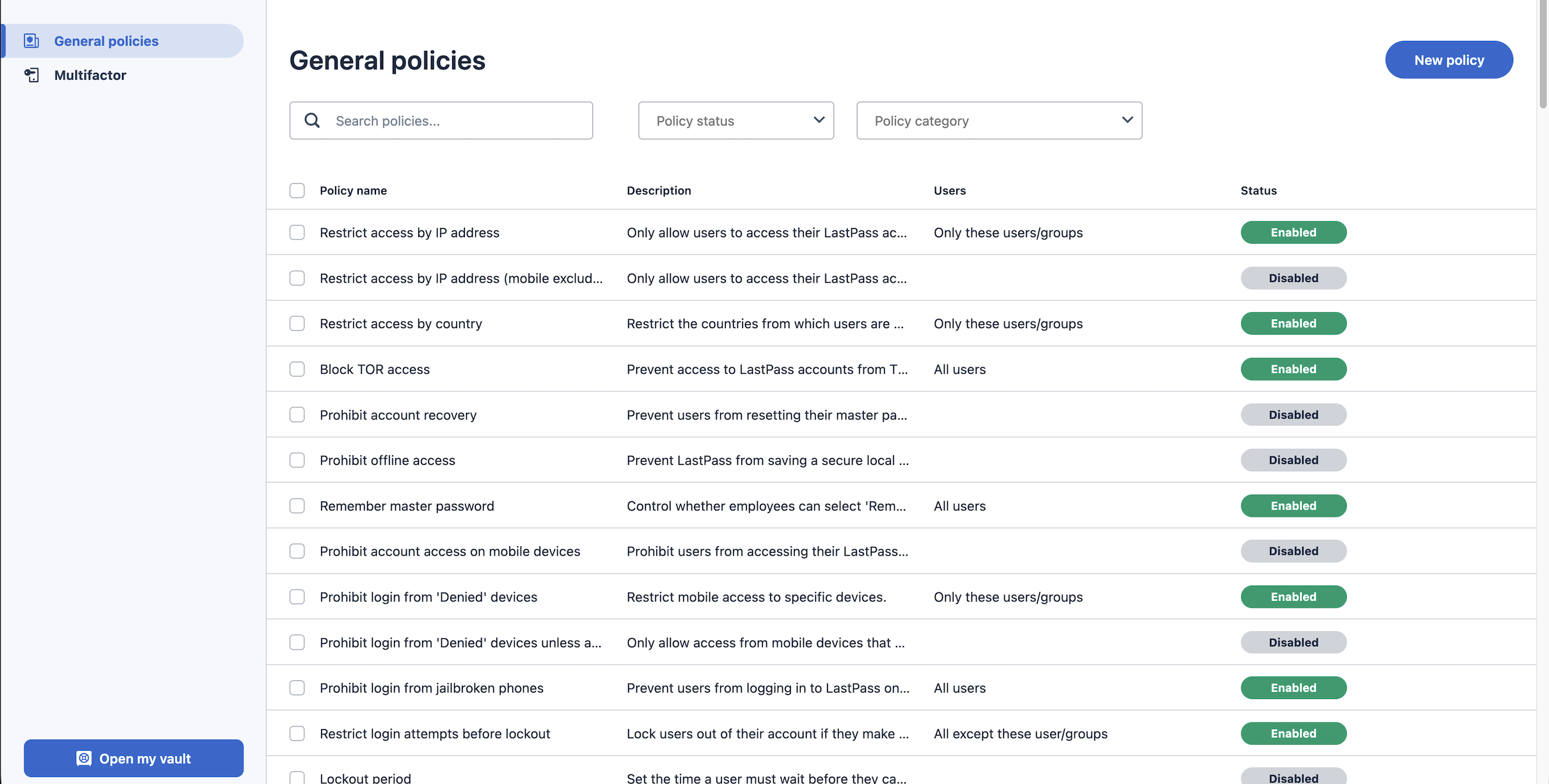
A few examples of the policies you can set, and how you can scope them by user:
-
For your finance team, you can require MFA before they open banking portals, without adding that step for everyone else.
-
For your IT staff, you can set a 16-character password minimum, while general employees stay at 12.
-
You can give contractors shorter lockout periods and no offline vault access on shared machines.
-
You can block logins from TOR networks across your whole organization.
When you set up LastPass, it comes with a recommended set of default policies already in place, so the common protections are on from the start and you adjust from there to fit how your team works.
Securely store and share access with an encrypted vault
The vault is where your team's credentials live. Within the vault, everything is encrypted locally with 256-bit AES before it ever reaches our servers, and LastPass uses a zero-knowledge approach. This means we never have access to your stored data. Your vault can also hold more than passwords. You can use your vault to store sensitive data such as API tokens, Wi-Fi credentials, payment cards, and other details your team needs to keep somewhere secure.
As an admin, you organize the vault into folders and decide who can see what. For example, you can create a folder for the marketing team's shared logins and another for finance's payment cards, then grant access to the right people.
For employees, the vault is where they store their own work credentials. When someone logs into a tool, LastPass offers to save those credentials to their vault. Everything they save is available through the browser extension and the mobile app, so it's there wherever they're working.
When someone leaves or changes roles, you can revoke their access as needed. The credentials stay in the vault and the person simply loses access, so you're not resetting every shared password the rest of the team still relies on.
That was a real concern for Forsters LLP, a London law firm with more than 500 employees. As InfoSec Manager Neil Bell put it, "The risk of losing access to systems when people left the firm was high." By using LastPass, they could ensure that access remained with the law firm, not the individual lawyers. (Read the full Forsters LLP case study.)
Make it easy for your team to access the tools they need
The LastPass browser extension (available for Chrome, Firefox, Safari, and Edge) autofills usernames, passwords, and MFA codes for desktop users, so signing in doesn't mean hunting for a credential or switching between screens.
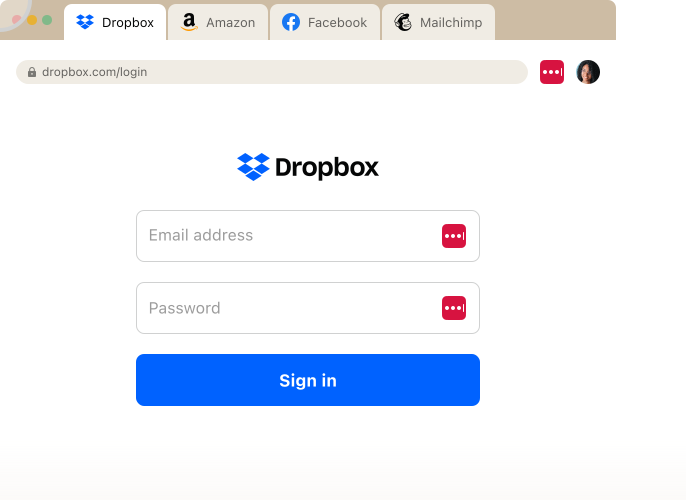
Plus, when someone signs up for a new tool or needs to update a password, LastPass generates a strong, random one right there in the browser.
For everything that happens away from a desk, there's the LastPass mobile app for iOS and Android. Your app syncs with the same vault, unlocks with Face ID, Touch ID, or a fingerprint, and autofills credentials inside other apps and the mobile browser, so logging into a SaaS tool on a phone works the same way it does on a laptop. The app also supports passkeys, which your team can save and use anywhere they're accepted.
Easily deploy LastPass across your organization
LastPass is ideal for small to midsize businesses because it offers the features they need, while being easy to deploy across an organization.
You create your account, invite your team, and each person installs the extension. There are no device agents to push out and no compliance infrastructure to stand up first, so setup takes minutes.
This is also true if you have a high number of applications to log into and need to integrate with other cloud security partners.
For example, HOLT CAT, a Caterpillar equipment dealer with more than 3,500 employees, needed a password manager to handle over 350 applications and work with Microsoft Entra ID. The company used all 2,500 of its initial seats in the first year, expanded to 3,500, and reached 70% adoption by year two.
Tony Ledbetter, HOLT CAT’s Senior Security IT Manager, credits HOLT CAT’s successful deployment and adoption to the simplicity of LastPass, as well as support from the LastPass Customer Success team. "The results have been absolutely remarkable, we've reduced our risk significantly and have successfully prevented any password leaks from occurring this year." (Read the full HOLT CAT case study.)
You can also track adoption directly in your Adoption Dashboard which shows you three metrics at a glance:
-
Your license consumption rate (how many of the seats you bought are in use)
-
Your enrollment rate (how many invited people have activated their account)
-
Your active usage rate (how many enrolled users have actually used LastPass in the last 30 days).
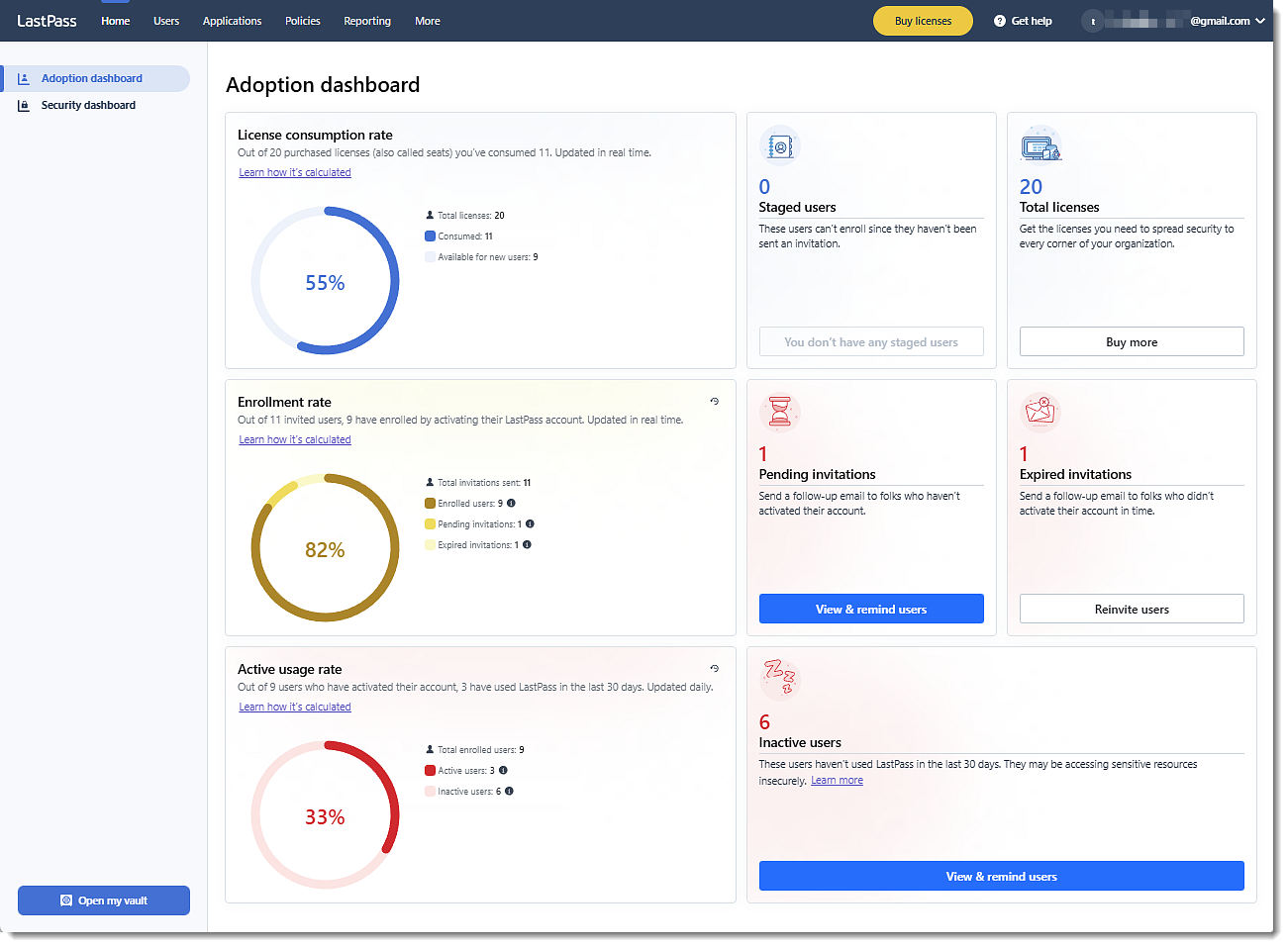
Between visibility into the tools your team uses, admin policies you can scope, an encrypted vault, and autofill across the browser and mobile, LastPass handles the access work a growing business runs into, and you can have it deployed in an afternoon.
The best way to see whether it fits is to try it with your own team in mind. You can start a free trial or book a demo to walk through how our key features will help fulfill your secure access needs.
2. Dashlane
Bitwarden suits technical teams who are comfortable managing their own setup. Dashlane is built for the opposite kind of buyer: businesses that want something approachable their whole team can pick up without much hand-holding. The interface is clean, form filling adapts to how people work, and there's a built-in VPN. On the security side, Dashlane's Omnix platform adds AI-powered phishing alerts and credential risk detection, and can nudge employees over Slack when it spots risky behavior.
For a business, the limits are mostly around admin control and visibility.
-
Dashlane has around 16 admin policies that apply across the whole organization, so you can't scope rules to specific users or groups, and admin roles are fixed (Admin, Group Manager, and User, with no custom roles).
-
Dashlane offers some insight into credential risk and SaaS usage, but it's geared toward credential detection rather than governing which SaaS and AI tools your team signs into, so the view is narrower than a tool with dedicated SaaS monitoring.
For more information on Dashlane, you can:
3. Keeper
Bitwarden appeals to technical teams broadly. Keeper is aimed at a more specific case: organizations in regulated industries or government, and teams that need privileged access management (PAM) alongside password storage.
Keeper carries FedRAMP, StateRAMP, and FIPS 140-3 certifications, offers PAM features like secrets and session management, and encrypts each vault, folder, and item with its own AES-256 key. The vault is highly customizable (nested folders, color-coded entries, grid or list views), with granular per-item access controls and a range of 2FA methods.
For a business weighing total cost, a few things stand out.
-
Keeper tends to start competitively but climb at renewal, with multiple users reporting increases of 40–200% over their first-year rate.
-
Several features you might expect to be included (dark web monitoring, advanced reporting, even some support) come as paid add-ons.
-
Shared folders can become orphaned when their creator leaves, with no clear owner for the credentials inside.
-
Keeper doesn't offer SaaS or AI visibility.
For more information on Keeper, you can:
4. KeePass
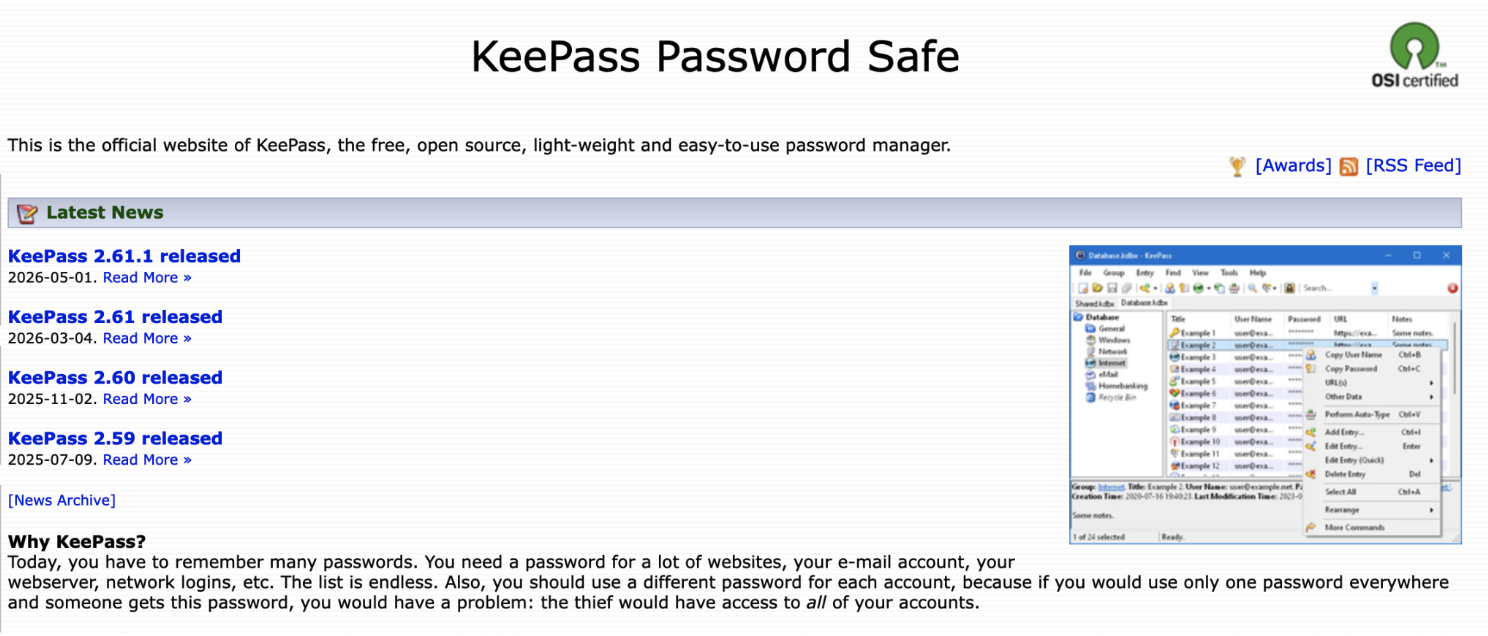
If Bitwarden leans technical, KeePass leans further still. KeePass is free, open-source, and entirely local: your passwords live in an encrypted .kdbx file you control completely, secured with AES-256. For a technically comfortable individual who wants a no-frills local vault, that's appealing.
KeePass isn't built for running a business, though. There's no admin console, no shared vaults with per-user permissions, and no central way to enforce rules across a team (you either apply the same configuration to everyone or to no one). Core conveniences like browser autofill, cross-device sync, and password strength reports depend on third-party plugins, sync has to be wired up manually through something like Dropbox or a network share, and support is community forums rather than live help. KeePass also has no SaaS or AI visibility.
KeePass is a fit when you want free, fully self-managed local storage and have the technical comfort to maintain it. You can find download and setup details on KeePass's site ([NEEDS: KeePass URL]).
5. NordPass

NordPass is the budget option on this list, built around straightforward password management with newer encryption standards (XChaCha20 with Argon2id key derivation). Each user gets file storage and email masking, and NordPass can bundle with other Nord products like NordVPN if your team already uses them.
But the tradeoff shows up on the admin side.
-
NordPass has around 8 admin policies, the fewest of any tool here, and sharing is limited to view, edit, or autofill permissions without multi-level folder controls.
-
Items can only be shared between members in the same data center, support is chat and email only.
-
There's no SaaS or AI visibility.
Further, because Nord Security maintains a wide product line, development attention is spread across several tools rather than concentrated on password management.
For more information on NordPass, you can:
6. 1Password
1Password overlaps with Bitwarden on audience: both suit technically sophisticated teams. 1Password aims further up market, toward larger enterprises with dedicated IT or security staff. 1Password is known for a polished native Mac app and Safari integration, and for developer tooling like SSH key management, a CLI for secrets automation, and Travel Mode. Over the past few years it has built out Extended Access Management, adding device trust, SaaS management, and access controls on top of the core password manager.
But those capabilities arrive as separate add-ons, each with its own interface, which can make the experience feel fragmented and push up cost.
On core admin features, 1Password offers around 25 security policies applied across the organization rather than scoped to specific users or groups, and phone support is limited to business hours. For a small or midsize business without a dedicated IT team, that enterprise-grade breadth may be more than the situation calls for.
If you’re looking for a Bitwarden alternative and your organization has a dedicated security team and needs developer tooling, 1Password is an option to consider.
7. Proton Pass

Proton Pass shares Bitwarden's open-source, privacy-first DNA, but targets teams that want it with less to manage themselves. Proton Pass is open-source and ISO 27001 certified, built by the team behind Proton Mail and hosted under Swiss privacy law.
For businesses, Proton Pass offers a central admin dashboard, SCIM provisioning, SSO with providers like Okta and Microsoft Entra, and enforceable policies for 2FA, password requirements, and sharing. It adds dark web monitoring, email aliases to mask addresses, passkey support, and a CLI for IT and developer workflows. And if your team wants an encrypted-everything stack, Proton Pass is part of a suite that includes Proton Mail, Calendar, Drive, and VPN.
But it does have gaps, specifically admin depth and visibility. For example, Proton Pass's policy set is managed centrally but more limited than LastPass's, and Proton is still expanding it. And like Bitwarden, Proton Pass focuses on the credentials stored in its own vault. So while it monitors password health and the dark web, it won't show you which SaaS and AI tools your team is signing into outside the vault, or let you block unapproved apps.
Proton Pass is a good fit when open-source code, Swiss privacy, and an integrated encrypted suite are what you're after, and it scales from small teams to large enterprises. But it lacks SaaS and AI visibility and the breadth of scoped admin policies of Bitwarden alternatives like LastPass.
8. RoboForm

RoboForm gives admins a centralized console for user and group management, role-based access control, SSO, and SCIM provisioning, plus enforceable security policies (2FA, password rules, access restrictions). Each employee gets separate work and personal vaults, sharing is permission-based, and the business plan includes dark web monitoring, activity logs, reporting, built-in authenticator codes, passkeys, and 24/7 support.
For a business, a few limits are worth knowing.
-
RoboForm doesn't support Safari (Chrome, Firefox, and Edge only) and offers no self-hosting.
-
RoboForm has no SaaS or AI visibility, so it won't surface which tools your team is using outside the vault.
Overall, RoboForm’s admin customization and reporting are lighter than the most configurable enterprise-focused tools.
Next steps: choosing the best Bitwarden alternative for your organization
The right Bitwarden alternative comes down to what your team needs. If compliance certifications or privileged access management are non-negotiable, Keeper is built for that. If you want something free and entirely local, and you're comfortable maintaining it yourself, KeePass fits (though it's really a tool for an individual, not a team). And if you've got developers and a dedicated IT team to run it, 1Password leans into that with its developer tooling.
Dashlane, NordPass, RoboForm, and Proton Pass cover more general business use, and for a lot of teams more than one would work. They range from cheap and basic (NordPass) to fairly full-featured (RoboForm and Proton Pass), so it comes down to the admin depth, interface, and privacy story you want.
However, if you're running a small to midsize business that wants the core of password management, plus visibility into the SaaS and AI tools your team is signing into, admin policies you can scope to specific people, and a rollout that doesn't turn into a project, LastPass is built for that.
The best way to know whether it fits is to try it with your own team in mind. You can start a free trial or book a demo to walk through how our key features will help fulfill your secure access needs.


